Note
Access to this page requires authorization. You can try signing in or changing directories.
Access to this page requires authorization. You can try changing directories.
Use the Azure portal to enable IPv4/IPv6 dual-stack mode on an existing IPv4-only Azure Route Server in a subscription where preview access is enabled. Add an IPv6 prefix to RouteServerSubnet before you change the route server configuration.
Important
Azure Route Server IPv4/IPv6 dual-stack mode is in public preview. See the Supplemental Terms of Use for Microsoft Azure Previews for legal terms that apply to Azure features in preview.
Regional availability
Azure Route Server IPv4/IPv6 dual-stack mode is available in public preview only in the following Azure regions:
| Region | Programmatic name |
|---|---|
| East US 2 EUAP | eastus2euap |
| Central US EUAP | centraluseuap |
| West Central US | westcentralus |
| East Asia | eastasia |
| UK South | uksouth |
| Central US | centralus |
| Australia Central | australiacentral |
| Korea Central | koreacentral |
| Central India | centralindia |
| Brazil South | brazilsouth |
| Malaysia West | malaysiawest |
Prerequisites
- An Azure Route Server deployed in a RouteServerSubnet that has only an IPv4 address prefix.
- The route server must be in a region listed in Regional availability.
- An IPv4/IPv6 dual-stack virtual network with an available IPv6 /64 prefix for RouteServerSubnet. The IPv6 prefix must be within the virtual network's IPv6 address space.
You can enable dual-stack mode with or without a network virtual appliance (NVA) peering, an ExpressRoute gateway connection, or a VPN gateway connection. Existing IPv4-only connections remain unchanged.
Important
Enabling dual-stack mode on an existing route server is irreversible. To return to IPv4-only mode, you must delete and recreate the route server. Review your routing dependencies before you make this change.
Add an IPv6 prefix to RouteServerSubnet
In the Azure portal, open the virtual network that contains your route server.
Under Settings, select Subnets, and then select RouteServerSubnet.

Select Add IPv6. Enter an available IPv6 /64 prefix from the virtual network's address space.

Select Save to update the subnet.


Enable dual-stack mode
- Open your Azure Route Server resource. Under Settings, select Configuration.
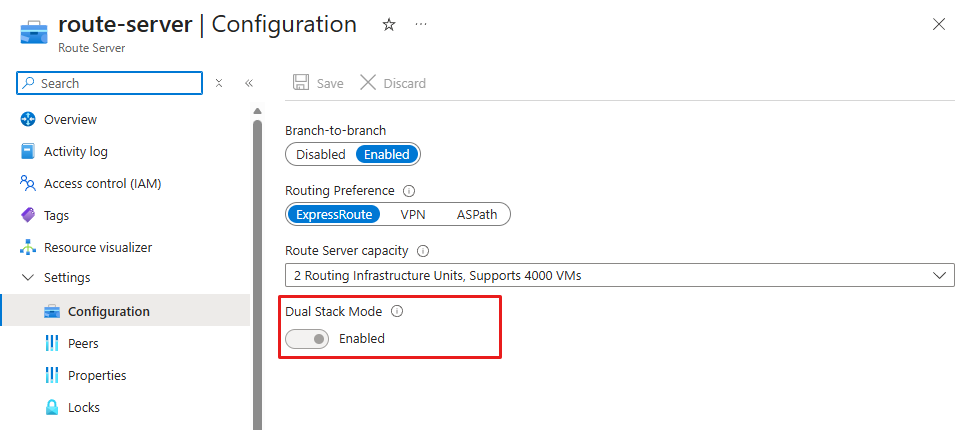
- Set Dual Stack Mode to Enabled. Read the portal confirmation about the irreversible change, and then select Save.
The portal warns that enabling dual-stack mode is permanent and can take up to 40 minutes to complete.
Important
In a hub-and-spoke virtual network topology, adding an IPv6 address space to the hub virtual network and an IPv6 prefix to RouteServerSubnet causes the spoke virtual network peerings to become out of sync. Resync each peering to restore the correct peering configuration between the hub and spoke virtual networks.
Verify the configuration
On the route server Overview page, confirm that Provisioning state and Connectivity status show Succeeded. On Configuration, confirm that Dual Stack Mode is Enabled.
If you have connected peers or gateways, check the expected routes for each configured address family. An IPv4-only connection doesn't need to exchange IPv6 routes to complete this task. Route learning doesn't verify packet delivery.
If provisioning doesn't reach Succeeded, don't assume the route server is ready to exchange routes. Contact Azure support for help before making further routing changes.
Next steps
- To filter and summarize IPv4 and IPv6 routes, see Configure dual-stack route maps by using the Azure portal.
- For an example of BGP peering with an NVA, see Tutorial: Configure BGP peering between Azure Route Server and network virtual appliance (NVA).
- To inspect routes learned by Route Server, see View effective routes.