Note
Access to this page requires authorization. You can try signing in or changing directories.
Access to this page requires authorization. You can try changing directories.
This article shows how to connect the OPC UA reference solution to Dynamics 365 Field Service by using Azure Logic Apps. You use Azure Data Explorer queries and Dataverse actions to populate customer assets and automatically create IoT alerts when telemetry crosses thresholds. This approach helps you connect plant telemetry to service workflows so operations teams can respond faster.
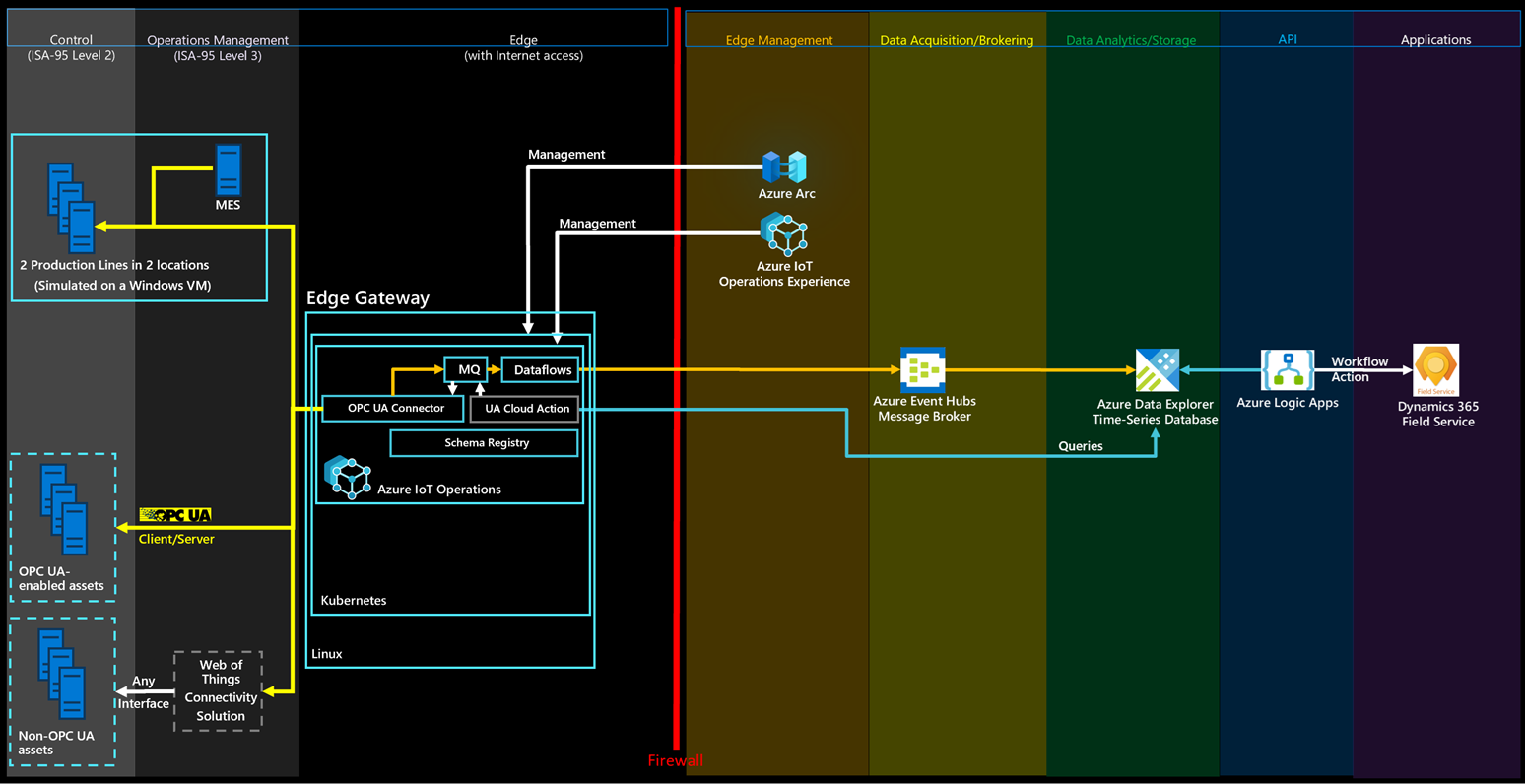
This integration showcases the following scenarios:
- Upload assets from the manufacturing ontologies solution to Dynamics 365 Field Service.
- Create alerts in Dynamics 365 Field Service when a certain threshold on manufacturing ontologies solution telemetry data is reached.
The integration uses Azure Logic Apps. With Logic Apps, you can use no-code workflows to connect business-critical apps and services. This example shows you how to fetch data from Azure Data Explorer and trigger actions in Dynamics 365 Field Service.
If you're not already a Dynamics 365 Field Service customer, activate a 30-day trial.
Tip
To avoid the need to configure cross-tenant authentication, use the same Microsoft Entra ID that you used to deploy the manufacturing ontologies solution.
Create an Azure Logic Apps workflow to create assets in Dynamics 365 Field Service
To upload assets from the manufacturing ontologies solution into Dynamics 365 Field Service:
Go to the Azure portal and create a new logic app resource.
Give the Azure Logic Apps a name, and place it in the same resource group as the manufacturing ontologies solution.
Select Workflows.
Give your workflow a name. For this scenario, use the stateful workflow type because assets aren't flows of data.
In the workflow designer, select Add a trigger. Create a Recurrence trigger to run every day. You can change the trigger to occur more frequently.
Add an action after the recurrence trigger. In Add an action, search for
Azure Data Explorerand select the Run KQL query command. Leave the default authentication OAuth. Enter your Azure Data Explorer cluster URL andontologiesas the database name. In this query, you check what kind of assets you have. Use the following query to get assets from the manufacturing ontologies solution:opcua_telemetry | join kind=inner ( opcua_metadata | distinct DataSetName, Subject | extend AssetList = split(DataSetName, ';') | extend AssetName = tostring(AssetList[0]) ) on Subject | project AssetName | summarize by AssetNameTo get your asset data into Dynamics 365 Field Service, you need to connect to Microsoft Dataverse. In Add an action, search for
Dataverseand select the Add a new row command. Leave the default authentication OAuth. Connect to your Dynamics 365 Field Service instance and use the following configuration:In the Table Name field, select Customer Assets
In the Name field, select Enter data from a previous step, and then select AssetName.

Save your workflow and run it. You can see the new assets are created in Dynamics 365 Field Service:


Create an Azure Logic Apps workflow to create alerts in Dynamics 365 Field Service
This workflow creates alerts in Dynamics 365 Field Service when the FaultyTime for an asset in the manufacturing ontologies solution reaches a threshold.
To fetch the data, create an Azure Data Explorer function. In the Azure Data Explorer query panel in the Azure portal, run the following code to create a
FaultyFieldAssetsfunction in the ontologies database:.create-or-alter function FaultyFieldAssets() { let Lw_start = ago(3m); opcua_telemetry | where Name == 'FaultyTime' | where todouble(Value) > 0 | where Timestamp between (Lw_start .. now()) | join kind=inner ( opcua_metadata | extend AssetList = split(DataSetName, ';') | extend AssetName = tostring(AssetList[0]) ) on Subject | project AssetName, Name, Value, Timestamp}Create a new stateful workflow in your Logic App.
In the workflow designer, create a recurrence trigger that runs every three minutes. Then add an action and select the Run KQL query action.
Enter your Azure Data Explorer Cluster URL, then enter ontologies as the database name and use the
FaultyFieldAssetsfunction name as the query.To get your asset data into Dynamics 365 Field Service, you need to connect to Microsoft Dataverse. In Add an action, search for
Dataverseand select the Add a new row command. Leave the default authentication OAuth. Connect to your Dynamics 365 Field Service instance and use the following configuration:- In the Table Name field, select IoT Alerts
- In the Description field, use Enter data from a previous step to build a message "[AssetName] has a [Name] of [Value]". AssetName, Name, and Value are the fields from the previous step.
- In the Alert Time field, select Enter data from a previous step, and then select Timestamp.
- In the Alert Type field, select Anomaly.

Run the workflow to see new alerts generated in your Dynamics 365 Field Service IoT Alerts dashboard:


