Note
Access to this page requires authorization. You can try signing in or changing directories.
Access to this page requires authorization. You can try changing directories.
Use the following information to troubleshoot issues with Azure AI Video Indexer enabled by Arc.
Troubleshooting checklist
Use this checklist before you troubleshoot a specific symptom:
- Verify connectivity from your browser or client to the cluster endpoint.
- Verify certificate trust and endpoint reachability.
- Check camera status in the portal or with the List-Cameras API.
- Check extension and camera logs for recent errors.
- Validate storage capacity and free space.
- Validate GPU mapping and GPU compatibility when real-time analysis is affected.
Troubleshoot general errors
If you encounter an error while using Azure AI Video Indexer enabled by Arc, check the following scenarios:
Video Indexer portal fails to access the extension
The extension was installed successfully, but the Video Indexer portal fails to access the extension.
Many issues can interrupt communication between the Video Indexer portal and the Video Indexer extension. Most issues are network-related, such as connectivity and certificate validation problems. Continue reading to determine which issue is related to accessing the extension.
Playback has buffering delays
Playback has buffering delays when streaming from the Video Indexer extension.
This behavior is expected. The extension streams media from the virtual machine (VM). Use one of the following options:
- Encode your video to MP4/H264 and AAC audio before indexing so network streaming works across most devices, browsers, and operating systems.
- Implement your own streaming server endpoint that does the encoding beforehand or use just-in-time (JIT) encoding.
For example, you can use ffmpeg and Shaka Packager for preprocessing and packaging encoded files for HLS or DASH streaming. By using this method, you can place streamable files in storage and use the streaming endpoint to serve only those files.
Troubleshoot real-time analysis issues
Use the following sections to troubleshoot issues with Azure AI Video Indexer enabled by Arc for real-time video analysis.
Error connecting to the extension
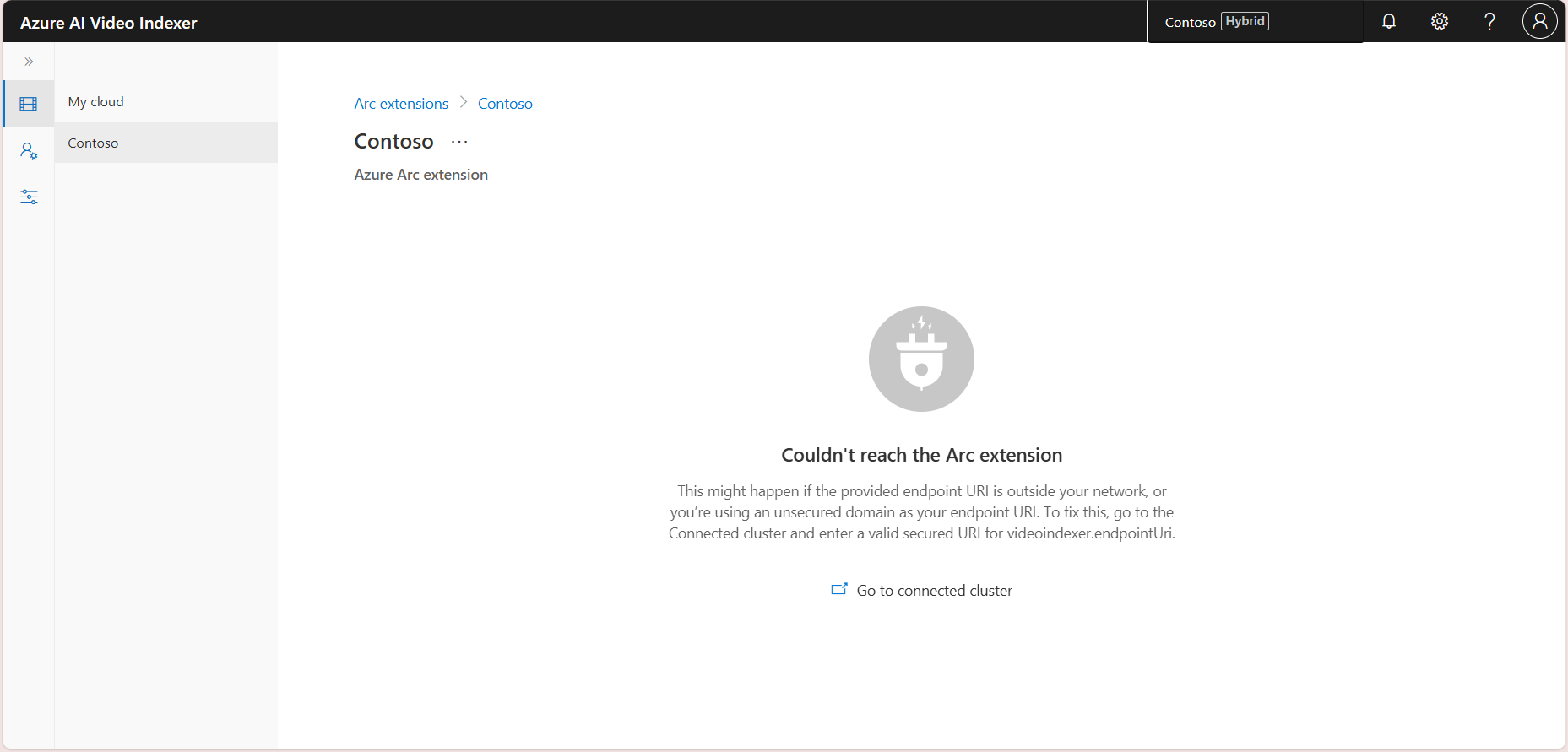
If you get an error saying Couldn't reach the Arc extension:
In your browser's URL bar, enter
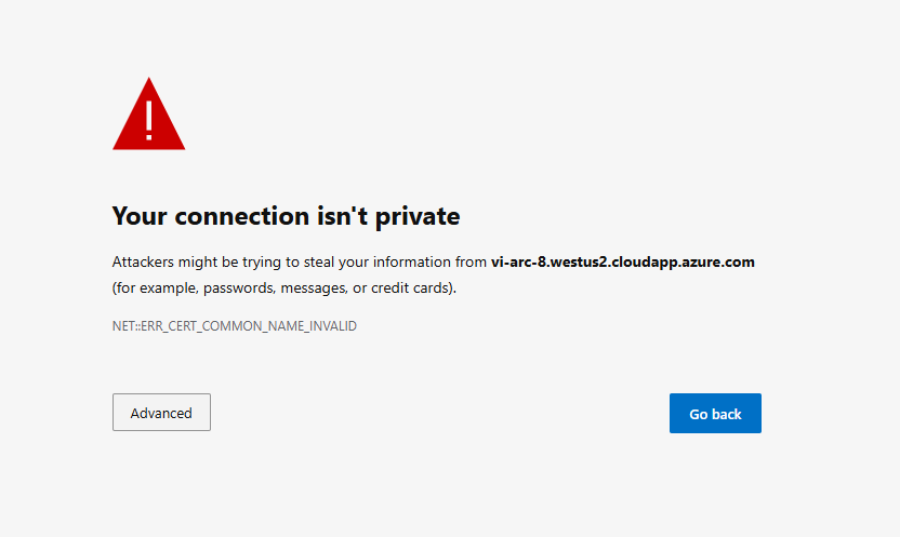
https://{cluster endpoint URL}/info.If this is a nonproduction test environment, you can temporarily select Advanced and then select Continue to {cluster endpoint URL} (unsafe) to confirm reachability. Don't use this bypass as a permanent configuration.
Install or trust the correct certificate for your endpoint so that the connection succeeds without bypassing browser security checks.


Error connecting to camera
When a camera fails to connect, quickly identify the root cause to restore service. Use the following steps to diagnose and resolve common camera connection errors.
Detect camera failures
You can monitor camera health in two ways:
Use the Camera management tab to view the status of all connected cameras in the dashboard.
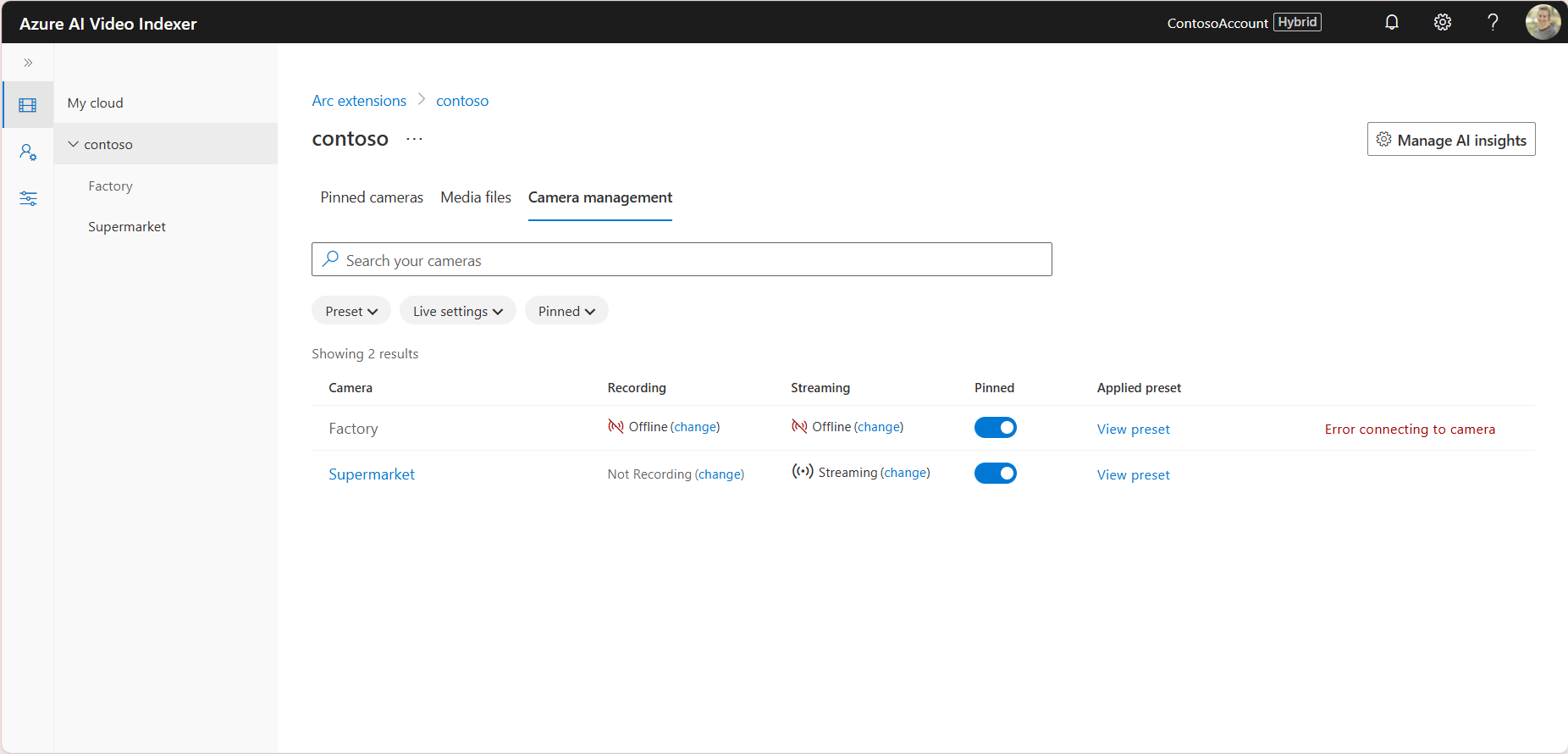
Use the List-Cameras API to retrieve detailed information about each camera programmatically, including status and error messages. Here's an example of the API output showing camera status:
{
"results": [
    {
        "id": "aaaaaaaa-0000-1111-2222-bbbbbbbbbbbb",
        "name": "Factory",
        "description": "Factory",
        "status": "Offline",
        "errorInfo": {
            "errorType": "CAMERA_FATAL_ERROR",
            "errorMessage": "PGIE heartbeat not received, Live streaming heartbeat not received, Recording heartbeat not received"
        },
        "rtspUrl": "rtsp://media-server.video-indexer:8554/Factory",
        "presetId": "bbbbbbbb-1111-2222-3333-cccccccccccc",
        "isPinned": true,
        "liveStreamingEnabled": true,
        "recordingEnabled": true,
        "recordingsRetentionInHours": 72,
        "insightsRetentionInHours": 4320,
        "deletionTime": null,
        "createTime": "2025-10-28T09:11:12.0933333+00:00",
        "lastUpdateTime": "2025-10-28T23:25:00.49+00:00"
    },
    {
        "id": "cccccccc-2222-3333-4444-dddddddddddd",
        "name": "Supermarket",
        "description": "Supermarket",
        "status": "Online",
        "rtspUrl": "rtsp://media-server.video-indexer:8554/Supermarket",
        "presetId": "67280024-1f2f-4034-b19b-bed53bd020cb",
        "isPinned": true,
        "liveStreamingEnabled": true,
        "recordingEnabled": false,
        "recordingsRetentionInHours": 72,
        "insightsRetentionInHours": 72,
        "deletionTime": null,
        "createTime": "2025-10-27T18:44:27.9033333+00:00",
        "lastUpdateTime": "2025-10-28T08:44:13.9766667+00:00"
    }
],
"nextPage": {
    "pageSize": 100,
    "skip": 0,
    "done": true,
    "totalCount": 2
 }
}
Key fields for troubleshooting
For each failed camera, the following fields provide key diagnostic information:
status: Indicates whether the camera is operational. A failed camera shows asOffline.errorInfo: Provides the error type and error message that explain why the camera failed.
Common camera failure situations
Use the following sections to troubleshoot common camera failure situations.
RTSP URI unreachable
- Error message:
RTSP URI is unreachable, camera not added - Cause: The RTSP URL provided when creating the camera can't be reached.
- Resolution:
- Verify that the RTSP stream is live and accessible from your network.
- Since RTSP URLs can't be updated for existing cameras, delete the camera and create a new one with a valid RTSP URL.
Heartbeat not received
- Error message:
PGIE/Recording/Live Streaming heartbeat not received - Cause: No video frames were processed for more than two minutes. This issue can happen because of the following conditions:
- Stream interruption - The camera stopped sending frames, possibly because of network instability or a camera crash.
- Insufficient space on file share or disk - The disk might be full, which can prevent new files from being created and frames from being processed.
- Real-time analysis internal error - Rare, but possible because of system issues.
- Resolution:
Confirm that the RTSP stream is still active and frames are being transmitted.
In the logs, look for the
gst-resource-error-quark; Could not open resource for writing.message.Check the
propertiesfield. If it containsNo space left on device, the file share or disk is full. Increase storage volume by using the following command:az k8s-extension update -n $EXTENSION_NAME -g $RESOURCE_GROUP --cluster-name $CLUSTER_NAME --cluster-type $CLUSTER_TYPE --config storage.indexing.size=$STORAGE_SIZE --yesReset camera configuration:
- Disable Streaming for the affected camera.
- Re-enable Streaming.
- Confirm that the camera status transitions from Offline to Updating to Online.
If the issue persists or recurs frequently, contact support.
Internal errors
- Error message:
An internal error occurredor other unspecified errors. - Resolution:
- Disable and re-enable one feature, such as Streaming, Recording, or Preset.
- If the problem continues, contact support for assistance.
Camera is queued because capacity is exhausted
The extension's real-time analysis capacity is the combined capacity of its configured GPU-backed real-time analysis instances. Each camera consumes streaming units based on its model and enabled capabilities.
If no GPU instance has enough remaining capacity, the camera status is Queued. Video Indexer automatically admits the camera when capacity becomes available.
To resolve exhausted capacity:
- Add another supported GPU instance or increase the configured GPU capacity.
- Remove cameras or disable camera capabilities that consume capacity.
- Review the per-GPU camera benchmarks in GPU capacity and queued cameras.
Removing a GPU doesn't automatically drain its workload or migrate and rebalance cameras across the remaining GPUs.
When all cameras are in a failed state
If all configured cameras show a failed status:
- Disable Streaming, Recording, and Preset for all cameras. These actions reset cameras to an offline state with no active configuration.
- Wait at least 5 minutes.
- Reapply the required configuration (enable streaming, recording, or presets as needed).
- If the issue recurs after recovery, contact support for assistance and have logs and error details ready.
No detections after 5 minutes
If the system doesn't detect objects after five minutes, the problem often relates to configuration or GPU compatibility. The following sections outline common causes and resolutions.
Preset misconfiguration
Cause: The preset might be incorrectly configured or applied to the wrong camera. Common issues include:
- Incorrect spelling in Custom Insights keywords.
- Applying the preset to the wrong camera.
Resolution:
- Review the preset configuration in the UI.
- Confirm that the preset is attached to the correct camera.
- Verify that all custom insight keywords are spelled correctly and match the expected input.
GPU compatibility issue
Cause: You're using an incompatible GPU extension in the cluster. This problem typically occurs in environments with multiple GPU types. You might select the wrong GPU if you didn't install the extension correctly.
Resolution:
Check which GPUs are available in your cluster.
Confirm which GPU the extension uses:
- Set the right context:
kubectl config use-context $ctx. - Set the Video Indexer namespace:
kubectl config set-context --current --namespace=video-indexer. - Get all pods:
kubectl get pods. - Copy the real-time analysis instance pod name, and then run:
kubectl exec -it $pod -- /bin/bash. - In the real-time analysis instance container, run
nvidia-smito print GPU details, including GPU type.
- Set the right context:
If there's a mismatch between the intended GPU and the running GPU, update the extension to use the correct GPU by running the following command:
az k8s-extension update --cluster-name "${CLUSTER_NAME}" -g "${RG}" --cluster-type connectedClusters -n ${EXTENSION_NAME} --config "ViAi.deepstream.nodeSelector.workload=deepstream"
Other causes
If none of the preceding steps fix the issue, contact support and include details about:
- The affected cameras
- Preset configuration
- GPU information
- Logs covering the last 10 minutes before the issue occurred
Other recommendations
- Ensure that the camera stream is stable and actively producing frames.
- If using multiple GPUs, document the mapping of workloads to GPUs for easier troubleshooting.
- Periodically validate presets after upgrades or configuration changes.
These checks resolve most "no detection" cases. If detections don't resume, contact support with logs and configuration details.