Note
Access to this page requires authorization. You can try signing in or changing directories.
Access to this page requires authorization. You can try changing directories.
APPLIES TO:
 MongoDB
Important
Are you looking to migrate an existing MongoDB application or use MongoDB Query Language (MQL) features? Consider Azure DocumentDB.
Are you looking for a database solution for high-scale scenarios with a 99.999% availability service level agreement (SLA), instant autoscale, and automatic failover across multiple regions? Consider Azure Cosmos DB for NoSQL.
Important
Read this entire guide before carrying out your post-migration steps.
This MongoDB post-migration guide is part of a series on MongoDB migration. The critical MongoDB migration steps are pre-migration, migration, and post-migration, as shown in the following diagram.
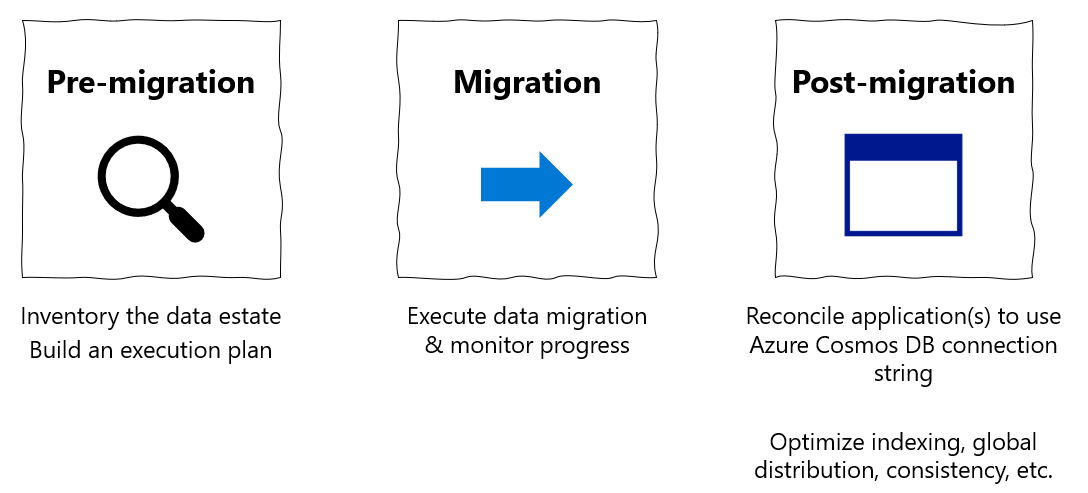
Overview of post-migration
After you migrate the data stored in a MongoDB database to the Azure Cosmos DB API for MongoDB, you can connect to Azure Cosmos DB and manage the data. This guide provides steps to consider after the migration. For migration steps, see the Migrate MongoDB to Azure Cosmos DB API for MongoDB tutorial.
Follow these steps to perform a post-migration.
- Optimize the indexing policy
- Configure global distribution for Azure Cosmos DB's API for MongoDB
- Set consistency level
- Connect (cutover) your application
- Tune for optimal performance
Note
The only mandatory post-migration step is to change the connection string in your application to point to your new Azure Cosmos DB account. All other post-migration steps are recommended optimizations to improve data-layer performance. However, if you perform application cutover immediately without the other steps, your application is immediately affected by non-optimal indexing and consistency. Specifically, if you cutover before configuring your indexes, you might see an immediate price/performance drop. This condition can be resolved: after the index is optimized, Azure Cosmos DB often outperforms the status quo solution on price/performance.
Prerequisites
This guide assumes that you're maintaining a record of your migration's progress using some sort of tracking artifact such as a spreadsheet. If you haven't already, we recommend that you read the pre-migration guide for guidance on building a data estate migration spreadsheet, discovering your existing MongoDB resources, and planning your migration.
Optimize the indexing policy
To optimize price and performance, we recommend that you step through your data estate migration spreadsheet and design an index configuration for each resource.
- We recommend that you plan your indexes during the pre-migration phase. Add a column to your data estate migration spreadsheet for index settings.
Azure Cosmos DB for MongoDB server versions 3.6 and higher automatically index the _id field only. You can't drop this field. It automatically enforces the uniqueness of the _id field per shard key. To index additional fields, apply the MongoDB index-management commands. This default indexing policy differs from the Azure Cosmos DB for NoSQL, which indexes all fields by default.
For Azure Cosmos DB for MongoDB server version 3.2, all data fields are automatically indexed, by default, during the migration of data to Azure Cosmos DB. In many cases, this default indexing policy is acceptable. In general, removing indexes optimizes write requests and having the default indexing policy (that is, automatic indexing) optimizes read requests.
The indexing capabilities provided by Azure Cosmos DB include adding compound indices, unique indices, and time-to-live (TTL) indices. The index management interface is mapped to the createIndex() command. To learn more, see Indexing in Azure Cosmos DB and Indexing in Azure Cosmos DB API for MongoDB.
- Apply these index settings during post-migration.
- Azure Database Migration Service automatically migrates MongoDB collections with unique indexes. However, you must create the unique indexes before the migration. Azure Cosmos DB doesn't support the creation of unique indexes when there's already data in your collections. For more information, see Unique keys in Azure Cosmos DB.
Globally distribute your data
Azure Cosmos DB is available in all Azure regions worldwide.
- Follow the guidance in Distribute data globally on the Azure Cosmos DB API for MongoDB to globally distribute your data. After selecting the default consistency level for your Azure Cosmos DB account, you can associate one or more Azure regions (depending on your global distribution needs). For high availability and business continuity, run in at least two regions. You can review the tips for optimizing cost of multi-region deployments in Azure Cosmos DB.
Set consistency level
Azure Cosmos DB offers five well-defined consistency levels. To read about the mapping between MongoDB and Azure Cosmos DB consistency levels, see Consistency levels and Azure Cosmos DB APIs. The default consistency level is the session consistency level. Changing the consistency level is optional and you can optimize it for your app. To change consistency level by using the Azure portal:
- Go to the Default Consistency blade under Settings.
- Select your consistency level.
Most users leave their consistency level at the default session consistency setting. However, there are availability and performance tradeoffs for various consistency levels.
Connect or cutover your application
The process of cutting over or connecting your application allows you to switch your application to use Azure Cosmos DB after migration completes. Follow these steps:
- In a new window, sign in to the Azure portal.
- From the Azure portal, open the All resources menu in the left pane and find the Azure Cosmos DB account to which you migrated your data.
- Open the Connection String blade. The right pane contains all the information you need to successfully connect to your account.
- Use the connection information in your application's configuration (or other relevant places) to reflect the Azure Cosmos DB API for MongoDB connection in your app.

For more details, see Connect a MongoDB application to Azure Cosmos DB.
Tune for optimal performance
You can easily configure and reconfigure indexing, global distribution, and consistency settings. After you finish application cutover, monitor your application's performance and adjust these settings as needed to meet your application's requirements.
Next steps
- Trying to do capacity planning for a migration to Azure Cosmos DB?
- If you only know the number of vcores and servers in your existing database cluster, read about estimating request units using vCores or vCPUs
- If you know typical request rates for your current database workload, read about estimating request units using Azure Cosmos DB capacity planner
- Connect a MongoDB application to Azure Cosmos DB
- Connect to Azure Cosmos DB account using Studio 3T
- How to globally distribute reads using Azure Cosmos DB's API for MongoDB
- Expire data with Azure Cosmos DB's API for MongoDB
- Consistency Levels in Azure Cosmos DB
- Indexing in Azure Cosmos DB
- Request Units in Azure Cosmos DB