Note
Access to this page requires authorization. You can try signing in or changing directories.
Access to this page requires authorization. You can try changing directories.
Triaging and investigating security alerts can be time consuming for even the most skilled security analysts. For many, it's hard to know where to begin.
Defender for Cloud uses analytics to connect information between distinct security alerts. For alert details, see Security alerts in Defender for Cloud and Manage and respond to security alerts. Using connections between related security alerts, Defender for Cloud provides a single view of an attack campaign and its related alerts to help you understand attacker actions and affected resources.
This page provides an overview of incidents in Defender for Cloud.
What is a security incident?
In Defender for Cloud, a security incident is an aggregation of all alerts for a resource that align with kill chain patterns. For tactics details, see MITRE ATT&CK tactics. Incidents appear in the Security alerts page. Select an incident to view related alerts and get more information.
Manage security incidents
Perform the following steps to find and manage security incidents in Defender for Cloud:
On Defender for Cloud's security alerts page, use the Add filter button to filter by alert name to the alert name Security incident detected on multiple resources.
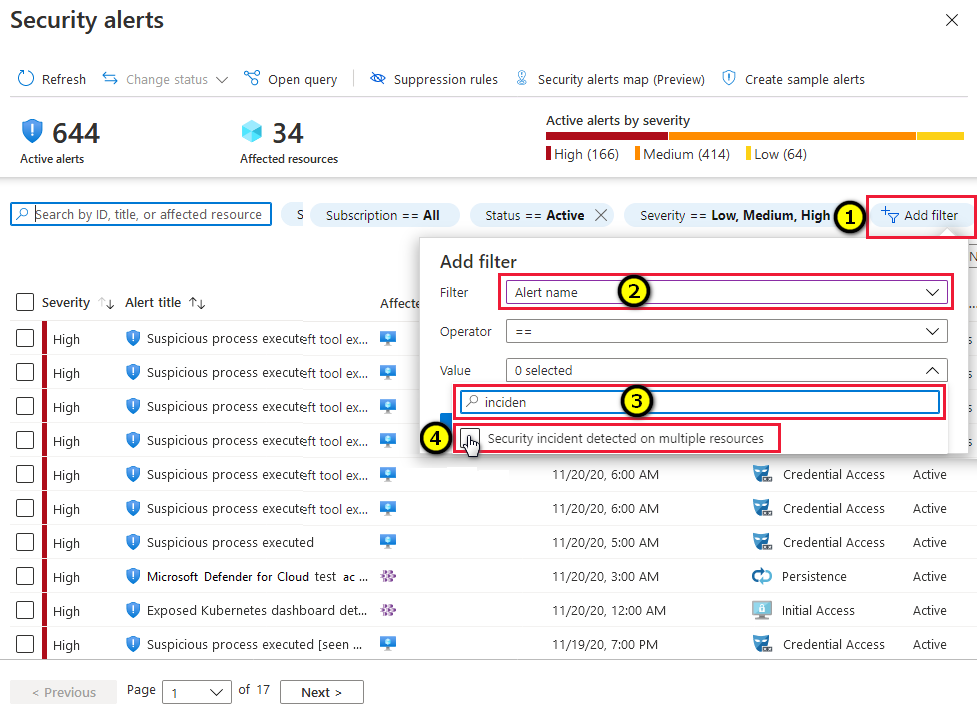
The list is now filtered to show only incidents. Notice that security incidents have a different icon to security alerts.
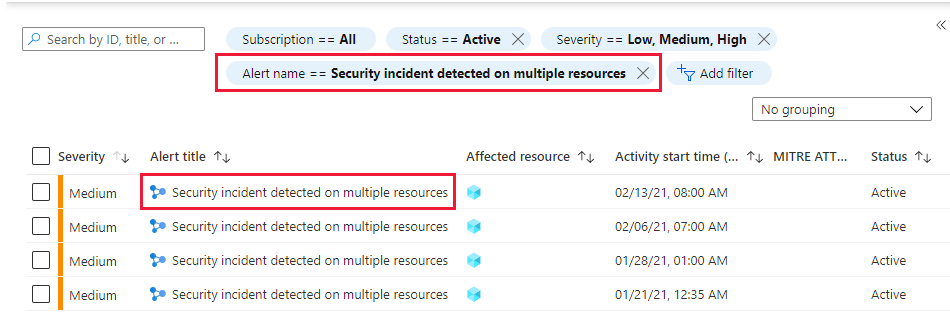
To view details of an incident, select one from the list. A side pane appears with more details about the incident.
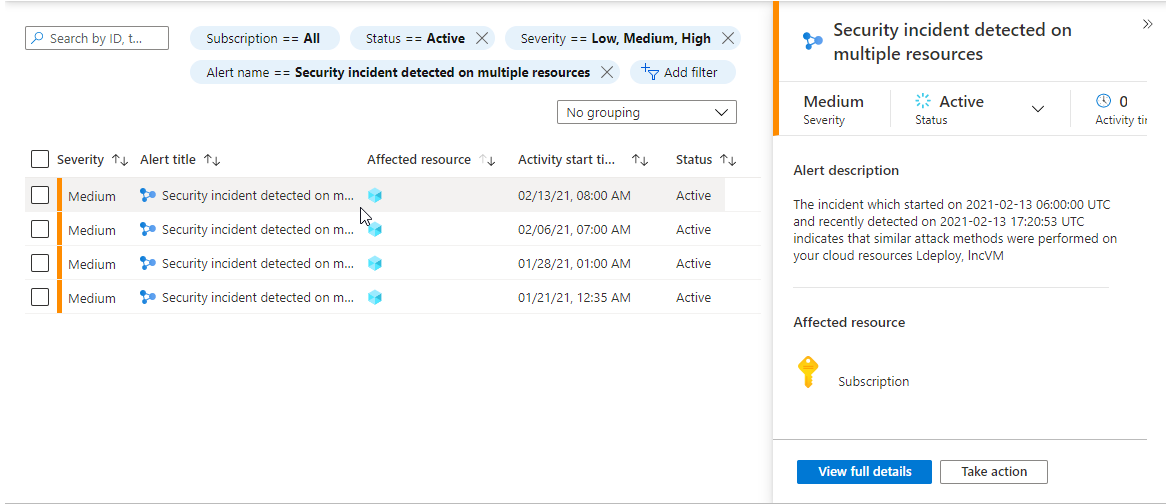
To view more details, select View full details.
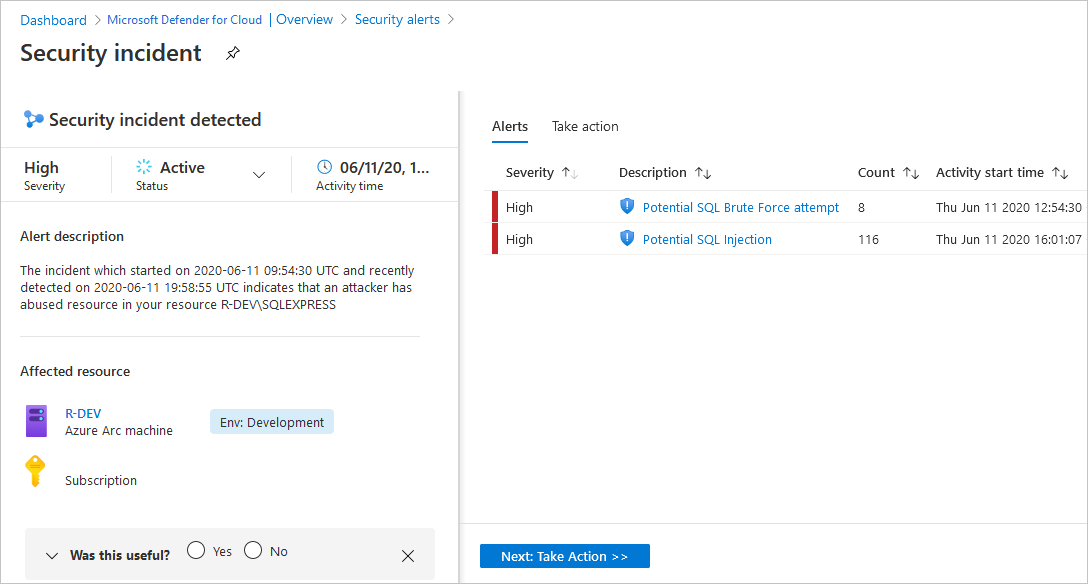
The left pane of the security incident page shows high-level information about the security incident: title, severity, status, activity time, description, and the affected resource. Next to the affected resource you can see the relevant Azure tags. Use the Azure tags shown next to the affected resource to infer the organizational context of the resource when investigating the alert.
The right pane includes the Alerts tab with the security alerts that were correlated as part of this incident.
Tip
For more information about a specific alert, select it.

To switch to the Take action tab, select the tab or select the Take action button at the bottom of the right pane. Use this tab to take further actions such as:
- Mitigate the threat - provides manual remediation steps for this security incident
- Prevent future attacks - provides security recommendations to help reduce the attack surface, increase security posture, and prevent future attacks
- Trigger automated response - provides the option to trigger a Logic App as a response to this security incident
- Suppress similar alerts - provides the option to suppress future alerts with similar characteristics if the alert isn’t relevant for your organization
Note
A security alert can appear both as part of an incident and as a standalone alert.
To remediate the threats in the incident, follow the remediation steps provided with each alert.
