Note
Access to this page requires authorization. You can try signing in or changing directories.
Access to this page requires authorization. You can try changing directories.
Applies to: ✔️ Fleet Manager ✔️ Fleet Manager with hub cluster
Keeping clusters updated in a timely and safe fashion is a key concern of platform administrators. When you adopt Azure Kubernetes Fleet Manager Update Runs and Strategies, you can use auto-upgrade profiles to automate the execution of update runs when new Kubernetes or node image versions are released.
This article explains how to use auto-upgrade profiles to automatically create and execute update runs when Azure Kubernetes Service (AKS) releases new Kubernetes or node image versions.
Note
Auto-upgrade triggered update runs honor planned maintenance windows that you set at the AKS cluster level. For more information, see planned maintenance across multiple member clusters that learn how update runs handle member clusters with configured planned maintenance windows.
Before you begin
- Read the conceptual overview of auto-upgrade profiles, which explains the configurations referenced in this guide.
- Set up a Fleet Manager with one or more member clusters. If you don't have one, follow the quickstart to create a Fleet Manager and join AKS clusters as members.
- Configure an update strategy. Use the instructions in the update run how-to article. You need the update strategy resource identifier to use with an auto-upgrade profile when using the Azure CLI.
Set the following environment variables to use in the Azure CLI commands:
export GROUP=<resource-group>
export FLEET=<fleet-name>
export AUTOUPGRADEPROFILE=<upgrade-profile-name>
# Optional
export STRATEGYID=<strategy-id>
export CLUSTER=<aks-cluster-name>
Install latest Azure CLI version. To install or upgrade, see Install the Azure CLI.
Install the latest
fleetAzure CLI extension. Use theaz extension addcommand to install the extension.az extension add --name fleetUse the
az extension updatecommand to update to the latest version of the extension.az extension update --name fleet
Note
Clusters with agent pools created from node pool snapshots are affected as follows based on the selected auto-upgrade channel and node image option:
- Node image channel: The node image upgrades to the version determined by Fleet Manager. The reference to the snapshot (
creationData) is removed from the agent pool. - Stable, Rapid, or Target Kubernetes minor version channels with node image set to:
- Consistent image: The node image upgrades to the version determined by Fleet Manager. The reference to the snapshot (
creationData) is removed from the agent pool. - Latest image: The agent pool keeps its reference to the snapshot (
creationData), and the node image isn't modified.
- Consistent image: The node image upgrades to the version determined by Fleet Manager. The reference to the snapshot (
For more information, see understanding node image upgrades and snapshots.
Create auto-upgrade profiles
Create auto-upgrade profiles by using the az fleet autoupgradeprofile create command.
You can disable an auto-upgrade profile by including the --disabled flag with the az fleet autoupgradeprofile create command. To reenable a disabled auto-upgrade profile, rerun the az fleet autoupgradeprofile create command without the --disabled flag.
Note
Disabling an auto-upgrade profile doesn't affect any in-progress update runs. However, the process stops generating new update runs until you reenable the profile.
Stable channel Kubernetes updates
Update to the latest supported Kubernetes patch release on minor version N-1, where N is the latest supported minor version.
Update member clusters one by one
Update member clusters sequentially by using the az fleet autoupgradeprofile create command.
az fleet autoupgradeprofile create \
  --resource-group $GROUP \
  --fleet-name $FLEET \
  --name $AUTOUPGRADEPROFILE \
  --channel Stable
Update member clusters by using an existing update strategy
Update member clusters by using an existing update strategy. Use the az fleet autoupgradeprofile create command with the --update-strategy-id parameter set to the ID of the existing update strategy.
az fleet autoupgradeprofile create \
  --resource-group $GROUP \
  --fleet-name $FLEET \
  --name $AUTOUPGRADEPROFILE \
  --update-strategy-id $STRATEGYID \
  --channel Stable
Update member clusters by using an existing update strategy with consistent node image
Update member clusters by using an existing update strategy, and ensure the same node image version is used in every Azure region. Use the az fleet autoupgradeprofile create command with the --node-image-selection parameter set to Consistent. All member clusters run the same node image version.
az fleet autoupgradeprofile create \
  --resource-group $GROUP \
  --fleet-name $FLEET \
  --name $AUTOUPGRADEPROFILE \
  --update-strategy-id $STRATEGYID \
  --channel Stable \
  --node-image-selection Consistent
Update member clusters by using an existing update strategy with latest node image
Update member clusters by using an existing update strategy, and ensure the latest available node image version is used for each Azure region. Use the az fleet autoupgradeprofile create command with the --node-image-selection parameter set to Latest. Member clusters can run multiple node image versions.
az fleet autoupgradeprofile create \
  --resource-group $GROUP \
  --fleet-name $FLEET \
  --name $AUTOUPGRADEPROFILE \
  --update-strategy-id $STRATEGYID \
  --channel Stable \
  --node-image-selection Latest
Node image channel updates
Update nodes with a newly patched machine image that includes security fixes and bug fixes.
Update node images one by one
Update node images for member clusters sequentially by using the az fleet autoupgradeprofile create command.
az fleet autoupgradeprofile create \
  --resource-group $GROUP \
  --fleet-name $FLEET \
  --name $AUTOUPGRADEPROFILE \
  --channel NodeImage
Update node images by using an existing update strategy
Update node images for member clusters by using an existing update strategy. Use the az fleet autoupgradeprofile create command and set the --update-strategy-id parameter to the ID of the existing update strategy.
az fleet autoupgradeprofile create \
  --resource-group $GROUP \
  --fleet-name $FLEET \
  --name $AUTOUPGRADEPROFILE \
  --update-strategy-id $STRATEGYID \
  --channel NodeImage
Target Kubernetes minor version updates
Update to a defined target Kubernetes minor version by using the --target-kubernetes-version parameter. Supply the version in the {major version}.{minor version} format (for example, 1.33). Fleet Manager Auto-upgrade automatically upgrades member clusters to the latest patch release of the specified target version when the patch is available.
Important
Keep the following information in mind when using the Target Kubernetes minor version channel:
- You must specify the
--target-kubernetes-versionparameter. This parameter isn't supported for other auto-upgrade channels (Rapid, Stable, Node image, and Security patch). - The long-term support (LTS) flag,
--long-term-support, is only available when using the Target Kubernetes minor version channel. For other channels, set this flag toFalse. - You can only select LTS Kubernetes versions (N-2) for an auto-upgrade profile with the
--long-term-supportflag. For Fleet auto-upgrade to keep working in this scenario, ensure that the clusters in the generated update run are all enabled with LTS. Non-LTS clusters cause the update run to fail when the first non-LTS cluster is encountered. - You can't set the target Kubernetes version to a future Kubernetes version that AKS hasn't released.
Update member clusters to a specific Kubernetes minor version
Update member clusters to a specific Kubernetes minor version by using the az fleet autoupgradeprofile create command with the --target-kubernetes-version parameter set to the desired version. The following example updates member clusters to Kubernetes version 1.33.
az fleet autoupgradeprofile create \
  --resource-group $GROUP \
  --fleet-name $FLEET \
  --name $AUTOUPGRADEPROFILE \
  --channel TargetKubernetesVersion \
  --target-kubernetes-version "1.33"
Update member clusters with LTS enabled to a specific Kubernetes minor version
Update member clusters with LTS enabled to a specific Kubernetes minor version by using the az fleet autoupgradeprofile create command with the --target-kubernetes-version parameter set to the desired version and the --long-term-support flag enabled. The following example updates member clusters to Kubernetes version 1.29 with LTS enabled.
az fleet autoupgradeprofile create \
  --resource-group $GROUP \
  --fleet-name $FLEET \
  --name $AUTOUPGRADEPROFILE \
  --channel TargetKubernetesVersion \
  --target-kubernetes-version "1.29" \
  --long-term-support
Security patch channel updates
Update Linux nodes with security fixes. Apply updates by using live patching when possible. Otherwise, deploy a newly patched machine image that contains security fixes.
Update nodes with security patches one by one
Update node images for member clusters sequentially by using the az fleet autoupgradeprofile create command.
az fleet autoupgradeprofile create \
  --resource-group $GROUP \
  --fleet-name $FLEET \
  --name $AUTOUPGRADEPROFILE \
  --channel SecurityPatch
Update nodes with security patches by using an existing update strategy
Update node images for member clusters by using an existing update strategy. Use the az fleet autoupgradeprofile create command and set the --update-strategy-id parameter to the ID of the existing update strategy.
az fleet autoupgradeprofile create \
  --resource-group $GROUP \
  --fleet-name $FLEET \
  --name $AUTOUPGRADEPROFILE \
  --update-strategy-id $STRATEGYID \
  --channel SecurityPatch
View auto-upgrade profiles
List all auto-upgrade profiles for a Fleet using the az autoupgradeprofile list command.
az fleet autoupgradeprofile list \
  --resource-group $GROUP \
  --fleet-name $FLEET
Show a specific auto-upgrade profile for a Fleet using the az autoupgradeprofile list command with the --name parameter.
az fleet autoupgradeprofile list \
  --resource-group $GROUP \
  --fleet-name $FLEET \
  --name $AUTOUPGRADEPROFILE
Delete an auto-upgrade profile
Use the az fleet autoupgradeprofile delete command to delete an existing auto-upgrade profile. After running this command, you're prompted to confirm deletion. To bypass the confirmation and immediately delete the profile, include --yes in the command.
az fleet autoupgradeprofile delete \
  --resource-group $GROUP \
  --fleet-name $FLEET \
  --name $AUTOUPGRADEPROFILE
Note
Deleting an auto-upgrade profile doesn't affect any in-progress update runs.
Create auto-upgrade profiles
Update to the latest supported Kubernetes patch release on minor version N-1, where N is the latest supported minor version.
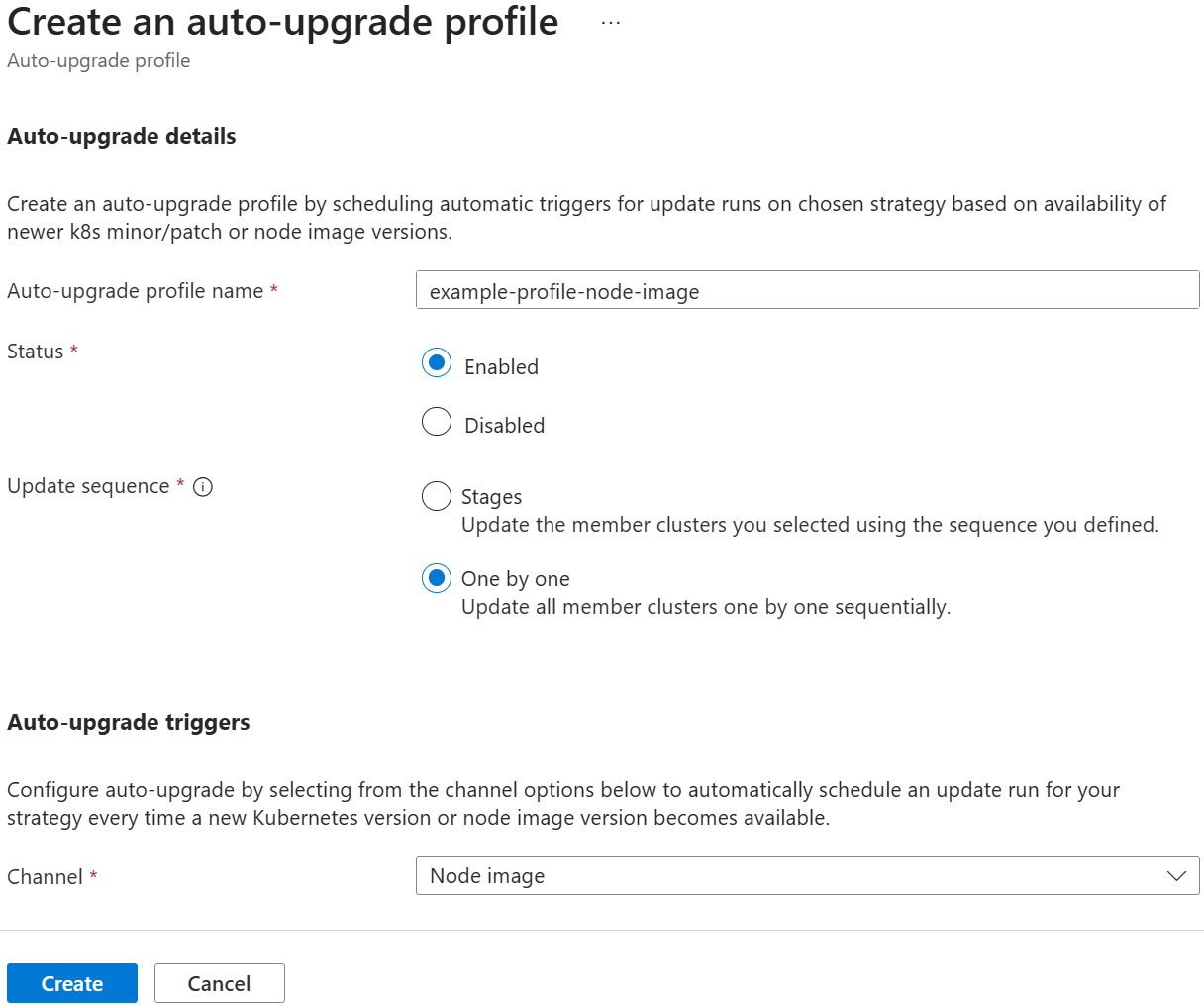
In the Azure portal, navigate to your Azure Kubernetes Fleet Manager resource.
From the service menu, under Settings, select Multicluster update > Auto-upgrade profiles > + Create.
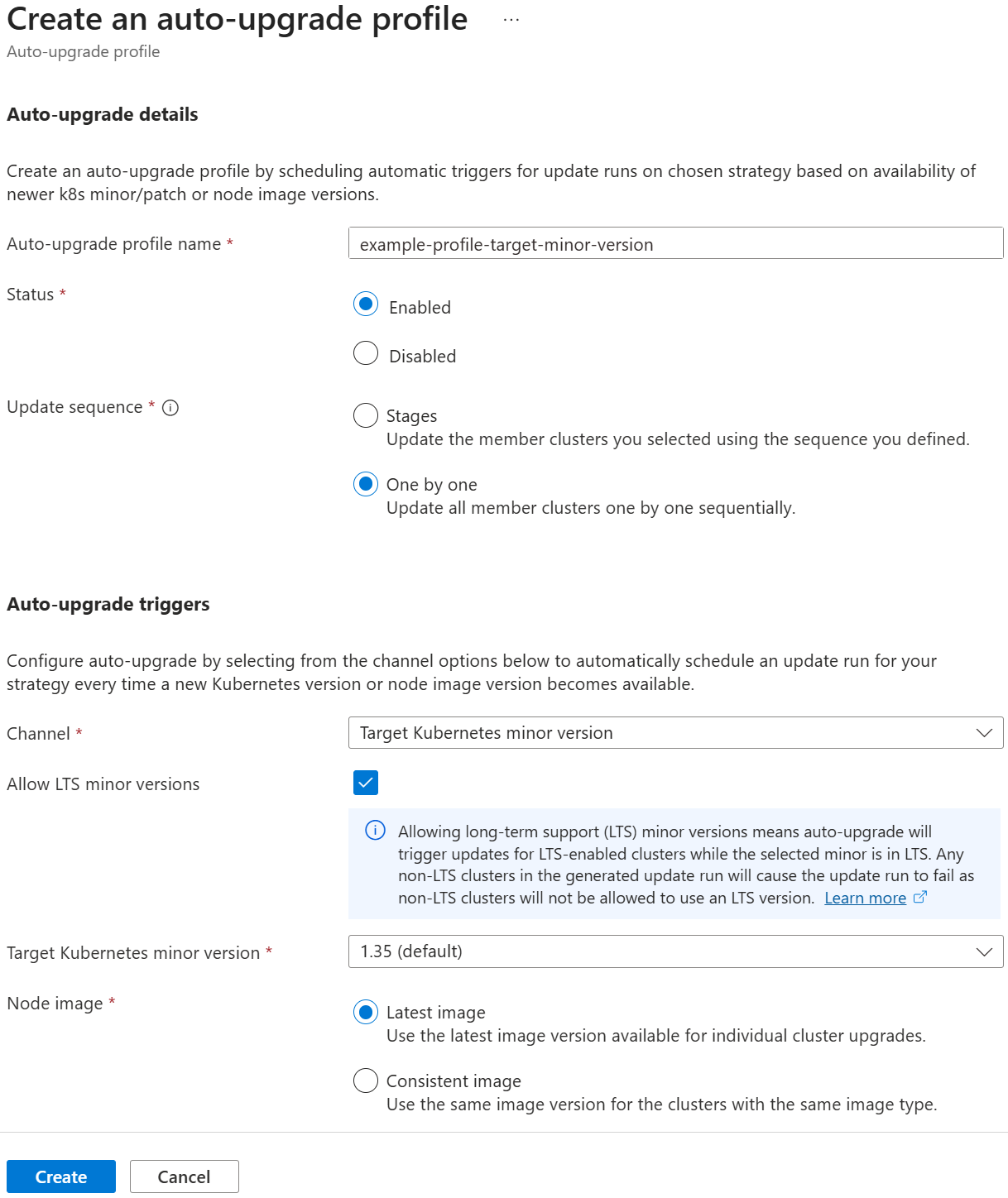
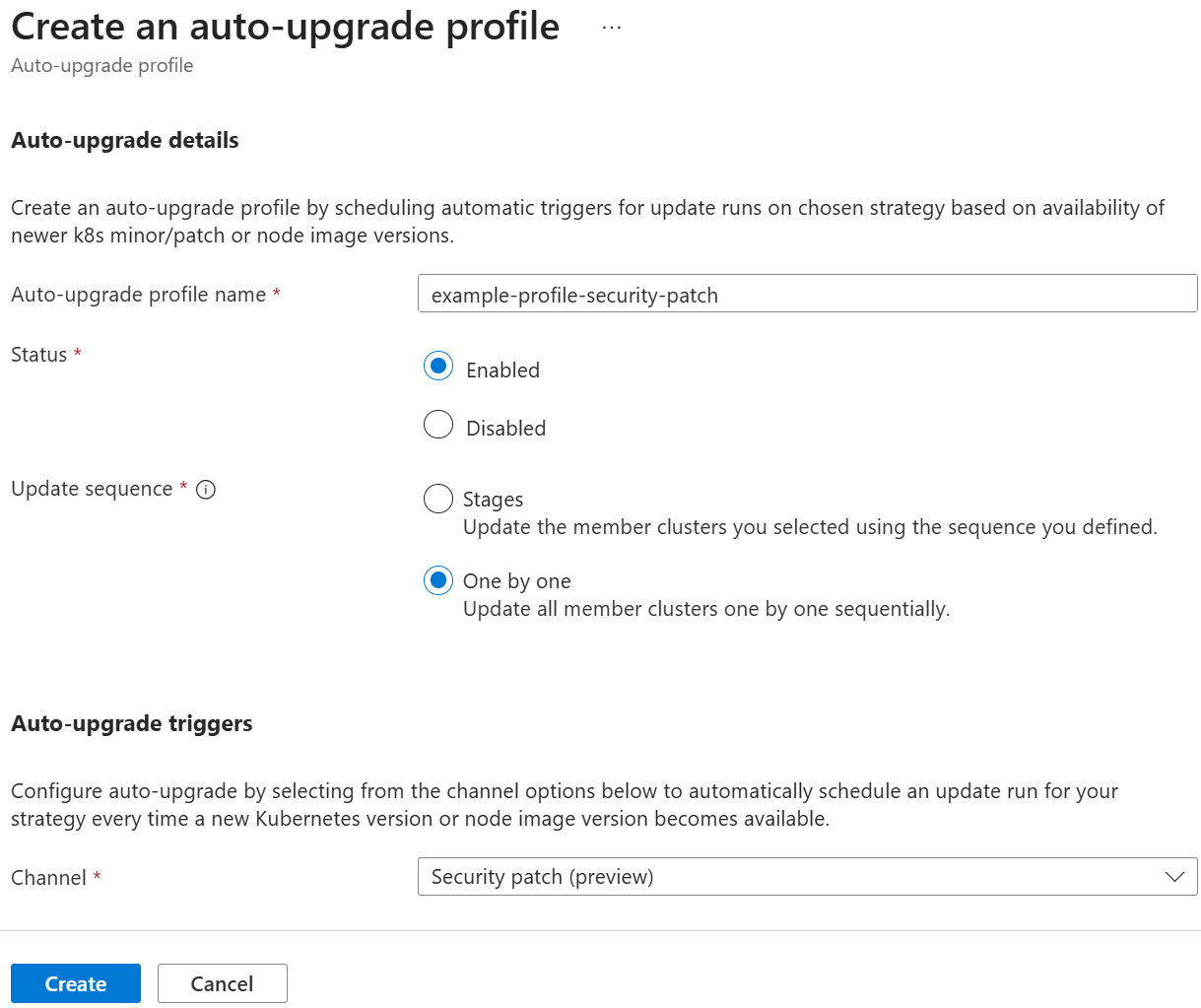
On Create an auto-upgrade profile, configure the following options:
- Under Auto-upgrade details:
- Auto-upgrade profile name: Enter a name for the auto-upgrade profile.
- Status: Select Enabled or Disabled. Disabled auto-upgrade profiles don't trigger when new versions are released.
- Update sequence: Select Stages or One by one.
- Under Auto-upgrade triggers:
- Channel: Select Stable.
- Node image: Select Latest image or Consistent image.
- Under Strategy details:
- If you selected an Update sequence using Stages, select an existing strategy or create a new one.
- Under Auto-upgrade details:
Select Create to create the auto-upgrade profile.


View auto-upgrade profiles
- In the Azure portal, navigate to your Azure Kubernetes Fleet Manager resource.
- From the service menu, under Settings, select Multicluster update > Auto-upgrade profiles.
- Select the auto-upgrade profile that you want to view.
Delete an auto-upgrade profile
- In the Azure portal, navigate to your Azure Kubernetes Fleet Manager resource.
- From the service menu, under Settings, select Multicluster update > Auto-upgrade profiles.
- Select the profile you want to delete, and then select Delete > Yes to confirm.
Note
Deleting an auto-upgrade profile doesn't affect any in-progress update runs.
Validate auto-upgrades
Auto-upgrades happen only when new Kubernetes or node images are available. When auto-upgrade is triggered, a linked update run is created, so you can use manage update run to see the results of the auto-upgrade.
You can also check your existing versions as a baseline.
Get the current Kubernetes version for a member cluster by using the az aks show command with the --query parameter to filter the output for the currentKubernetesVersion property.
az aks show \
  --resource-group $GROUP \
  --name $CLUSTER \
  --query currentKubernetesVersion
Get the current node image version for a member cluster by using the az aks show command with the --query parameter to filter the output for the nodeImageVersion property.
az aks show \
  --resource-group $GROUP \
  --name $CLUSTER \
  --query "agentPoolProfiles[].{name:name,mode:mode, nodeImageVersion:nodeImageVersion, osSku:osSku, osType:osType}"
When update runs finish, you can rerun these commands and view the updated versions that are deployed.
Generate an update run from an auto-upgrade profile
After you create an auto-upgrade profile, some time might pass before a new Kubernetes or node image version triggers auto-upgrade to create and execute an update run. Auto-upgrade allows you to generate a new update run at any time by using the az fleet autoupgradeprofile generate-update-run command. The resulting update run is based on the current AKS-published Kubernetes or node image version.
For more information about creating an on-demand update run from an auto-upgrade profile, see Generate an update run from an auto-upgrade profile.