Note
Access to this page requires authorization. You can try signing in or changing directories.
Access to this page requires authorization. You can try changing directories.
This article provides an overview of how the migration works and the necessary tasks for completing the migration from Dynamics GP on-premises. By gaining an understanding of the data migration basics, you're able to plan and execute a smooth transition to the cloud.
Understanding cloud migration
Data migration is the process of securely migrating data from an on-premises SQL Server instance to Business Central online. You manage cloud migration from Business Central online through a connection to the on-premises database and various components that establish a pipeline for replicating data. The on-premises solution remains the operative environment until you complete the cloud migration.
Components involved
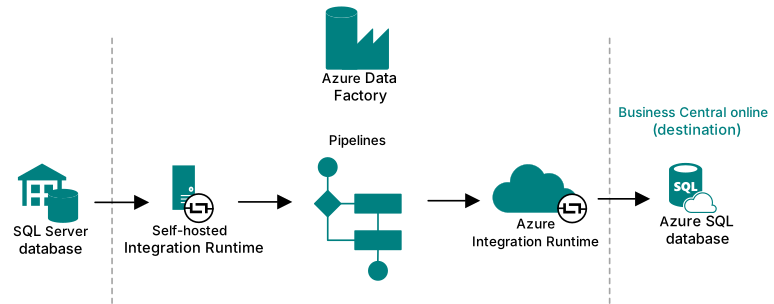
The following figure illustrates the main components involved in the data migration process.
| Component | Description |
|---|---|
| On-premises database | This database is the on-premises SQL Server database that stores business data for the companies to migrate to the cloud. |
| Azure Data Factory | A key component of the data migration is Azure Data Factory. Azure Data Factory is a managed cloud service that's built for migrating large amounts of raw data across data sources and controlling data integration projects. Azure Data Factory migrates the data between on-premises and online directly. In other words, it doesn't look at any permissions within the applications you're transferring data between—only SQL permissions. |
| Pipelines | Pipelines are the main elements of Azure Data Factory. Pipelines are groupings of activities that copy, move, and transform data, and also orchestrate its flow. |
| Integration Runtime | The Integration Runtime component is the compute infrastructure of Azure Data Factory. There are two Integration Runtime instances in the end-to-end process. The first instance securely copies data from on-premises to the cloud, where the pipelines are created. If the on-premises database is an SQL Server database, you use a self-hosted integration runtime. This runtime is installed locally on the on-premises network and registered in Azure Data Factory. |
| Online database | This database is the Azure SQL database of the Business Central environment that you're migrating data to. |
What data is migrated
In general, the cloud migration tool migrates the following data:
- System and company setup, such as payment terms, shipping method, and sites
- Master data for accounts, customers, vendors, and items
- Transactional data
- Classes for customers, vendors, and items
- Vendor 1099
- Historical data
The company data that is migrated is configurable as part of the cloud migration setup. Learn more in Configure Dynamics GP company migration and Dynamics GP data migrated to Business Central online.
How data is migrated
Data is replicated table by table, and successes and failures are tracked for each table. If a table fails to replicate, the error is captured, and replication moves on to the next table. Tables fail to replicate if they can't be found, or if the schema doesn't match between the cloud and the on-premises tables.
Typically, you first run the migration as a test in a sandbox environment. Then, when you're ready to go live, you run the migration in the production environment. The data migration time can vary depending on factors such as the amount of data to migrate, your SQL Server configuration, and your connection speeds.
Important
Don't set up cloud migration for a production environment that's already in use for business. You risk that the migration process overwrites data that's needed to run the business. Even if your migration targets a different company in that environment, you risk that the upgrade overwrites data that's shared across companies in the target environment.
End-to-end migration process
This section outlines the general process or phases you go through to migrate data from on-premises to online.
Migration assessment
Before migrating your on-premises deployment to the cloud, evaluate its readiness. The migration assessment tool provides migration options based on your needs and detects potential migration issues based on your Dynamics GP system structure. To get started, go to the cloud migration assessment tool.
Learn more about the tool in the video Are You Ready for Business Central.
Preparation
The preparation phase helps the migration run as quickly as possible and with fewer problems. Preparation typically includes these tasks:
Plan:
Develop a migration plan that includes a detailed timeline, resource requirements, and migration approach. A well-crafted plan can help minimize downtime and prevent users from losing work. Plan to run cloud migration between environment updates.
Learn more in Prepare and plan for cloud migration from Dynamics GP.
Verify prerequisites:
Prepare your on-premises environment for migration, which includes ensuring that it meets the prerequisites for migration, such as using GP 2015 or later. This step is crucial in ensuring that your environment is ready for the migration process.
Learn more in Cloud migration prerequisites for Dynamics GP.
Verify that data is in the best state possible to complete the migration:
This step involves reviewing your data to ensure that it's clean, accurate, and in the best possible state for migration.
Cloud migration setup
This phase prepares the environment by establishing the connection and pipeline between the on-premises databases and the online tenant database. You also specify which companies to migrate. This phase starts when you run the Cloud Migration Setup assisted setup guide in Business Central online.
Learn more in Run cloud migration setup for Dynamics GP migration.
Configure Dynamics GP company migration
After you finish the setup guide, configure which GP company data to migrate. Before replication, review GP Migration Settings. Run migration after replication is on by default and starts data transformation after successful replication. Turn it off if you want to run replication multiple times before transformation.
Learn more in Configure Dynamics GP company migration.
Data replication
This step copies GP data into migration tables in the online environment. It starts when you select Run Migration Now on Cloud Migration Management. Dynamics GP uses the previous version of this management interface.
Review replication results, fix any problems, and rerun replication if needed. If you turned off automatic transformation, complete the final replication before starting data upgrade. Once the data replicates to the sandbox environment, you can use the troubleshooting tools in the Business Central administration center.
Learn more in Run and manage data replication.
Data upgrade
This step transforms replicated GP data into Business Central data, company by company in the background. It starts automatically when Run migration after replication is on. Otherwise, select Run Data Upgrade Now on Cloud Migration Management.
Learn more in Upgrade data for Dynamics GP cloud migration.
Data validation
After data upgrade completes, verify that data migrated correctly by running migration validation. Validation compares replicated GP source data with migrated data in Business Central to identify discrepancies. You can enable automatic validation in GP Migration Settings or run it manually from Cloud Migration Management.
Learn more in Validate Dynamics GP data migration.
Completion and follow-up
Disable cloud migration after you finish and validate the migration. Then complete these follow-up tasks:
Optimize your Business Central online environment:
Configure the system to meet your business needs. This task might include setting up security, customizing forms and reports, and integrating with other systems. By taking the time to optimize your new environment, you can ensure that it meets your specific requirements and works seamlessly with your existing systems.
Set up user access:
Grant access to your new Business Central online system for all relevant users. This task includes creating new user accounts, setting up permissions, and defining roles and responsibilities.
Go live:
Once you're satisfied that your new environment is set up correctly, it's time to switch over to the new Business Central online system. This task involves decommissioning the on-premises deployment and ensuring that all users are using the new system.
Learn more in Complete Dynamics GP cloud migration to Business Central online.
By completing these tasks, you can ensure a successful migration to the cloud-based Business Central solution.
Working with environments during cloud migration
You manage the cloud migration from Business Central online. But once you start the migration phase, the on-premises solution remains the operative environment until you complete the migration. Don't set up cloud migration for a production environment that's already in use for business. You risk that the migration process overwrites data that's needed to run the business. Even if your migration targets a different company in that environment, you risk that the upgrade overwrites data that's shared across companies in the target environment.
Rerunning migration can overwrite data in the target online companies.
If you don't want data in Business Central online to be overwritten, don't configure the connection.
Limited data entry during migration period
Once cloud migration is set up and underway, avoid entering data in the online companies being migrated. Data entered there can be overwritten when you rerun migration.
Dynamics GP migration retains existing Business Central user permissions. It doesn't automatically assign users to the Intelligent Cloud permission set. Review access and restrict data entry for existing users and users you add during migration.
Note
Before you configure a connection from on-premises to Business Central online, make sure that at least one user in each company has the SUPER permission set.
If you manually assign the Intelligent Cloud permission set, users can read all data by default. If you need to further restrict what a user can read, a user with SUPER can create and assign a more restrictive permission set. We recommend that you copy Intelligent Cloud and remove the permissions you don't want users to have.
Warning
If you grant insert, modify or delete permissions to any resource in the application that was set to read-only, it could have a negative impact on the data in Business Central online. If this occurs, you may have to clear all your data and rerun a full migration to correct this.
Related information
FAQ about migrating to Business Central online from on-premises solutions
Business Central on-premises to online migration: end-to-end overview
Dynamics GP data migrated to Business Central online
Considerations before upgrading Dynamics NAV to Business Central
Managing capacity