Note
Access to this page requires authorization. You can try signing in or changing directories.
Access to this page requires authorization. You can try changing directories.
Connect Customer Insights - Data directly to your Microsoft Fabric OneLake lakehouse to ingest data. The Fabric OneLake connector reads Delta tables directly from your Fabric workspace, so you don't need to copy or stage data in Azure Data Lake.
Supported capabilities
The Fabric OneLake connector supports:
- Ingestion of managed Delta tables from Fabric lakehouses.
- Use of Fabric shortcuts to provide access to Delta tables outside the target workspace.
Prerequisites
Before you create a Fabric OneLake data source:
- Enable external access to the OneLake data.
- Add Customer Insights - Data service principal to the Fabric workspace.
- Create private links if Inbound Access Protection is enabled. To check if Inbound Access Protection is enabled in your tenant, sign in to the Microsoft Fabric admin portal. Go to Admin Portal > Tenant Settings > Advanced Networking. Check if Azure Private Links and Block Public Internet Access are enabled.
- Verify that the following workspace and data requirements are met.
Workspace prerequisites
- A Microsoft Fabric workspace with Delta tables exists in the same Microsoft Entra tenant used by Customer Insights - Data.
- The admin who creates or updates the data source needs at least the Viewer workspace role.
Data prerequisites
- Tables must have a primary key column with unique, non-null values. String, integer, and GUID data types are supported as primary keys.
- Tables must be in the Delta format.
- Tables must be limited to Delta features that require
minReaderVersion1 or 2. For more information, see Supported Databricks features.
Limitations
This feature has the following limitations:
- Files or tables that aren't in Delta format (for example, CSV or non-Delta Parquet) aren't supported.
- Only one Fabric OneLake data source per workspace. To ingest data from another workspace, create another data source or use a Fabric shortcut to expose the remote table in the workspace.
- Fabric Data Warehouse tables aren't supported.
- Tables configured with Delta features that require
minReaderVersiongreater than 2, such as deletion vectors aren't supported. For more information, see Supported Databricks features. - The option to upgrade in place an existing Azure Data Lake Delta tables data source to a Fabric OneLake data source will be released by October 2026.
Enable external access to OneLake data
A Fabric tenant administrator must enable external access to OneLake data once for the Fabric tenant. This setting allows services such as Customer Insights - Data to read Delta tables from your Fabric lakehouses.
- Sign in to the Fabric admin portal as a Fabric administrator.
- Select Tenant settings.
- Under OneLake settings, expand Users can access data stored in OneLake with apps external to Fabric.
- Ensure the toggle is set to Enabled and apply it to the organization or to specific security groups, as required by your tenant policy. Tenant settings changes can take up to 15 minutes to take effect.
Add Customer Insights - Data service principal to the Fabric workspace
Add the Customer Insights - Data service principal (Dynamics 365 AI for Customer Insights) to the Fabric workspace with at least the Contributor role so it can read Delta tables at runtime and write a small amount of metadata for each table. As a best practice, put the service principal in a security group.
Enable the service principal in the Fabric tenant
- Sign in to the Fabric admin portal as a Fabric administrator.
- Select Tenant settings. Scroll to Developer settings.
- Enable Service principals can call Fabric public APIs.
Add the service principal or security group to the Fabric workspace
- Open your Fabric workspace.
- Select Manage access.
- Select Add people or groups.
- Search for the service principal name or the security group that contains it.
- Assign the Contributor role.
Connect to data in Fabric OneLake
Data source names and table names must start with a letter and can contain only letters, numbers, and special characters.
In Customer Insights - Data, go to Data > Data sources.
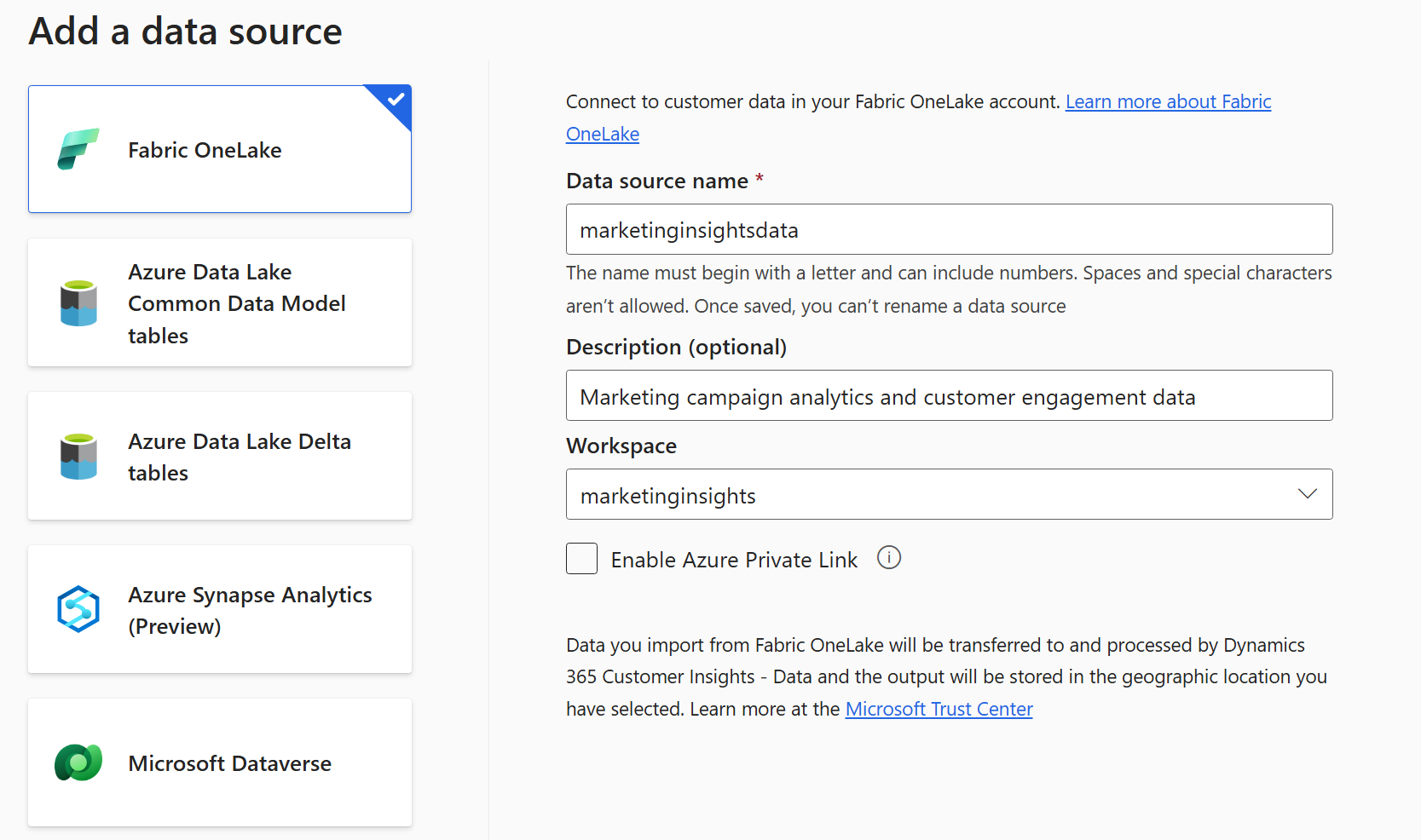
Select Add a data source.
Select Microsoft Fabric OneLake.
Enter the following information:
- Data source name – A unique name to identify the data source in Customer Insights - Data. You can't change the data source name after you save it.
- Description (optional) – A short description of the data the source contains.
- Workspace – The Fabric workspace that contains the Delta tables to ingest.
- Enable Private Link – If the workspace is protected by Fabric inbound access protection, check Enable Private Link to connect by using an Azure Private Link. For more information, see Connect to a Microsoft Fabric workspace with inbound access protection enabled.
Select Next. Customer Insights - Data lists every Delta table it finds across the lakehouses in the selected workspace. Table names use the pattern
<lakehouse>_Lakehouse_<schema>_<table>.Select Include for each table you want to ingest.

Tip
If no tables are listed, ensure you completed the prerequisites to provide Customer Insights - Data. If tables are shown and a specific table isn't listed, confirm the table is a managed Delta table in a Fabric lakehouse and that the workspace contains it. Tables stored in a Fabric Data Warehouse aren't listed as these tables are exposed as SQL tables.
For each selected table where a primary key isn't automatically detected, Required appears under Primary key. For each of these tables:
- Select Required. The Edit table panel opens.
- Choose the Primary key column. The primary key must be unique and can't contain null or missing values.
- Select Close to save and close the panel.
To enable data profiling on a table, select the number under Columns for that table. The Manage attributes page opens.
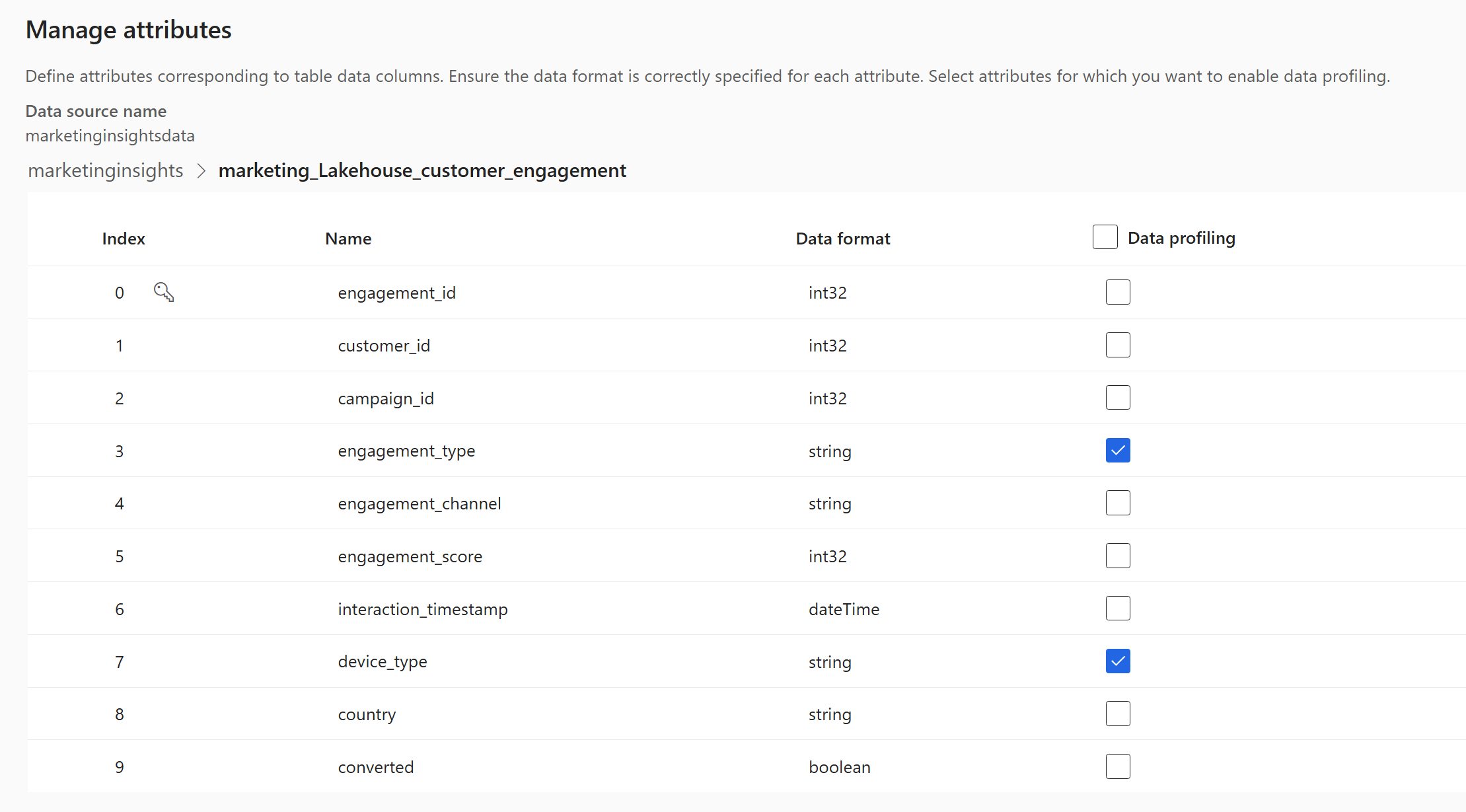
- Review the Name and Data format for each column.
- Select Data profiling for the whole table or for individual columns. By default, data profiling is off.
- Select Done.
Select Next, review the summary, and then select Save.
The Data sources page opens and shows the new data source in Refreshing status.-
Loading data can take time while tables are read and metadata is created. After a successful refresh, you can review the ingested data on the Tables page. Data ingested to Customer Insights - Data is transferred and processed in the geographic location of the Customer Insights - Data environment. For more information, see the Microsoft Trust Center.
Tip
Select a status to open the Progress details pane, where you can view task progress or select Cancel job to stop the job.
Edit a Fabric OneLake data source
You can edit a data source connection to add tables and remove tables if no downstream dependencies on the table exist. You can't change the data source name or workspace.
Go to Data > Data sources. Next to the data source you want to update, select Edit.
Change any of the following information:
- Description
- Enable Private Link – To ingest data from a storage account through an Azure Private Link, see Connect to a Microsoft Fabric workspace with inbound access protection enabled.
Select Next.
Select Include for each table you want to ingest.
For each selected table where a primary key isn't detected, Required appears under Primary key. For each of these tables:
- Select Required. The Edit table panel opens.
- Choose the Primary key. The primary key must be unique and can't contain null or missing values.
- Select Close to save and close the panel.
To enable data profiling on a table, select the number under Columns for that table. The Manage attributes page opens.
- Review the Name and Data format for each column.
- Select Data profiling for the whole table or for individual columns. By default, data profiling is off.
- Select Done.
Select Next, review the summary, and then select Save.
Manage schema changes
If you change the schema of a table that Customer Insights - Data is configured to ingest, the change typically causes a data refresh failure. To update the schema for the connection, see Manage schema changes.
Delta logs and data refreshes
Customer Insights - Data uses Delta logs when ingesting data and requires all log versions since the previous refresh. To avoid refresh failures due to missing Delta logs:
- Maintain a longer Delta log version history than your longest refresh cadence. For example, if a development instance only refreshes data every two weeks, maintain at least three weeks of version history.
- In your Fabric lakehouse, set both
delta.logRetentionDurationanddelta.deletedFileRetentionDurationto an appropriate value. - Avoid aggressive
VACUUMoperations against tables that Customer Insights - Data ingests.
If Delta log versions are missing (for example, after an aggressive VACUUM operation), manually run a full refresh on the table. To learn more, see Manually run a full refresh on a Delta table.
Common issue
The Add Fabric Delta tables page appears unresponsive and no tables are shown
Customer Insights - Data can't read the list of tables in the workspace. One or more of the following situations can cause this issue:
- External access to OneLake data wasn't enabled for the Fabric tenant. Enable external access.
- The Customer Insights - Data service principal wasn't added to the Fabric workspace. Add Customer Insights - Data service principal to the Fabric workspace.
- The workspace is protected by Fabric inbound access protection, and you must create and use private links to connect to the workspace.