Note
Access to this page requires authorization. You can try signing in or changing directories.
Access to this page requires authorization. You can try changing directories.
Go to Data > Data sources to view the name of each ingested data source, its status, and the last time the data was refreshed for that source. You can sort the list of data sources by any column or use the search box to find the data source you want to manage.
Select a data source to view available actions.

- Edit the data source to change its properties. You can't edit a single CSV data source that is used to automatically generate insights.
- Refresh the data source to include the latest data.
- Enrich the data source before unification to improve the quality and completeness for better results.
- Delete the data source. You can delete a data source only if the data isn't used in any processing such as unification, insights, activations, or exports. To remove a data source that is unified and in use, go to Remove a data source in use.
If you have an Azure Data Lake data source with Common Data Model tables, you can update it to use Delta tables.
Refresh data sources
You can set data sources to refresh automatically on a schedule or refresh them manually when you want. Only the owner can manually refresh an on-premises data source.
For attached data sources, data ingestion uses the latest data available from that data source.
Go to Settings > System > Schedule to set up system-scheduled refreshes for your ingested data sources.
To refresh a data source on demand:
Go to Data > Data sources.
Select the data source you want to refresh and select Refresh. Refreshing a data source updates both the table schema and data for all the tables specified in the data source.
Select the status to open the Progress details pane and view the progress. To cancel the job, select Cancel job at the bottom of the pane.
Review corrupt data sources
Data being ingested might have corrupt records that can cause the data ingestion process to complete with errors or warnings.
Note
If data ingestion finishes with errors, the system skips subsequent processing (such as unification or activity creation) that uses this data source. If data ingestion finishes with warnings, the system continues subsequent processing but might not include some of the records.
You can see these errors in the task details.
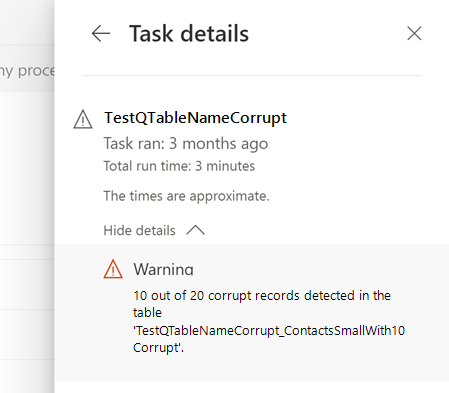
The system shows corrupt records in system-created tables.
Fix corrupt data
To view the corrupt data, go to Data > Tables and look for the corrupted tables in the System section. The naming schema of corrupted tables is
DataSourceName_tableName_corrupt.Select a corrupt table and then select the Row tab.
Identify the corrupt fields in a record and the reason.

Note
Data > Tables only shows a portion of the corrupt records. To view all the corrupt records, export the files to a container in the storage account by using the export process. If you used your own storage account, you can also look at the Customer Insights folder in your storage account.
Fix the corrupted data. For example, for Azure Data Lake data sources, fix the data in the Data Lake Storage or update the data types in the manifest/model.json file. For Power Query data sources, fix the data in the source file and correct the data type in the transformation step on the Power Query - Edit queries page.

After the next refresh of the data source, the corrected records are ingested to Customer Insights - Data and passed on to downstream processes.
For example, a birthday column has the datatype set as date. A customer record has their birthday entered as 01/01/19777. The system flags this record as corrupt. Change the birthday in the source system to 1977. After an automated refresh of data sources, the field now has a valid format and the record is removed from the corrupted table.
Remove a data source in use
If you have a data source that you ingested and unified that you no longer need, you can remove it. For example, if all the tables in the data source are obsolete or being replaced, remove the tables and the data source.
Once you remove all data dependencies and unification reruns, you can delete the data source. Go to Data > Data sources, select the data source, and then select Delete.