Note
Access to this page requires authorization. You can try signing in or changing directories.
Access to this page requires authorization. You can try changing directories.
The European Union (EU) General Data Protection Regulation (GDPR) gives significant rights to individuals regarding their data. Refer to the Microsoft Learn General Data Protection Regulation Summary for an overview of GDPR, including terminology, an action plan, and readiness checklists to help you meet your obligations under GDPR when using Microsoft products and services.
You can learn more about GDPR and how Microsoft helps support it and our customers who are affected by it.
- The Microsoft Trust Center provides general information, compliance best practices, and documentation helpful to GDPR accountability, such as Data Protection Impact Assessments, Data Subject Requests, and data breach notification.
- The Service Trust portal provides information about how Microsoft services help support compliance with GDPR.
Note
This article provides instructions for exporting and deleting personal data from the device or service and can help you meet your obligations under GDPR. For general information about GDPR, see the GDPR section of the Microsoft Trust Center and the GDPR section of the Service Trust portal.
Respond to data subject delete requests
The right to erasure, which is the removal of personal data from an organization’s customer data, is a key protection in many privacy laws and regulations. Removing personal data includes removing all personal data and system-generated logs, except audit log information.
Manage data subject delete requests
Dynamics 365 Customer Insights - Data provides the following in-product experiences to delete personal data for a specific customer or user:
- Manage delete requests for customer data: Customer data comes from original external data sources. First, perform data delete requests in the original data source.
- Manage delete requests for user data: Customer Insights - Data creates data for application users. Perform all data delete requests in the application.
Manage requests to delete customer data
As an admin, remove customer data that you deleted in the data source. Verify that the data delete requests were performed in the original data source.
Sign in to Customer Insights - Data.
Go to Data > Data sources.
For each data source in the list that contains deleted customer data:
- Select the data source and then select Refresh.
- Check the status of the data source under Status.
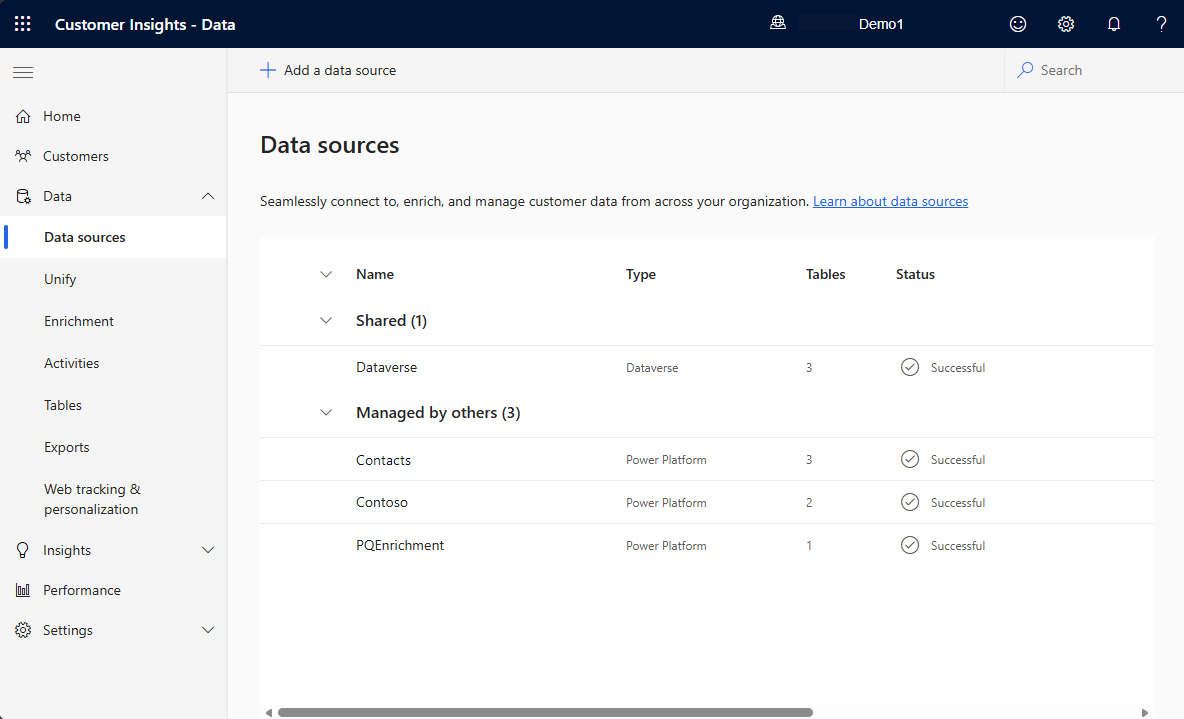
After a successful data source refresh, run the downstream refreshes too, especially if you don't have a recurring full refresh scheduled.
Important
Static segments aren't included in a full refresh or downstream refreshes. To comply with the delete request for customer data, recreate the static segments with the refreshed source data.
Inactive segments aren't refreshed (neither manually, nor a scheduled refresh, nor other refreshes). They have a Status listed as Skipped, which means that Customer Insights - Data didn't attempt to refresh them. If a segment was executed successfully before changing to an Inactive status, Customer Insights - Data created a table with the customer data. To comply with the delete request for customer data, either activate the segment and run it with the latest data or delete the segment.
Manage delete requests for user data
As an admin, delete application user data.
Sign in to Customer Insights - Data.
Go to Settings > Permissions and select the Users tab.
Select the checkbox for the users you want to delete.
Select Remove.
Confirm the deletion.
Respond to data subject export requests
The right of data portability allows data subjects to request a copy of their personal data in a structured, common, electronic format that can be transmitted to another data controller.
Manage export and view requests
Manage requests to export customer or user data.
Export customer data (tenant admin)
As a tenant administrator, export customer data.
- Send an email to D365CI@microsoft.com specifying the customer’s email address in the request. The Customer Insights team sends an email to the registered tenant admin email address, asking for confirmation to export data.
- Acknowledge the confirmation to export the data for the requested customer.
- Receive the exported data through the tenant admin email address.
Export user data (tenant admin)
As a tenant administrator, export user data.
- Send an email to D365CI@microsoft.com specifying the user’s email address in the request. The Customer Insights team sends an email to the registered tenant admin email address, asking for confirmation to export data.
- Acknowledge the confirmation to export the data for the requested user.
- Receive the exported data through the tenant admin email address.
Data deletion handling
If data partitions and data snapshots are inactive for more than 30 days, the system refreshes data sources and replaces them with a new data partition and snapshot.
Not all data and snapshots are deleted. The most recent data partition and data snapshot are active because they're used in Customer Insights - Data. For the most recent data, it doesn't matter if the data sources weren't refreshed within the last 30 days.