Note
Access to this page requires authorization. You can try signing in or changing directories.
Access to this page requires authorization. You can try changing directories.
Setting clear price and cost limits with customers and vendors helps you manage your organization's finances and business relationships. With not-to-exceed (NTE) values, you can define preapproved price and cost limits for work orders.
Field Service supports three types of NTE values:
- Price: Sets the maximum work order price that your customer accepts without a special approval process.
- Cost: Sets the maximum work order cost that you accept without a special approval process before you assign work to a vendor.
- Price and cost margin: Sets the price NTE and cost NTE based on a defined margin. Use this type when you expect to make a margin on a set of work.
Field Service can automatically select and apply an NTE value to a work order based on the customer, incident type, or work location. Service managers and frontline workers can receive a warning when the price or cost approaches or exceeds the NTE limit, so they know when to act.
Price and cost margin are always selected before price or cost NTEs. If any Price and cost margin NTE is applicable for a work order, Price and Cost NTEs are never considered for that work order.
For Price and Price and cost margin NTEs, the system matches on the service account first. All other fields have equal priority. If no NTEs exist for the service account, the system considers NTEs against the billing account next, and NTEs with no account mapping last. Cost NTEs don't use this account-based order. The system selects the cost NTE with the best field match, and then the lowest amount.
Automatic NTE selection applies only to work orders with a single incident type. If a work order has more than one incident type, the system doesn't automatically select or apply an NTE.
The following image shows the high-level work order process.

Prerequisites
- Security roles:
- Field Service – Administrator: All permissions to set up, configure, and edit NTE.
- Other Field Service roles: Read and use permissions for NTE records.
- Not-To-Exceed setting enabled.
- Calculate cost or Calculate price, or both, enabled depending on the NTE type you plan to use.
Create and view not-to-exceed records
Administrators can configure NTE records after enabling the capability. After NTE records are created, you can edit or delete them.
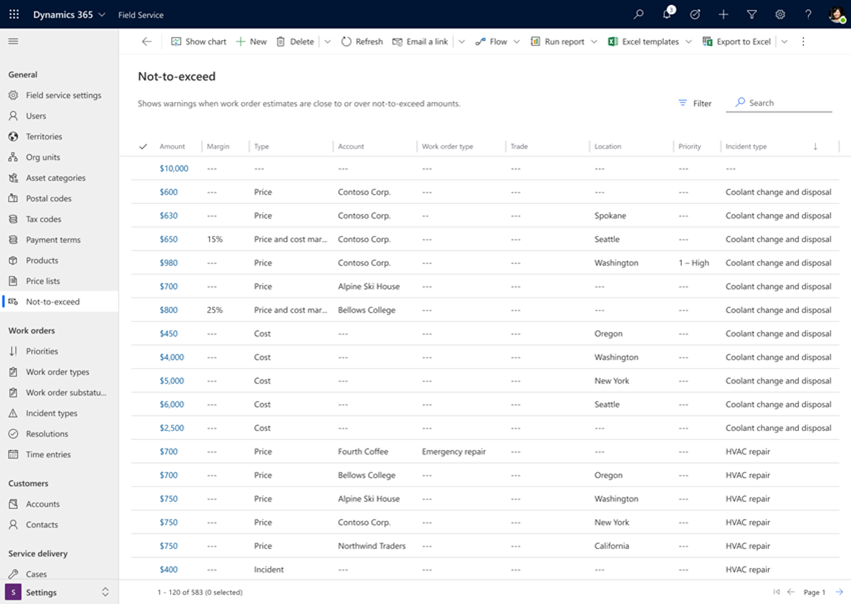
- In the Dynamics 365 Field Service app, select the Settings area.
- Select General > Not-to-exceed.
- Select New.
- Select the Type: Price, Cost, or Price and cost margin. Enter the required information.
- Select Save. Add other NTE records if needed.
Create a price NTE
Specify the amount for the NTE. Typically, the price is discussed with your customer, so it generally maps to a service account. You can specify more fields to narrow the scope of the NTE record.

Create a cost NTE
Define the maximum cost and currency for the NTE. You can specify more fields to narrow the scope of the NTE record.

Create a price and cost margin NTE
Specify the total amount and the cost margin of the NTE. This scenario is often used when you work with subcontractors that bill you for the work and you schedule and manage the work for your customers. You can specify more fields to narrow the scope of the NTE record.

View not-to-exceed on work order forms
NTE values appear on work orders when the configuration of an NTE record matches a property of a work order. For example, a work order maps to an incident type or a functional location where an NTE value is configured.
NTE values on work orders are read-only and show a warning when the actual cost or price approaches or surpasses the defined NTE value. However, you can still update and save a work order as usual when warnings appear.
View not-to-exceed on Field Service mobile
Technicians can view the NTE value on a work order in the Field Service mobile app. The app shows warning icons when the work order price or cost approaches or exceeds the NTE limit.
You can still save the work order when a warning appears.
Applied amount on work orders
When you use the Field Service mobile app in offline mode, the app uses the NTE values from the most recent synchronization.
View applied amount on work orders
The applied amount is the NTE limit currently applied to the work order. It doesn't represent the work order's actual price or cost. The not-to-exceed source indicates how Field Service set the applied amount. If you manually set the applied amount, the source is User-specified. If you don't make manual edits, Field Service selects the applicable NTE record and copies that record's amount to the applied amount on the work order. In this case, the source is Not-to-exceed, and the work order NTE references the selected NTE record.
When you reset a manually entered NTE amount on the work order form, the source changes back to Not-to-exceed. The applied amount updates to the amount from the system-selected NTE.
Important
Field Service uses the work order NTE during NTE selection, and you interact with it on the work order form. Customizing the work order NTE might interfere with automated behavior.