Note
Access to this page requires authorization. You can try signing in or changing directories.
Access to this page requires authorization. You can try changing directories.
When you develop and debug JavaScript web resources that you use as an event handler in a model-driven app, you typically need to make several changes and test how they work. Uploading and publishing the web resource after every change slows down this process.
Modern browser developer tools provide capabilities to save a local copy of the web resource. When the model-driven app requests the web resource, the browser loads your local copy instead of the file from the server. You can edit the local copy, refresh the page, and test your changes without repeatedly uploading and publishing the web resource. You don't need to install proxy software, browser extensions, or certificates.
Learn more about how modern browsers provide these capabilities.
- Microsoft Edge Local Overrides
- Google Chrome local overrides
- Firefox Network Overrides
- Safari WebKit Web Inspector Local Overrides
Important
A local override only changes the resource loaded by your browser. It doesn't update the JavaScript web resource in Microsoft Dataverse, and other users don't see your changes. After you finish troubleshooting, copy the changes you want to keep into your source file and use your normal process to update and publish the web resource. This article doesn't describe that process.
Prerequisites
Before you begin:
You need a model-driven app that has a JavaScript web resource used to provide event handlers for a form.
This article uses the JavaScript web resource described in Write your first client script. That walkthrough creates a JavaScript web resource named
example_form-script.js, adds it to the Account form, and registers functions for the form On Load and On Save events and the Name column On Change event.Note
You can download the JavaScriptWebResourceExampleSolution_1_0_managed.zip. Install this managed solution and you find a model-driven application that represents the completed outcome of the Write your first client script walkthrough article.
This article uses Microsoft Edge, but Google Chrome, Firefox, and Safari developer tools have similar capabilities.
Create an empty folder on your computer for Microsoft Edge DevTools to store local overrides. Don't use a folder that contains source files, credentials, certificates, or other sensitive information. DevTools creates the folder structure it needs within this folder. This article uses
C:\temp\overridesbut you might want to useC:\Users\<your user name>\overrides.
This article uses this script from Write your first client script:
// Define a unique namespace for the sample library.
window.Example ??= {};

(() => {
    const notificationId = "_myUniqueId";
    const currentUserName = Xrm.Utility.getGlobalContext().userSettings.userName;
    const message = `${currentUserName}: Your JavaScript code in action!`;

    // Code to run in the form OnLoad event
    window.Example.formOnLoad = (executionContext) => {
        const formContext = executionContext.getFormContext();

        // Display the form level notification as an INFO
        formContext.ui.setFormNotification(message, "INFO", notificationId);

        // Wait for 5 seconds before clearing the notification
        window.setTimeout(
            () => formContext.ui.clearFormNotification(notificationId),
            5000
        );
    };

    // Code to run in the column OnChange event
    window.Example.attributeOnChange = (executionContext) => {
        const formContext = executionContext.getFormContext();

        // Automatically set some column values if the account name contains "Contoso"
        const accountName = formContext.getAttribute("name").getValue();
        if (accountName?.toLowerCase().includes("contoso")) {
            formContext.getAttribute("websiteurl").setValue("https://www.contoso.com");
            formContext.getAttribute("telephone1").setValue("425-555-0100");
            formContext.getAttribute("description").setValue("Website URL, Phone and Description set using custom script.");
        }
    };

    // Code to run in the form OnSave event
    window.Example.formOnSave = () => {
        // Display an alert dialog
        Xrm.Navigation.openAlertDialog({ text: "Record saved." });
    };
})();
This JavaScript web resource provides three functions that are registered for the following events:
| Function | Event |
|---|---|
Example.formOnLoad |
Form OnLoad |
Example.attributeOnChange |
Field OnChange |
Example.formOnSave |
Form OnSave |
The steps also work with any JavaScript web resource that's registered as a form event handler. Use the name of your web resource and trigger its event when the steps refer to the sample.
Confirm that the published script works
Before you create an override, confirm the current behavior of the published web resource:
Open the model-driven app in Microsoft Edge.
Open an existing account record or create a new one.
Confirm that a form notification similar to the following message appears for five seconds:
<Your Name>: Your JavaScript code in action!
This step confirms that the form loads the web resource and calls the Example.formOnLoad event handler.
Set up Local Overrides
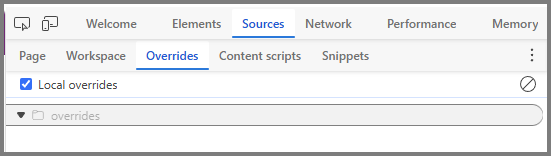
You only need to select an overrides folder the first time you use Local Overrides in a Microsoft Edge browser profile.
With the account form open, press F12 or Ctrl+Shift+I to open DevTools.
Select the Sources tool.
In the Navigator pane, select the Overrides tab. If the tab isn't visible, select More tabs, and then select Overrides.
Select Select folder for overrides.
Select the empty folder you created for overrides, and then select Select Folder.
When DevTools requests full access to the folder, select Allow.

Confirm that Enable Local Overrides is selected.
Enable bypass for network for service workers
Important
Enabling Bypass for network ensures that DevTools Local Overrides are applied by preventing Service Workers from serving cached responses. If you don't do this step, local overrides won't work with model-driven apps.
In DevTools, select the Application tab.
If the tab isn't visible, select + (More tabs) and then Application.
In the left navigation pane, select Service Workers.
Select Bypass for network to force requests to bypass the Service Worker and use the network instead.
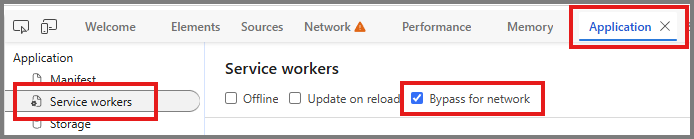
Refresh the page to apply the change.
Create an override for the web resource
Use the Network tool to find the JavaScript file loaded by the account form:
Select the Network tool.
If network activity isn't being recorded, select Record network log.
Refresh the page so that the form loads the web resource again.
In the Filter box, start typing the name of the web resource, such as:
example_form-script.js.In the list of network requests, right-click
example_form-script.js, and then select Override content.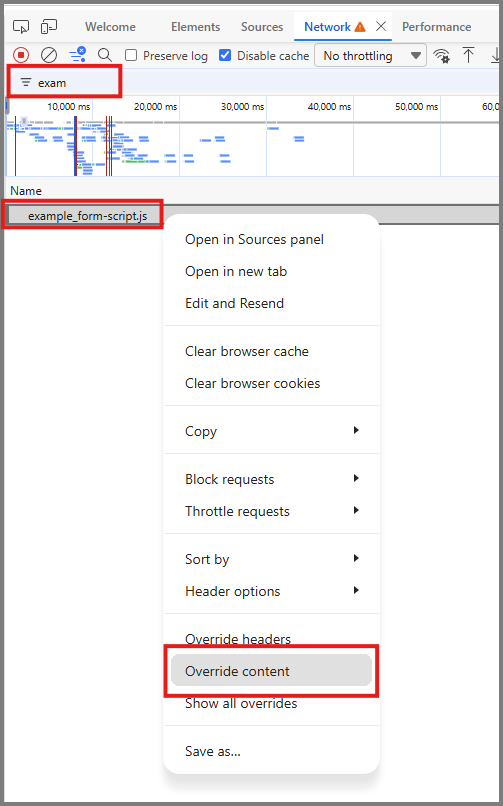
Select the Sources tool, and then select the Overrides tab.
Expand the folders that DevTools created, and then select
example_form-script.js.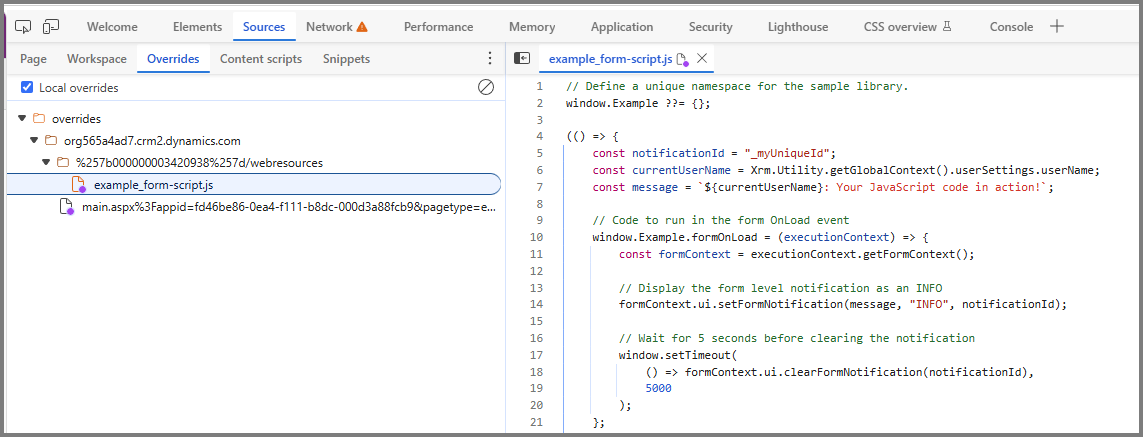
DevTools copies the web resource into the overrides folder. A purple dot on the file icon indicates that DevTools has overridden the resource.
Tip
You can also create the override from the Page tab in the Sources tool. Locate the web resource, right-click it, and then select Override content.
Verify that Microsoft Edge loads the local copy
Make a change that's easy to recognize so that you can confirm the override is working:
In the DevTools editor, find the following line:
const message = `${currentUserName}: Your JavaScript code in action!`;Replace it with this line:
const message = `${currentUserName}: Local override in action!`;Note
If you try pasting code into the DevTools editor, you see this dialog. You need to type
allow pastingand select Allow to continue. This dialog doesn't appear if you type changes directly.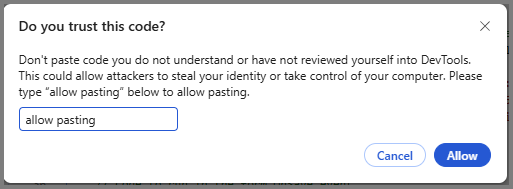
Change the notification duration from
5000to15000.Press Ctrl+S to save the local file.
Refresh the account form.
Confirm that the notification displays Local override in action! and stays visible for 15 seconds.
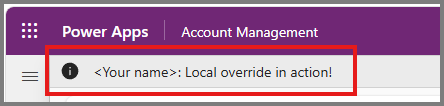
The changed message and duration confirm that Microsoft Edge loaded the local override instead of the published web resource.
Debug the event handlers
After you confirm that the override works, use the DevTools debugger to investigate the script.
Debug the form OnLoad event
In the Sources tool, open the overridden
example_form-script.jsfile.Select the line number for this statement to set a breakpoint:

Refresh the account form.
When script execution pauses, use the Scope pane to inspect
executionContextandformContext.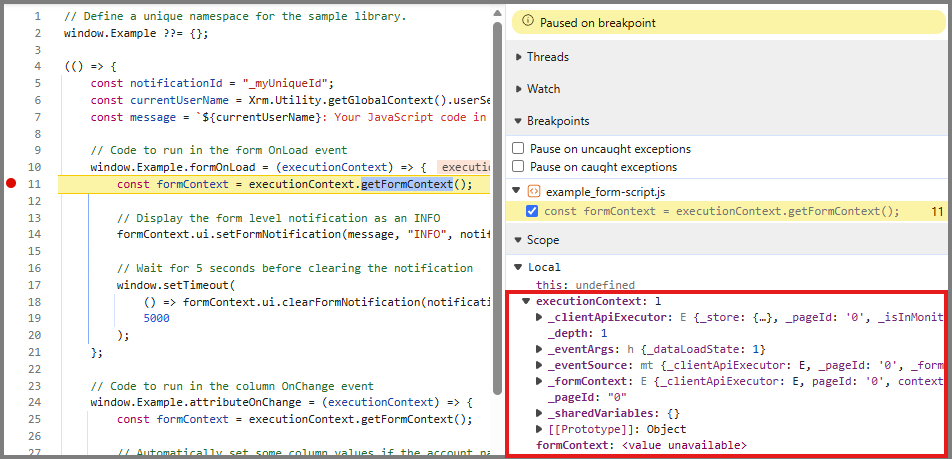
Step through the function and observe the call to
setFormNotification.Select Resume script execution to continue.
Debug the Account Name OnChange event
Set a breakpoint on this statement in
Example.attributeOnChange:const accountName = formContext.getAttribute("name").getValue();In the account form, change Account Name, and then move focus away from the column to trigger the On Change event.
When execution pauses, inspect the value of
accountName.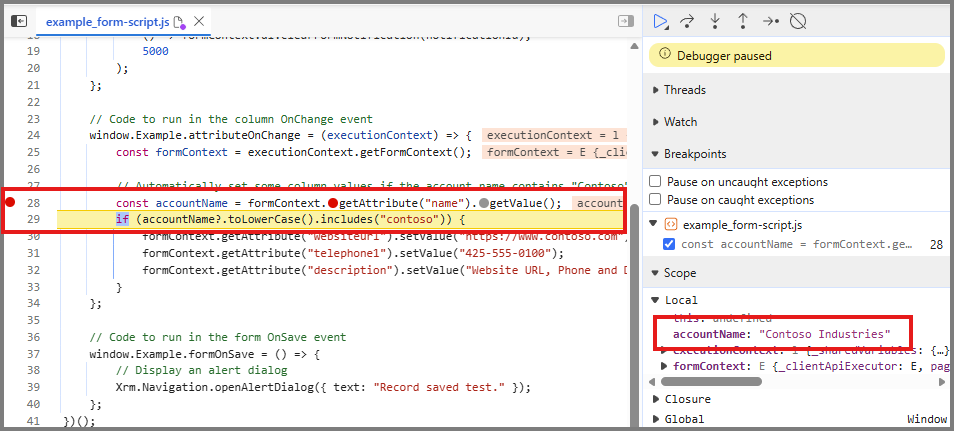
Use an account name that contains
Contoso, and step through the function to observe how the script sets the Website, Main Phone, and Description values.
Debug the form OnSave event
Set a breakpoint on the
Xrm.Navigation.openAlertDialogstatement inExample.formOnSave.Save the record.
When execution pauses, inspect the call stack to confirm that the form On Save event called the expected function.
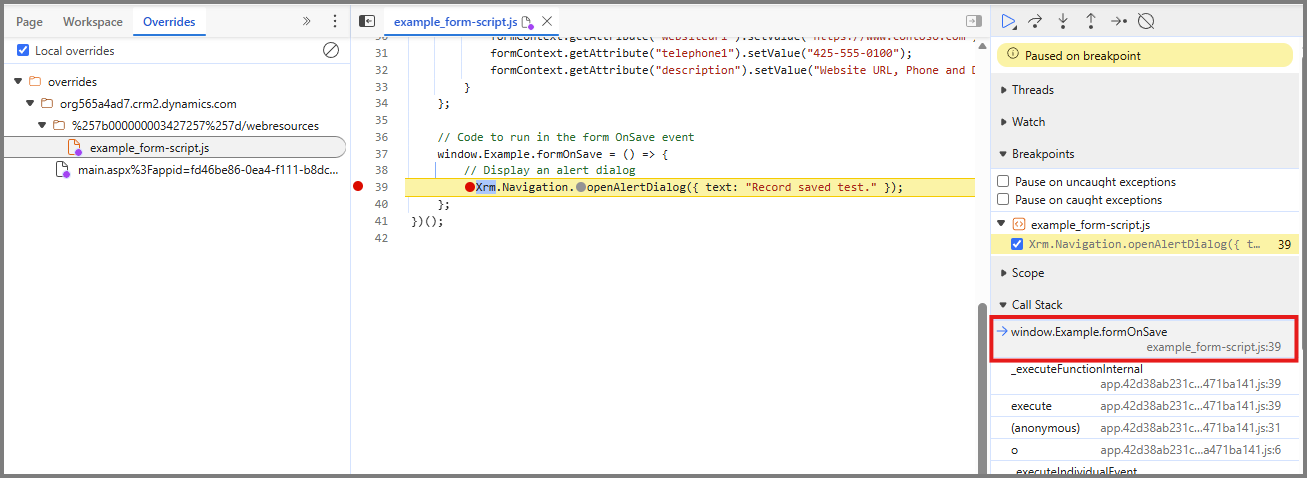
Resume script execution and confirm that the alert dialog opens.
You can edit and save the override whenever you want to test a possible fix. Refresh the form to test changes to code that runs when the form loads. Trigger the relevant form or column event to test other event handlers. Use the Console tool to review errors and log output.
Compare the override with the published web resource
To confirm whether a problem is caused by your local changes:
- In the Sources tool, select the Overrides tab.
- Clear Enable Local Overrides.
- Refresh the account form and test the event again.
Microsoft Edge now loads the published web resource from the server. Select Enable Local Overrides and refresh the form to resume using the local copy.
Finish troubleshooting
Local override files aren't connected to the web resource in Dataverse or to the source files for your solution.
- Copy the changes you want to keep from the override file into the source file you use to maintain the web resource.
- Use your normal development and deployment process to update and publish the JavaScript web resource.
- Test the published web resource with Enable Local Overrides cleared.
- When you no longer need the override configuration, select Clear configuration in the Overrides tab.
Caution
Don't treat the file in the overrides folder as the source file for the web resource. Preserve any changes you want to keep before you clear the configuration or delete local override files.
Troubleshoot Local Overrides
The following are problems you might encounter when using Local Overrides.
The web resource doesn't appear in the Network tool
Confirm that the Network tool is recording, clear any filters, and refresh the form. The form must load the web resource before it appears. Also confirm that the JavaScript library is added to the form and that the form customizations are published.
The Override content command isn't available
Return to the Sources tool and confirm that you selected an overrides folder, allowed DevTools to access it, and selected Enable Local Overrides. Then refresh the form and try again.
The form still uses the published script
Keep DevTools open, confirm that Enable Local Overrides is selected, and verify that the web resource has a purple dot in the Network or Sources tool. Save the override, and then refresh the form.
A breakpoint isn't reached
Confirm that you set the breakpoint in the overridden file and that it appears enabled. Trigger the event associated with that function: refresh the form for On Load, change the configured column for On Change, or save the record for On Save. Also check the Console tool for a syntax error that prevents the script from loading.