Note
Access to this page requires authorization. You can try signing in or changing directories.
Access to this page requires authorization. You can try changing directories.
Applies to: ✅ Power BI Desktop
Custom format strings in Power BI Desktop control how numbers, dates, and times appear in your visuals.

Custom format strings are one of several ways to control how values display. For a comparison of format string levels, syntax, and related settings, see Display format strings overview.
You can set a custom format string at three levels:
- Model. Applies everywhere the column or measure is used.
- Visual. Applies to a field or visual calculation in one visual, and overrides the model level.
- Element. Applies to a specific element, such as data labels, and overrides the visual and model levels.
The visual applies custom format strings at every level, including format strings set in the model. Visuals use .NET format strings that Power BI extends to accept common VBA-style tokens, such as lowercase m for month. DAX formatting, such as the FORMAT function, uses VBA syntax instead and returns an already formatted value as text. For details, see VBA and .NET format string syntax.
Note
Quarter formatting is available only with DAX formatting, such as the FORMAT function. You can't display the quarter by using a custom format string.
How to use custom format strings
First, decide which level to work at: model, visual, or element. Numeric formats such as #,##0.00 work the same at every level.
Common format string examples
Important
If a visual shows a K, M, bn, or T suffix even though you set a custom format string, set Display units to None on the visual, or turn off automatic scaling for the whole report. This issue is most common with the new card visual, data labels, and slicers. For more information, see Set display units.
Numeric formats
| Format string | Example input | Example output | Description |
|---|---|---|---|
#,##0 |
1234567 | 1,234,567 | Number with thousands separator, no decimals |
#,##0.00 |
1234.5 | 1,234.50 | Number with thousands separator, two decimals |
0 |
1234.56 | 1235 | Whole number, no thousands separator |
00000 |
42 | 00042 | Fixed width with leading zeros (for example, ID numbers) |
0% |
0.156 | 16% | Percentage, no decimals |
0.0% |
0.156 | 15.6% | Percentage, one decimal |
$#,##0.00 |
1234.5 | $1,234.50 | Currency with two decimals |
€#,##0.00 |
1234.5 | €1,234.50 | Currency with euro symbol |
#,##0.00;(#,##0.00) |
-1234.5 | (1,234.50) | Negative numbers in parentheses |
#,##0.00;-#,##0.00;"Zero" |
0 | Zero | Custom text for zero values |
0.00" units" |
42.5 | 42.50 units | Number with custom suffix |
0.0" °C" |
23.4 | 23.4 °C | Number with degree symbol |
0.00E+00 |
1234567 | 1.23E+06 | Scientific notation |
Date and time formats
These examples work at the model, visual, and element levels. Use m for month and n for minutes.
| Format string | Example input | Example output | Description |
|---|---|---|---|
m/d/yyyy |
1/15/2025 | 1/15/2025 | Date with numeric month |
mmm d, yyyy |
1/15/2025 | Jan 15, 2025 | Date with abbreviated month |
mmmm d, yyyy |
1/15/2025 | January 15, 2025 | Date with full month name |
dddd, mmmm d |
1/15/2025 | Wednesday, January 15 | Full day and month names |
h:nn AM/PM |
14:30 | 2:30 PM | 12-hour time |
hh:nn:ss |
14:30:05 | 14:30:05 | 24-hour time with seconds |
Add a model level format string
In Model view, select the field, and then select the dropdown arrow under Format in the Properties pane.

Select Custom to see a list of commonly used format strings, or enter your own.

Add a visual level format string
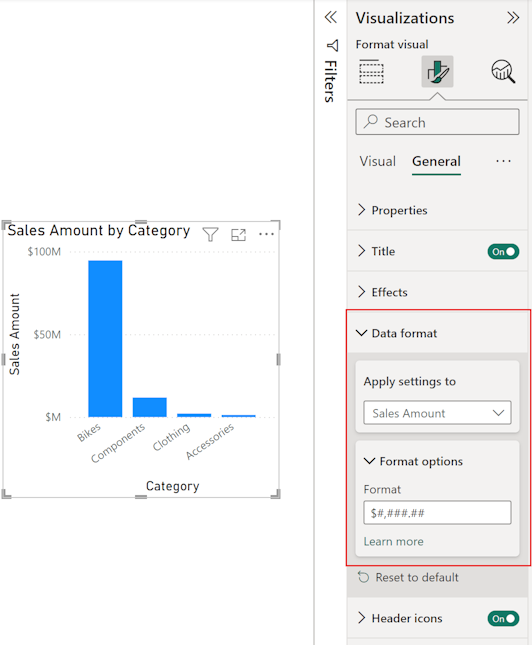
Add the field or visual calculation to your visual. With the visual selected, open the Format pane, go to the General section, and set the format string under Data format.
Add an element level format string
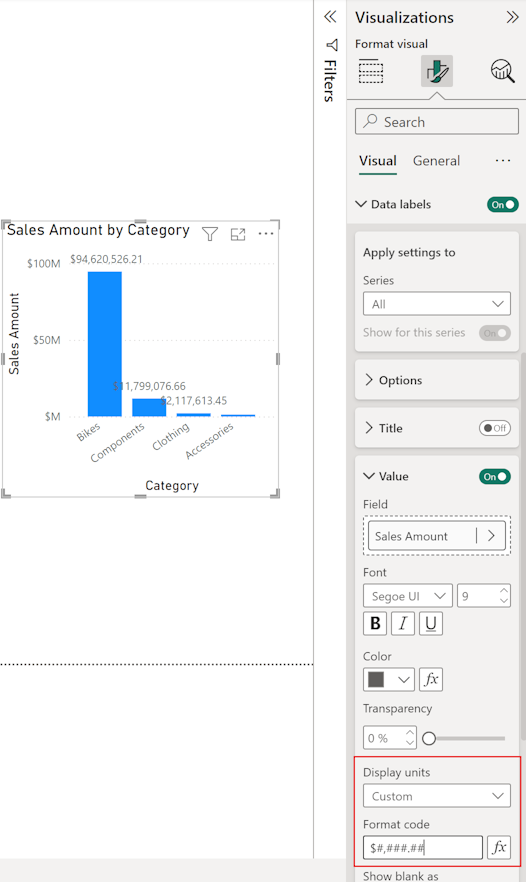
In the Format pane, find the Display units setting for the element you want to format, and select Custom. Then enter a format string in Format code, or select Conditional formatting (fx) to get the format string from a field. Not all elements support Custom.
For example, to format a data label, go to Visual > Data labels > Value, set Display units to Custom, and enter the format string. For more information, see Define a custom display unit.
Supported custom format syntax
Visuals use .NET format strings that Power BI extends to accept common VBA-style tokens. The following sections describe the syntax that visuals support. DAX formatting, such as the FORMAT function, supports more tokens, such as q for quarter.
Date symbols
| Symbol | Meaning or output |
|---|---|
| d | Day of month without leading zero (1–31). |
| dd | Day of month with leading zero (01–31). |
| m | Month number without leading zero (1–12). Immediately after h or hh, it's minutes. |
| mm | Month number with leading zero (01–12). Immediately after h or hh, it's minutes with leading zero (00–59). |
| mmm | Abbreviated month name (Jan–Dec). Hijri month names have no abbreviations. |
| mmmm | Full month name (January–December). |
| yy | Two-digit year (00–99). |
| yyyy | Four-digit year (0001–9999). |
| / | Date separator. The character displayed depends on the locale. |
Time symbols
| Symbol | Meaning or output |
|---|---|
| h | Hour without leading zero (0–23), or 1–12 with AM/PM. |
| hh | Hour with leading zero (00–23), or 01–12 with AM/PM. |
| n | Minute without leading zero (0–59). |
| nn | Minute with leading zero (00–59). |
| m, mm | Minutes (0–59, 00–59) only immediately after h or hh. Otherwise, month. |
| s | Second without leading zero (0–59). |
| ss | Second with leading zero (00–59). |
| tt | AM/PM designator (12-hour clock, uppercase). |
| : | Time separator. The character displayed depends on the locale. |
Tip
Use n and nn for minutes to avoid confusion with the m and mm month symbols.
Named date and time formats
| Format name | Description |
|---|---|
| General Date | A date and time, for example, 4/3/93 05:34 PM. If there's no fractional part, only the date displays, for example, 4/3/93. If there's no integer part, only the time displays, for example, 05:34 PM. |
| Long Date | The locale's long date format. |
| Short Date | The locale's short date format. |
| Long Time | The locale's long time format, including hours, minutes, and seconds. |
| Short Time | A 24-hour time, for example, 17:45. |
Date and time examples
These examples use the timestamp September 4, 2025, 3:07:08 PM.
| Format string | Output | Notes |
|---|---|---|
m/d/yy |
9/4/25 | Month and day without leading zeros. |
mm/dd/yyyy |
09/04/2025 | Leading zeros. |
mmm d, yyyy |
Sep 4, 2025 | Abbreviated month. |
mmmm d |
September 4 | Full month name. |
h:nn:ss |
15:07:08 | nn is always minutes. |
h:m:s |
15:7:8 | m is minutes because it follows h. |
m |
9 | Standalone m is month. |
Number format characters
| Character | Description |
|---|---|
| None | Display the number with no formatting. |
| 0 | Digit placeholder. Displays a digit or a zero. If the number has fewer digits than the number of zeros on either side of the decimal, displays leading or trailing zeros. If the number has more digits after the decimal separator than the number of zeros, rounds the number. Displays extra digits before the decimal separator without modification. |
| # | Digit placeholder. Displays a digit or nothing. Works like 0, except leading and trailing zeros don't display. |
| . | Decimal placeholder. Determines how many digits display before and after the decimal separator. If the format has only # to the left of this symbol, numbers smaller than one begin with a decimal separator. To show a leading zero, use 0 as the first digit placeholder to the left of the decimal separator. The character displayed depends on the locale. |
| % | Percentage placeholder. Multiplies the value by 100 and inserts % where it appears in the format string. |
| , | Thousands separator. When surrounded by digit placeholders, separates thousands from hundreds. Two adjacent separators, or a separator immediately to the left of the decimal separator, divide the number by 1,000 and round. For example, ##0,, displays 100 million as 100, and numbers smaller than one million as 0. The character displayed depends on the locale. |
| E- E+ e- e+ | Scientific format. If the format has at least one digit placeholder after E-, E+, e-, or e+, the number displays in scientific notation. The number of digit placeholders sets the number of digits in the exponent. E- and e- show a minus sign for negative exponents. E+ and e+ also show a plus sign for positive exponents. |
| - + $ ( ) | Display these characters as literals. |
| \ | Display the next character as a literal. The backslash itself isn't displayed, and it doesn't create hex or \u escape sequences. To display a backslash, use \\. Use a backslash or double quotation marks to display characters that have special meaning: date and time characters (a, c, d, h, m, n, p, q, s, t, w, /, and :), number characters (#, 0, %, E, e, comma, and period), and string characters (@, &, <, >, and !). |
| "ABC" | Display the text inside the double quotation marks. |
Number format sections
A number format string can have up to three sections separated by semicolons: positive, negative, and zero. If you don't include a semicolon, all values use the first section. If a section is empty, values for that section display as "".
| Value | 0.00;-0.0;"Zero" |
0.00;; |
0.00;-0.0; |
0.00; |
|---|---|---|---|---|
| -1.234 | -1.2 | "" | -1.2 | "" |
| 0 | "Zero" | "" | "" | 0.00 |
| 1.234 | 1.23 | 1.23 | 1.23 | 1.23 |
For more examples, see Custom numeric format strings.
Named numeric formats
| Format name | Description |
|---|---|
| General Number | Number with no thousands separator. |
| Currency | Number with a thousands separator and two decimal places. The currency symbol depends on the locale. |
| Fixed | At least one digit before and two digits after the decimal separator. |
| Standard | Number with a thousands separator, at least one digit before, and two digits after the decimal separator. |
| Percent | Number multiplied by 100 with a percent sign (%) and two decimal places. |
| Scientific | Standard scientific notation. |
Add Unicode or special symbols
To include a symbol such as a degree sign or currency symbol, type or paste the character itself inside double quotation marks. Custom format strings don't support escape sequences such as \u00B0, 0xB0, or °.
| Goal | Format string | Output | Notes |
|---|---|---|---|
| Celsius with a space | 0.0" °C" |
23.4 °C | The space is inside the quotation marks, so it's preserved. |
| Percent as text | 0.00" pct" |
12.34 pct | Unlike %, doesn't multiply by 100. |
| Unit suffix | 0" KB" |
512 KB | Literal text. |
| Currency symbol after the number | #,##0.00" €" |
1,234.00 € | For a locale-based symbol, use the Currency format at the model level. |
| Microseconds | 0" µs" |
15 µs | Paste µ (U+00B5). |
| Degree only | 0"°" |
90° | No space. |
| Superscript | 0" m²" |
25 m² | Paste ² (U+00B2). |
To insert a symbol on Windows, press Windows logo key + period (.) to open the symbol panel, or use Character Map.
To change a symbol based on context, such as switching between °C and °F based on a slicer, use a dynamic format string.
Troubleshoot custom format strings
| Problem | Solution |
|---|---|
| A value shows a K, M, bn, or T suffix. | Set Display units to None. For more information, see Set display units. |
| You see minutes where you expect a month. | Use m for month and n for minutes. m means minutes only when it immediately follows h or hh. |
| You can't display the quarter. | Quarter formatting is available only with the FORMAT DAX function. For more information, see VBA and .NET format string syntax. |
Considerations and limitations
- You can't set a custom format string for fields of type string or Boolean.