Note
Access to this page requires authorization. You can try signing in or changing directories.
Access to this page requires authorization. You can try changing directories.
Use the ConnectToGit and DisconnectFromGit APIs to programmatically integrate your Microsoft Dataverse environment with Git source control. By using these APIs, you can connect individual solutions or entire environments to supported Git repositories and manage those connections through code.
Prerequisites
Before using these APIs, ensure you have:
- Access to a Microsoft Dataverse environment
- System administrator permissions
- Read and write access to a Git repository
ConnectToGit API
Creates a connection between a Dataverse solution or environment and a Git repository. By using this connection, you can manage source control for your Dataverse components.
Parameters
The ConnectToGit API accepts the following parameters:
| Parameter | Type | Required | Description |
|---|---|---|---|
GitFolder |
String | Yes | Name of the folder you want to bind your solution or environment to. |
Branch |
String | Yes | Name of the branch you want to connect to. |
ConnectionType |
Integer | No | Specifies what to connect to. See ConnectionType parameter. |
GitProvider |
Integer | No | The Git provider. See GitProvider parameter. |
Organization |
String | No | Name of the organization you want to connect to. |
Project |
String | No | Name of the project you want to connect to. |
Repository |
String | No | Name of the repository you want to connect to. |
RootFolder |
String | No | Name of the root folder where all your solutions reside in solution scope. |
SolutionUniqueName |
String | No | The unique name of the solution you wish to connect to git. |
UpstreamBranch |
String | No | Name of the upstream branch you want to connect to. Defaults to default branch of repository. |
GitHubConnectionId |
String | No | Connection ID for the Power Platform GitHub connection. Required when GitProvider is 1 unless you provide GitHubPAT. Can't be used when virtual network (VNET) support is enabled for the Dataverse environment. |
GitHubPAT |
String | No | GitHub personal access token with access to the target repository. Required when GitProvider is 1 unless you provide GitHubConnectionId. Required when virtual network (VNET) support is enabled for the Dataverse environment. |
GitHubAppConfigId |
String | No | Reference to the GitHub App configuration record. Required when GitProvider is 1. Use the format githubappconfigs(<recordId>). |
ConnectionType parameter
The ConnectionType parameter controls whether to connect to the entire Dataverse environment or a specific solution.
| Value | Label | Description |
|---|---|---|
| 0 | Solution | Connects a specific Dataverse solution to Git. |
| 1 | Environment | Connects the entire Dataverse environment to Git. |
GitProvider parameter
Use the GitProvider parameter to specify the type of Git provider you're using, either Azure DevOps or GitHub.
| Value | Label | Description |
|---|---|---|
| 0 | Azure DevOps | Use for repositories hosted on Azure DevOps |
| 1 | GitHub | Use for repositories hosted on GitHub |
DisconnectFromGit API
Removes the Git connection from a Dataverse solution or environment, and disables source control integration.
Parameter
The DisconnectFromGit API has only one parameter.
| Parameter | Type | Required | Description |
|---|---|---|---|
SolutionUniqueName |
String | No | The unique name of the solution you want to disconnect from Git. Omit to disconnect all solutions or the environment. |
Additional information
Here are a few parameter value options to specify when invoking DisconnectFromGit.
- Disconnect single solution: Provide
SolutionUniqueNameto disconnect a specific solution. - Disconnect all solutions: Provide no parameters to disconnect all solution-level connections.
- Disconnect environment: Provide no parameters to disconnect the environment-level connection.
Examples
The following examples describe scenarios for using the ConnectToGit and DisconnectFromGit APIs:
- Connect your entire Dataverse environment to an Azure DevOps repository
- Connect to a GitHub repository
- Connect to a GitHub repository by using PowerShell
- Disconnect your entire Dataverse environment from Git source control
- Connect the first solution to a Git repository
- Connect extra solutions to the same Git repository after you connect the initial solution
- Disconnect a specific solution from Git source control while keeping other solutions connected
Connect your entire Dataverse environment to an Azure DevOps repository
This connection enables source control for all environment-level configurations and components.
Don't use these parameters with this connection:
RootFolderSolutionUniqueNameUpstreamBranch
This example shows how to use the ConnectToGit action to connect your entire Dataverse environment to an Azure DevOps repository.
Request
POST [Organization URI]/api/data/v9.2/ConnectToGit HTTP/1.1
Accept: application/json
Content-Type: application/json; charset=utf-8
OData-MaxVersion: 4.0
OData-Version: 4.0

{
   "GitFolder": "yourGitfolderName",
   "Branch": "yourBranchName",
   "ConnectionType": 1,
   "GitProvider": 0,
   "Organization": "yourOrganizationName",
   "Project": "yourProjectName",
   "Repository": "yourRepositoryName"
}
Response
HTTP/1.1 204 No Content
OData-Version: 4.0
Connect to a GitHub repository
Before you use the API to connect to GitHub, complete the setup steps to create the GitHub App, install it on the target repository, import its private key into Azure Key Vault, and create the Power Platform GitHub connection. For more information, see Connect to GitHub.
Create a GitHub App configuration record by using the Web API
Use the Dataverse OData Web API to create a githubappconfig record. Send a POST request with the GitHub App client ID, Key Vault URI, and key name.
You can use any HTTP client, such as Insomnia, Visual Studio Code REST Client, or curl, to make these calls. You need a bearer token for authentication. For more information, see Use the Microsoft Dataverse Web API.
POST {{DataverseOrgUrl}}/api/data/v9.2/githubappconfigs
Authorization: Bearer {{token}}
Content-Type: application/json

{
    "githubappid": "Iv23liBWoH9sf7xDrRe6",
    "keyvaulturi": "{{KeyVaultUri}}",
    "keyname": "demoGitHubKey"
}
Important
Note the record ID returned in the response header. You need this value to identify the managed identity, configure RBAC, and call ConnectToGit. The record ID uses a format such as 13d565bb-4c22-f111-a546-7ced8d6e3e85.
After creating the GitHub App configuration record, assign the Key Vault Crypto User role to the Dataverse managed identity as described in Configure Key Vault role-based access control (RBAC).
Call the ConnectToGit API
After you create the githubappconfig record and configure Key Vault RBAC, use the Dataverse Web API to establish the source control connection by calling the ConnectToGit action.
POST {{DataverseOrgUrl}}/api/data/v9.2/ConnectToGit
Authorization: Bearer {{token}}
Content-Type: application/json

{
    "GitProvider": 1,
    "ConnectionType": 1,
    "Organization": "YourGitHubOrg",
    "Repository": "YourRepo",
    "Project": "placeholder",
    "Branch": "yourBranch",
    "UpstreamBranch": "main",
    "GitFolder": "YourFolder",
    "GitHubConnectionId": "<connectionId>",
    "GitHubAppConfigId": "githubappconfigs(<recordId>)"
}
Important
The branch must already exist in the repository. Create it in GitHub first if needed. The GitHubAppConfigId value must use the format githubappconfigs(<recordId>).
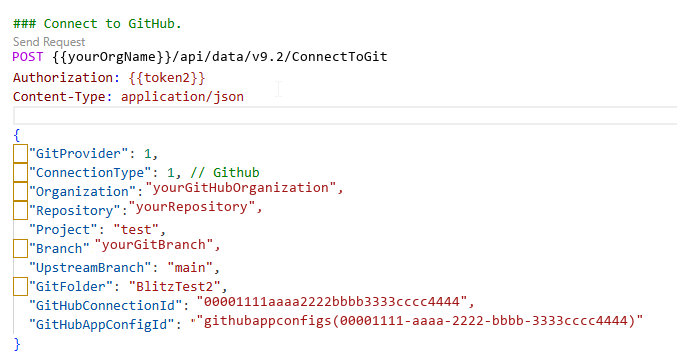
If you receive a successful response, the environment is connected to GitHub.
Connect to a GitHub repository by using PowerShell
The following PowerShell example creates the GitHub App configuration record, waits for the Dataverse managed identity to appear in Microsoft Entra ID, assigns the Key Vault Crypto User role to the managed identity, and calls the ConnectToGit action. If you already have a GitHub App configuration record, provide GitHubAppConfigId to skip the configuration and Key Vault role assignment steps.
Install and import the Az.Accounts, Az.KeyVault, and Az.Resources PowerShell modules before you run the example. Sign in with Connect-AzAccount using an account that has access to the Dataverse environment and permission to assign Key Vault roles.
If virtual network (VNET) support is enabled for the Dataverse environment, provide GitHubPAT. GitHub connections can't be used with virtual network support.
[CmdletBinding()]
param(
    [Parameter(Mandatory)]
    [string]$DataverseOrgUrl,

    [Parameter(Mandatory)]
    [string]$GitHubOrg,

    [Parameter(Mandatory)]
    [string]$GitHubRepo,

    [Parameter(Mandatory)]
    [string]$Branch,

    [Parameter(Mandatory)]
    [string]$GitFolder,

    [string]$GitHubAppClientId,

    [string]$KeyVaultName,

    [string]$KeyVaultKeyName,

    [string]$GitHubAppConfigId,

    [string]$GitHubConnectionId,

    [string]$GitHubPAT,

    [ValidateSet(0, 1)]
    [int]$ConnectionType = 1,

    [string]$UpstreamBranch,

    [string]$RootFolder,

    [string]$SolutionUniqueName
)

Set-StrictMode -Version 3.0
$ErrorActionPreference = "Stop"

if (($GitHubConnectionId -and $GitHubPAT) -or (-not $GitHubConnectionId -and -not $GitHubPAT)) {
    throw "Specify either -GitHubConnectionId or -GitHubPAT, but not both."
}

if (-not $GitHubAppConfigId) {
    foreach ($name in @('GitHubAppClientId', 'KeyVaultName', 'KeyVaultKeyName')) {
        if ([string]::IsNullOrWhiteSpace((Get-Variable -Name $name -ValueOnly))) {
            throw "Specify -$name when -GitHubAppConfigId is not provided."
        }
    }
}

$dataverseResource = $DataverseOrgUrl.TrimEnd('/')
$tokenResult = Get-AzAccessToken -ResourceUrl $dataverseResource -AsSecureString
$dataverseToken = [System.Net.NetworkCredential]::new('', $tokenResult.Token).Password

function Invoke-DataverseApi {
    param(
        [Parameter(Mandatory)]
        [string]$Method,

        [Parameter(Mandatory)]
        [string]$Endpoint,

        [object]$Body,

        [switch]$ReturnHeaders
    )

    $headers = @{
        Authorization      = "Bearer $dataverseToken"
        "OData-MaxVersion" = "4.0"
        "OData-Version"    = "4.0"
    }

    $request = @{
        Method      = $Method
        Uri         = "$dataverseResource/api/data/v9.2/$Endpoint"
        Headers     = $headers
        ContentType = "application/json; charset=utf-8"
    }

    if ($Body) {
        $request.Body = $Body | ConvertTo-Json -Depth 10
    }

    if ($ReturnHeaders) {
        return (Invoke-WebRequest @request).Headers
    }

    Invoke-RestMethod @request
}

$appConfigRecordId = $GitHubAppConfigId

if (-not $appConfigRecordId) {
    $keyVault = Get-AzKeyVault -VaultName $KeyVaultName
    $keyVaultUri = 'https://' + $KeyVaultName + '.vault.azure.net/'

    $appConfigBody = @{
        githubappid = $GitHubAppClientId
        keyvaulturi = $keyVaultUri
        keyname     = $KeyVaultKeyName
    }

    $responseHeaders = Invoke-DataverseApi `
        -Method POST `
        -Endpoint "githubappconfigs" `
        -Body $appConfigBody `
        -ReturnHeaders

    $entityIdHeader = [string]$responseHeaders["OData-EntityId"]
    if ($entityIdHeader -notmatch '\(([0-9a-f-]+)\)') {
        throw "Could not read the GitHub App configuration record ID from the Dataverse response."
    }

    $appConfigRecordId = $Matches[1]
    $managedIdentityName = "PPMI-githubappconfigmanagedidentity-$appConfigRecordId"

    $servicePrincipal = $null
    for ($attempt = 1; $attempt -le 60; $attempt++) {
        $servicePrincipal = Get-AzADServicePrincipal -DisplayName $managedIdentityName -ErrorAction SilentlyContinue
        if ($servicePrincipal) {
            break
        }

        Start-Sleep -Seconds 1
    }

    if (-not $servicePrincipal) {
        throw "The Dataverse managed identity was not found in Microsoft Entra ID. Check Dataverse System Jobs for GitHub App configuration errors."
    }

    $keyVaultScope = $keyVault.ResourceId
    if (-not $keyVaultScope) {
        $subscriptionId = (Get-AzContext).Subscription.Id
        $keyVaultScope = "/subscriptions/$subscriptionId/resourceGroups/$($keyVault.ResourceGroupName)/providers/Microsoft.KeyVault/vaults/$KeyVaultName"
    }

    $keyVaultCryptoUserRoleId = "12338af0-0e69-4776-bea7-57ae8d297424"
    $existingAssignment = Get-AzRoleAssignment `
        -ObjectId $servicePrincipal.Id `
        -RoleDefinitionId $keyVaultCryptoUserRoleId `
        -Scope $keyVaultScope `
        -ErrorAction SilentlyContinue

    if (-not $existingAssignment) {
        New-AzRoleAssignment `
            -ObjectId $servicePrincipal.Id `
            -RoleDefinitionId $keyVaultCryptoUserRoleId `
            -Scope $keyVaultScope | Out-Null
    }
}

$connectBody = @{
    GitProvider          = 1
    ConnectionType       = $ConnectionType
    Organization         = $GitHubOrg
    Repository           = $GitHubRepo
    Project              = "placeholder"
    Branch               = $Branch
    GitFolder            = $GitFolder
    GitHubAppConfigId    = "githubappconfigs($appConfigRecordId)"
}

if ($GitHubConnectionId) { $connectBody.GitHubConnectionId = $GitHubConnectionId }
if ($GitHubPAT)          { $connectBody.GitHubPAT          = $GitHubPAT }
if ($UpstreamBranch)     { $connectBody.UpstreamBranch     = $UpstreamBranch }
if ($RootFolder)         { $connectBody.RootFolder         = $RootFolder }
if ($SolutionUniqueName) { $connectBody.SolutionUniqueName = $SolutionUniqueName }

Invoke-DataverseApi -Method POST -Endpoint "ConnectToGit" -Body $connectBody
Write-Host "Connected Dataverse Git integration to GitHub."
Disconnect your entire Dataverse environment from Git source control
This action removes the environment-level Git connection. Don't use the SolutionUniqueName parameter for this operation. Dataverse automatically identifies and removes the environment-level Git connection.
This example shows how to use the DisconnectFromGit action to disconnect your entire Dataverse environment from Git source control.
Request
POST [Organization URI]/api/data/v9.2/DisconnectFromGit HTTP/1.1
Accept: application/json
Content-Type: application/json; charset=utf-8
OData-MaxVersion: 4.0
OData-Version: 4.0
Response
HTTP/1.1 204 No Content
OData-Version: 4.0
Connect the first solution to a Git repository
This connection establishes the repository link and folder structure for solution-level source control to the first solution in an environment.
You need to include values for these parameters to specify the solution:
RootFolderSolutionUniqueName
This example shows how to use the ConnectToGit action to connect the first solution to a Git repository.
Request
POST [Organization URI]/api/data/v9.2/ConnectToGit HTTP/1.1
Accept: application/json
Content-Type: application/json; charset=utf-8
OData-MaxVersion: 4.0
OData-Version: 4.0

{
   "GitFolder": "yourGitfolderName",
   "Branch": "yourBranchName",
   "ConnectionType": 1,
   "GitProvider": 0,
   "Organization": "yourOrganizationName",
   "Project": "yourProjectName",
   "Repository": "yourRepositoryName",
   "RootFolder": "yourRootFolderName",
   "SolutionUniqueName": "yourSolutionUniqueName"
}
Response
HTTP/1.1 204 No Content
OData-Version: 4.0
Connect extra solutions to the same Git repository after you connect the initial solution
After you connect the first solution, you only need the solution-specific parameters. You inherit the repository connection details from the initial connection.
Set only these parameters:
SolutionUniqueNameBranchGitFolder
Important
You must first connect the first solution before this works. See Connect the first solution to a Git repository.
This example shows how to use the ConnectToGit action to connect subsequent solutions to a Git repository.
Request
POST [Organization URI]/api/data/v9.2/ConnectToGit HTTP/1.1
Accept: application/json
Content-Type: application/json; charset=utf-8
OData-MaxVersion: 4.0
OData-Version: 4.0

{
   "GitFolder": "yourGitfolderName",
   "Branch": "yourBranchName",
   "SolutionUniqueName": "yourSolutionUniqueName"
}
Response
HTTP/1.1 204 No Content
OData-Version: 4.0
Disconnect a specific solution from Git source control while keeping other solutions connected
Use this approach to remove source control for one solution without affecting others.
This example shows how to use the DisconnectFromGit action to remove source control for one solution without affecting others.
Request
POST [Organization URI]/api/data/v9.2/DisconnectFromGit HTTP/1.1
Accept: application/json
Content-Type: application/json; charset=utf-8
OData-MaxVersion: 4.0
OData-Version: 4.0

{
   "SolutionUniqueName": "yourSolutionUniqueName"
}
Response
HTTP/1.1 204 No Content
OData-Version: 4.0
Error handling
Neither the ConnectToGit nor the DisconnectFromGit API returns a value when it completes successfully. When an API fails, it returns an error.
Common error scenarios include:
- Invalid credentials: Ensure you have valid authentication to the Git provider.
- Repository not found: Verify the organization, project, and repository names.
- Permission denied: Ensure your Dataverse account has source control management permissions.
- Solution not found: Verify the
SolutionUniqueNameexists in your environment. - Branch does not exist: Confirm the specified branch exists in the repository.
Support and additional resources
For more information about source control integration with Dataverse, see: