Note
Access to this page requires authorization. You can try signing in or changing directories.
Access to this page requires authorization. You can try changing directories.
Applies to: SQL Server on Azure VMs
Summary
SQL Server on an Azure virtual machine (VM) can fail to deploy from an Azure Marketplace image with the error "System Drive returned status not ready for use." A manually installed SQL Server instance can also fail to come online after the VM is restarted or deallocated. These failures occur when SQL Server can't initialize the tempdb database on unavailable local ephemeral storage. This article helps you resolve or work around these failures.
Note
The investigation of this issue is actively ongoing. The information in this article is subject to change as new details become available.
Symptoms
If you encounter this issue, you likely see:
- SQL Server on Azure VM deployments failing when using an Azure Marketplace image.
- SQL Server failing to come online after an Azure VM is restarted for manually installed instances of SQL Server.
SQL Server on Azure VM deployment fails
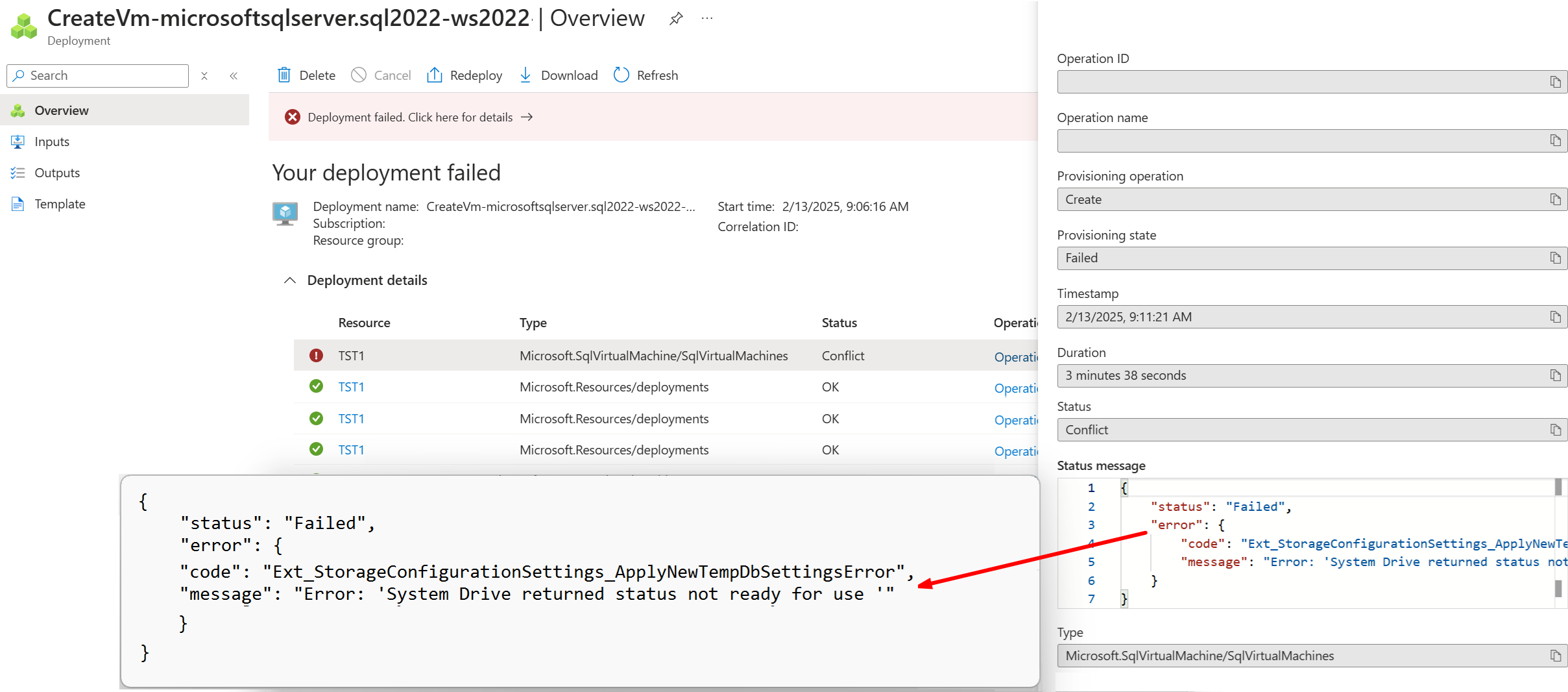
When you try to deploy a SQL Server on Azure VM image from Azure Marketplace, the deployment fails with a status of Conflict and the following error:
System Drive returned status not ready for use.
For example, if you're deploying an image from the Azure portal, you might see the following error for the deployment in Activity log:
{
    "status": "Failed",
    "error": {
        "code": "Ext_StorageConfigurationSettings_ApplyNewTempDbSettingsError",
        "message": "Error: 'System Drive returned status not ready for use '"
    }
}
Warning
When this failure happens, the Azure VM deployment succeeds, but the SQL Server installation fails. You must delete the VM to avoid incurring charges. Redeploy the VM by using one of the methods described in the Resolution or Workarounds sections.
SQL Server fails to come online after the VM is restarted
You might see this issue after following this sequence of events:
- You deploy an Azure VM from the impacted VM list.
- You manually install an instance of SQL Server to the Azure VM.
- You configure your SQL Server
tempdbdatabase to use the local SSD ephemeral storage (typically, theD:drive). - Your VM is restarted or deallocated.
- Your SQL Server instance fails to come online.
If you encounter this issue, you might see the following error in the SQL Server error log:
CREATE FILE encountered operating system error 3(The system cannot find the path specified.)
while attempting to open or create the physical file 'D:\SQLTemp\tempdb.mdf'.
Error: 17204, Severity: 16, State: 1. FCB::Open failed: Could not open
file D:\SQLTemp\tempdb.mdf for file number 1. OS error:
3(The system cannot find the path specified.).
Error: 5120, Severity: 16, State: 101.
Unable to open the physical file "D:\SQLTemp\tempdb.mdf". Operating system error 3:
"3(The system cannot find the path specified.)".
Error: 1802, Severity: 16, State: 4 CREATE DATABASE failed.
Some file names listed could not be created. Check related errors.
Could not create tempdb. You may not have enough disk space available.
Free additional disk space by deleting other files on the tempdb drive and then restart SQL Server.
Check for additional errors in the event log that may indicate why the
tempdb files could not be initialized.
Cause
Some of the newest Azure VM sizes present a RAW local SSD volume for ephemeral storage configured with the Non-Volatile Memory Express (NVMe) interface. This configuration results in failures because SQL Server attempts to place the tempdb database on the ephemeral storage and fails as the local SSD volume isn't available. Additionally, the ephemeral storage shows as RAW after the machine is deallocated.
The RAW local SSD volume causes the SQL VM deployment to fail, and prevents manually installed SQL Server instances from coming online after the VM is restarted. In both cases, SQL Server tries to initialize the tempdb database on the ephemeral storage, which isn't available. The deployment fails because SQL Server is installed during the deployment of the Azure VM, and the ephemeral storage isn't available. Likewise, manually installed instances of SQL Server fail to come online after the VM is restarted because the ephemeral storage isn't available when SQL Server tries to create the tempdb database.
Resolution
This issue occurs because of the selected Azure VM size. To solve the issue, use one of the following methods:
- Deploy your SQL Server VM through the Azure portal on Windows Server 2022 or later.
- Scripted solutions such as ARM or BICEP templates don't currently resolve this issue.
- Windows Server 2019 and earlier images continue experiencing this issue.
- If possible, use another VM SKU, such as the SKUs listed in the VM size best practices.
- If you want to use a particular VM that is on the impacted VMs list, use a machine without the lowercase
din the name, which placestempdbon the same storage as the SQL Server data files. For example, use theFXmsv2VM size instead ofFXmdsv2. The latter uses uninitialized ephemeral storage, as indicated bydin the name.
Workaround
If you can't use another VM SKU without a RAW local SSD, consider the following workarounds:
Deploy the VM by using a Windows Server-only image, use a script to format and initialize the temporary NVMe drive, and then manually install SQL Server.
- If you choose to put
tempdbon the local SSD, you must reinitialize the disk before starting SQL Server every time the VM restarts or deallocates.
- If you choose to put
Deploy the SQL Server VM image, but configure
tempdbto use a different drive than the ephemeral storage during the deployment. For example, you can configuretempdbto use theC:drive or remote storage drive.You can configure this setting on the SQL Server settings page in the Azure portal when deploying the SQL Server VM image.
Under Storage configuration, select Change configuration to open the Configure storage pane.
Expand tempdb storage and choose any option other than
Use local SSD drive: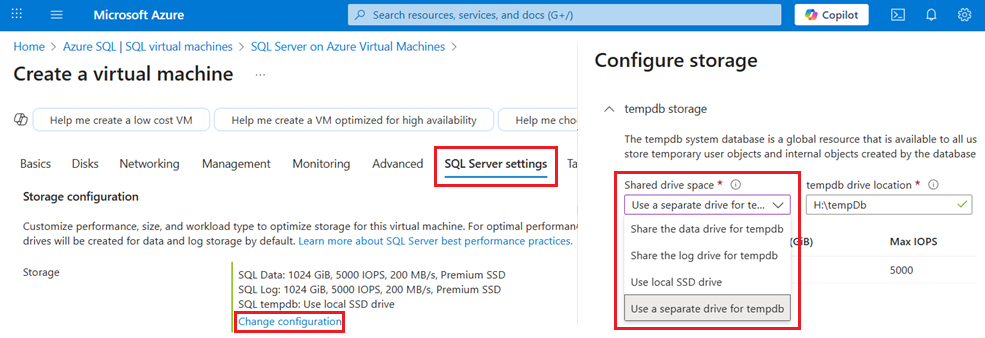
Impacted VMs
This issue occurs with VMs that deploy an uninitialized temporary drive, such as the following VM sizes:
Note
Before you install SQL Server, ensure the VM isn't configured with a sector size greater than 4 KB.