このクイック スタートでは、Azure エージェント モードのGitHub Copilotを使用して、Azure Cosmos DB リソースを作成し、Pythonを使用してサンプル データをインポートします。 エージェント モードは、ファイルの作成、ターミナルでのコマンドの実行など、Visual Studio Codeでアクションを実行します。
Azure エージェント モードのGitHub Copilotがない場合、Cosmos DB を設定してデータをインポートするには、コードとしてのインフラストラクチャ、Python スクリプト、および依存関係を手動で管理する必要があります。 Azure エージェント モードのGitHub Copilotでは、結果を記述し、残りCopilot処理します
前提条件
- Azure サブスクリプション。 アカウントがない場合は、無料アカウントを作成してください。
- Azure リソース グループ。 このリソース グループは、次の手順で使用します。
- Visual Studio CodeGitHub Copilot for Azure 拡張機能がインストールされています。
- Python 3.9 以降。
-
Azure CLI。 開始する前にサインインします。
az login実行し、使用するサブスクリプションを選択します。 - エージェント モードにアクセスできるGitHub Copilot サブスクリプション。
- Azure 向け GitHub Copilot の入門に関する知識。
環境を設定する
- ローカル コンピューターに新しいディレクトリを作成します。
- そのローカル ディレクトリ (ワークスペース) からVisual Studio Codeを開きます。
- 製品データをダウンロードし、新しいローカル ディレクトリ (ワークスペース) に保存します。
CosmicWorks 製品データをダウンロードし、ワークスペース フォルダー内にproducts.jsonとして保存します。
Azure Cosmos DB インポート ソリューションをビルドする
Visual Studio Codeで、GitHub Copilot チャット ウィンドウを開きます。
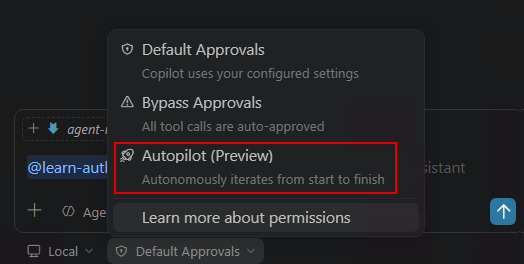
既定の承認から Autopilot (プレビュー) に切り替えます。
エージェント モードに切り替え、お好みのモデルを選択します。 次のプロンプトを入力します。
Using the products.json file in my workspace, create a Python virtual environment, then set up an Azure Cosmos DB for NoSQL environment in West US (resource group named "<resource-group-name>", account, database, and container with partition key "/categoryId"). Write and run a Python script to import all records into the container. Verify the import by querying the first 5 items. If there are errors, fix them and retry.
Using the products.json file in my workspace, create a Python virtual environment, then set up an Azure Cosmos DB for NoSQL environment in West US (resource group named "<resource-group-name>", account, database, and container with partition key "/categoryId"). Write and run a Python script to import all records into the container. Verify the import by querying the first 5 items. If there are errors, fix them and retry.
<resource-group-name>を独自の一意の値に置き換えます。
エージェント モードは、仮想環境の作成、各Azure リソースのプロビジョニング、Pythonインポート スクリプトの生成、依存関係のインストール、インポートの実行、結果の検証などのワークフロー全体を処理します。 実行を許可する前に、生成されたコードを確認します。
リソースをクリーンアップする
完了したら、継続的な料金を回避するためにリソース グループを削除します。
Use the Azure CLI to delete the resource group `<resource-group-name>` and all its resources.
または、ターミナルでコマンドを直接実行します。
az group delete --name <resource-group-name> --yes --no-wait