Merk
Tilgang til denne siden krever autorisasjon. Du kan prøve å logge på eller endre kataloger.
Tilgang til denne siden krever autorisasjon. Du kan prøve å endre kataloger.
Partner platforms let you lock down public access to your workspace and still allow traffic from supported software as a service (SaaS) tools, such as Power BI, Tableau Cloud, and the Databricks Genie app for Slack. You select the partner in a context-based ingress rule, and Azure Databricks keeps the partner's IP ranges or OAuth app details current, so you don't track partner IP addresses yourself.
This page lists the supported partner platforms and shows how to allow one in a workspace-level policy using the account console. For an overview of context-based ingress, see Context-based ingress control.
How partner platform rules match traffic
Azure Databricks identifies partner traffic in one of the following ways, depending on the partner:
- Managed IP ranges: The partner publishes its egress IP addresses. Azure Databricks syncs the published ranges every one to two weeks, and allows requests from these IPs. For some partners, you can limit rules to only allow traffic from given regions.
- Managed OAuth application: The partner product hosts a Azure Databricks app, such as the Databricks Genie app for Slack or the Databricks Genie app in Microsoft Teams. Azure Databricks identifies the traffic by the app's OAuth client ID and allows it only when it comes through Azure Databricks services.
A partner platform rule allows only the partner's traffic source. Users and service principals still authenticate, and each request runs with the permissions of the identity that sent it.
Supported partner platforms
| Partner platform | Match type | Region selection | Partner IP ranges | Setup guide |
|---|---|---|---|---|
| Microsoft Power BI | Managed IP ranges | Yes | Azure IP ranges and service tags | Publish to the Power BI service from Azure Databricks |
| Tableau Cloud | Managed IP ranges | Yes | Tableau Cloud IP addresses | Connect Tableau and Azure Databricks |
| dbt Cloud | Managed IP ranges | Yes | dbt Cloud IP addresses | Connect to dbt Cloud |
| Databricks Slack App | Managed OAuth application | No | Not applicable | Databricks Genie app for Slack |
| Databricks Teams App | Managed OAuth application | No | Not applicable | Databricks Genie app in Microsoft Teams |
Region selection depends on whether the partner publishes its IP ranges by region.
Requirements
- You must be an account admin.
- Your Azure Databricks account must be on the Premium tier.
- Public access must be enabled on the workspace. Partner platforms connect over the public internet. If public access is disabled, Azure Databricks blocks their requests before it evaluates the ingress policy.
Public access is controlled by the workspace's Allow Public Network Access setting.
Limitations
- You can use managed OAuth applications, such as the Databricks Slack App and Databricks Teams App, in workspace-level policies only.
- You can add partner platforms to allow rules only, not deny rules.
- Each rule allows one partner platform. To allow several partners, add a rule for each partner.
You can also use managed IP range partners, such as Power BI, in the account-level policy. See Manage account context-based ingress policies.
Allow a partner platform using the account console
Open the workspace policy
Open or create the network policy for your workspace. See Access network policies.
Turn off access from all public IPs
On the Ingress tab, under Public Network Access, clear Allow access from all public IPs. The Allow Rules and Deny Rules lists appear.

Add an allow rule for the partner
Click Add Allow Rules.
Under Allow identities, select the Identities that can use the partner. To limit who can use the partner, choose specific users or service principals.
Under Source, for Source type, select Partner Platforms.
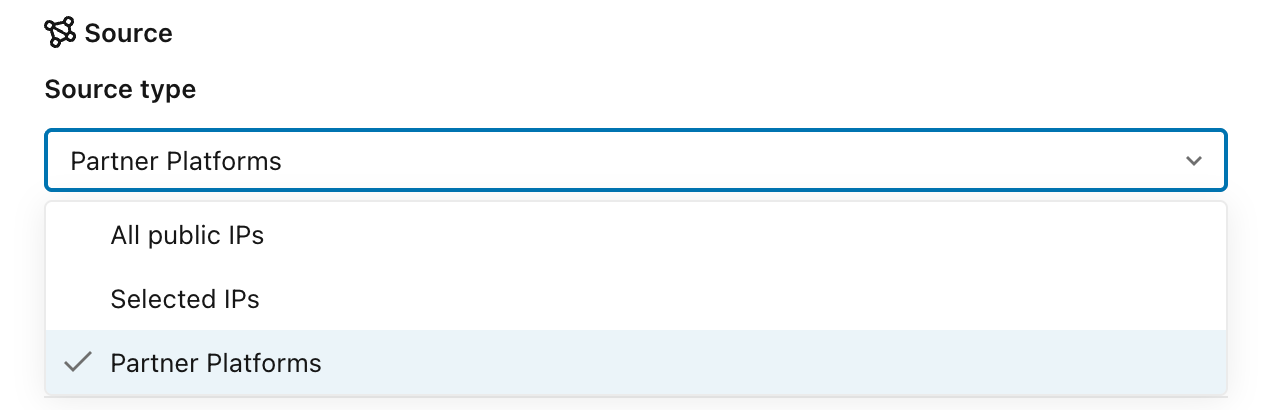
For Partner name, select the partner platform.

If the partner supports region selection, optionally select Regions. If you leave All regions selected, the rule allows all of the partner's regions.

Under Destination, select what the partner can access: Workspace UI, Workspace API, Lakebase runtime, or Apps runtime. To limit the partner to the APIs it needs, select Workspace API and choose specific API scopes. For example, for the Databricks Genie apps for Slack and Microsoft Teams, select the Genie API scope.
Add the rule.
Save, test, and attach the policy
- Click Save to save the policy.
- Set the Policy enforcement mode to Dry run mode, and attach the policy to your workspace. See Set the enforcement mode and Attach a policy to workspaces.
- Check the
system.access.inbound_networktable for denied partner requests. See Check denial logs. - When the partner's requests are no longer denied, set the Policy enforcement mode to Enforced.
Additional resources
| Resource | Description |
|---|---|
| Manage workspace context-based ingress policies | Create workspace-level policies, configure public, private, and cross-workspace rules, and attach policies to workspaces. |
| Migrate workspace IP access lists to context-based ingress | Move existing workspace IP access lists into a context-based ingress policy. |