Merk
Tilgang til denne siden krever autorisasjon. Du kan prøve å logge på eller endre kataloger.
Tilgang til denne siden krever autorisasjon. Du kan prøve å endre kataloger.
Important
This article applies to Azure commercial cloud and Azure Government cloud.
The Defender for SQL Servers on Machines plan is one of the Defender for Databases plans in Microsoft Defender for Cloud. Use Defender for SQL Servers on Machines to protect SQL virtual machines (VM) and Azure Arc SQL Server instances.
Important
The Defender for SQL Servers on Machines plan is undergoing a transition to the new agent architecture. For more information, see Defender for SQL Servers on Machines plan transition.
Prerequisites
Before you enable the plan, make sure the following prerequisites are met:
Subscription permissions: To deploy the plan on a subscription, including Azure Policy, you need Subscription Owner permissions.
SQL Server instance permissions: SQL Server service accounts must be a member of the sysadmin fixed server role on each SQL Server instance, which is the default setting. Learn more about the SQL Server service account requirement.
Supported Resources:
- SQL virtual machines, and Azure Arc SQL Server instances are supported.
- On-premises machines must be onboarded to Arc and registered as Azure Arc SQL Server instances.
Communication: Allow outbound HTTPS traffic on Transmission Control Protocol (TCP) port 443 using Transport Layer Security (TLS) to
*.<region>.arcdataservices.comURL. Learn more about URL requirements.Azure Arc SQL Server instances with Arc proxy enabled are supported with Defender for SQL extension version 2.0.3585.403 or later (For update instructions, see Update the Defender for SQL extension manually). The proxy must meet the same communication requirements listed earlier in this section.
If Arc proxy settings are configured, the agent first tries to communicate through the proxy. If that fails, the agent tries direct access, if available, and then Azure Monitor Agent (AMA), if available.
Extensions: Ensure these extensions aren't blocked in your environment. Learn more about restricting extensions installation on Windows VMs.
- Defender for SQL (IaaS and Arc)
- Publisher: Microsoft.Azure.AzureDefenderForSQL
- Type: AdvancedThreatProtection.Windows
- SQL IaaS Extension (IaaS)
- Publisher: Microsoft.SqlServer.Management
- Type: SqlIaaSAgent
- SQL IaaS Extension (Arc)
- Publisher: Microsoft.AzureData
- Type: WindowsAgent.SqlServer
- Defender for SQL (IaaS and Arc)
Supported SQL Server versions - SQL Server 2012 (11.x) and later versions.
Supported operating systems- Windows Server 2012 R2 and later versions.
Identify Arc proxy-enabled machines
To identify Windows Azure Arc-enabled machines with a configured proxy, SQL Server detected, and agent settings that permit the Defender for SQL extension, run the following script in PowerShell with the Azure CLI. Replace <subscription-id> with your subscription ID.
$subscriptionId = "<subscription-id>"

<#
Lists Windows Azure Arc machines with a configured proxy, SQL Server detected,
and extension management enabled, whose reported agent configuration permits
the Defender for SQL extension (Microsoft.Azure.AzureDefenderForSQL /
AdvancedThreatProtection.Windows).

The extension must not be in the block list. If the allow list is nonempty,
it must explicitly include the extension. The block list takes precedence.

Displays machine name, resource group, status, proxy, and both extension lists.
Does not check Azure Policy, RBAC, or network prerequisites for installation.
#>

$query = @'
[?
    agentConfiguration.proxyUrl
    && to_string(mssqlDiscovered) == 'true'
    && (osType == 'windows' || osType == 'Windows')
    && to_string(agentConfiguration.extensionsEnabled) == 'true'
    && (
        !(agentConfiguration.extensionsAllowList)
        || agentConfiguration.extensionsAllowList[?
            publisher == 'Microsoft.Azure.AzureDefenderForSQL'
            && type == 'AdvancedThreatProtection.Windows'
        ]
    )
    && !(agentConfiguration.extensionsBlockList[?
        publisher == 'Microsoft.Azure.AzureDefenderForSQL'
        && type == 'AdvancedThreatProtection.Windows'
    ])
].{
    Machine:name,
    ResourceGroup:resourceGroup,
    Status:status,
    Proxy:agentConfiguration.proxyUrl,
    AllowList:to_string(agentConfiguration.extensionsAllowList || `[]`),
    BlockList:to_string(agentConfiguration.extensionsBlockList || `[]`)
}
'@

$query = ($query -split '\r?\n' | ForEach-Object { $_.Trim() }) -join ' '

az connectedmachine list `
    --subscription $subscriptionId `
    --query $query `
    --output table
Enable the plan
Enable the plan on an Azure subscription
To enable the Defender for SQL servers on machines plan, you need to enable the Defender for Databases plan on your subscription. The Defender for SQL servers on machines plan is included in the Defender for Databases plan.
Sign in to the Azure portal.
Navigate to Microsoft Defender for Cloud > Environment settings.
Select the relevant subscription.
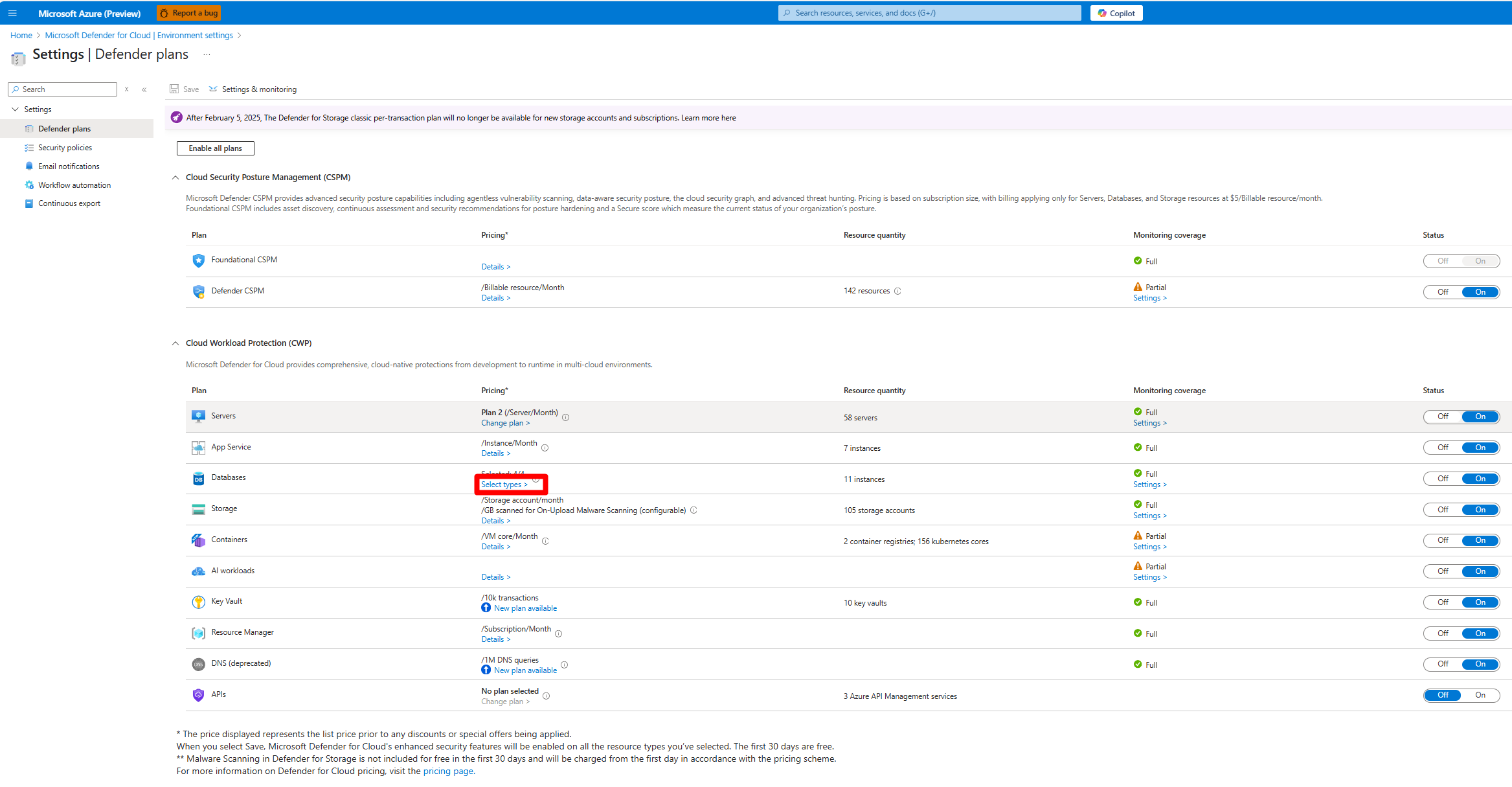
On the Defender plans page, locate the Databases plan and select Select types.
In the Resource types selection window, toggle the SQL Servers on Machines plan to On.
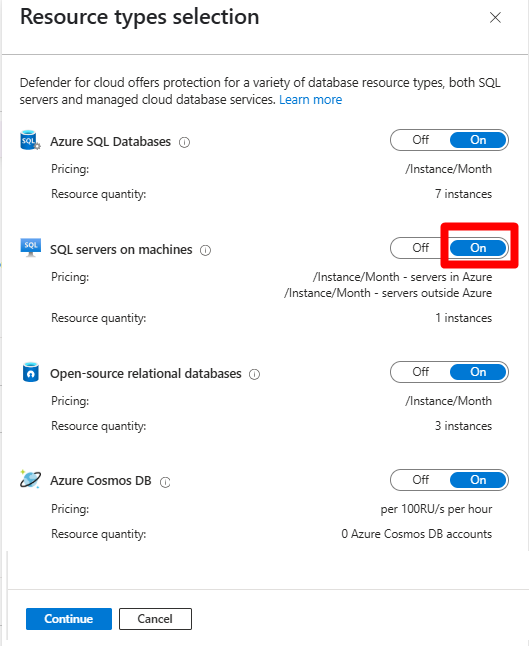
Select Continue > Save.
Enable the plan on an Amazon Web Services (AWS) or Google Cloud Platform (GCP) subscription
To enable the Defender for SQL servers on machines plan, you need to enable the Defender for Databases plan on your subscription. The Defender for SQL servers on machines plan is included in the Defender for Databases plan.
Sign in to the Azure portal.
Search for and select Microsoft Defender for Cloud.
Select Environment settings.
Select the relevant AWS or GCP subscription.
On the Defender plans page, locate the Databases plan and select Settings.
In the SQL Servers on machines section, toggle the SQL Servers on machines plan to On.

Select Save.

Enable the plan at the SQL Server resource level
We recommend enabling the plan on your entire Azure subscription. However, you might need to enable Defender for SQL on machines on specific machines.
To enable the plan on specific machines, you need to disable the plan on the subscription and apply the following instructions to the relevant machines at the resource level.
In the Azure portal, search for and select:
- Azure Arc > Data services > SQL Server instances.
or - SQL virtual machines.
- Azure Arc > Data services > SQL Server instances.
Select the relevant SQL Server instance.
Locate the security menu and select Microsoft Defender for Cloud.

Select Enable Microsoft Defender for SQL servers on Machines.


Verify that your machines are protected
Important
Don't skip verifying that all machines are protected, as it's important to confirm your deployment is secure.
Depending on your environment, it can take a few hours to discover and protect SQL instances. As a final step, you should verify that all machines are protected.