หมายเหตุ
การเข้าถึงหน้านี้ต้องได้รับการอนุญาต คุณสามารถลอง ลงชื่อเข้าใช้หรือเปลี่ยนไดเรกทอรีได้
การเข้าถึงหน้านี้ต้องได้รับการอนุญาต คุณสามารถลองเปลี่ยนไดเรกทอรีได้
Image widgets let you add a standalone image, such as a logo, diagram, or other branded visual, to a dashboard. Unlike an image inside a text widget, an image widget displays the image on its own and resizes it to fit the widget across draft mode, published mode, exports, and embedded dashboards.
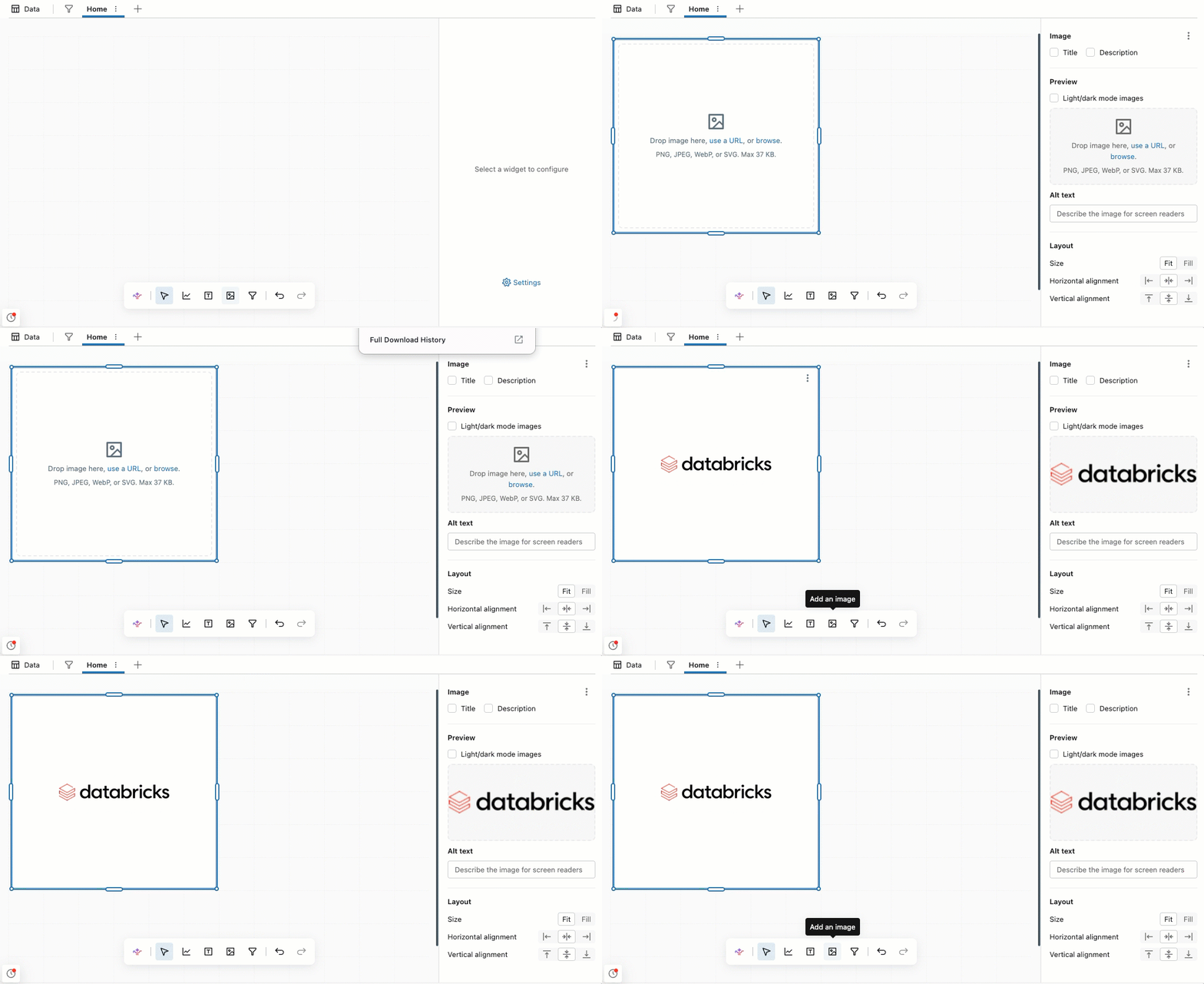
Add an image widget
- Drag an Image widget from the widget toolbar onto the canvas.
- Add an image using one of the following options in the widget:
- Drag and drop an image file from your device onto the widget, or click browse to choose a file. The file is uploaded to your workspace. See Image sources.
- Click use a URL to enter a Azure Databricks volume path or a publicly hosted URL.
- Click select a workspace image to choose an image file that's already in your workspace.
The image appears in the widget and resizes to fit it.
Replace or remove an image
To replace the image in an image widget, select the widget and use the Upload new image button in the widget editor:
- Click Upload new image to upload a file from your device.
- Click the arrow next to Upload new image, then select Use an image URL or Select a workspace image.
To clear the image from the widget, click Remove image.
Image sources
Image widgets support the following image sources:
- Uploaded file: When you drop or browse for a file, Azure Databricks saves it as a workspace file in the same folder as the dashboard, using the file's original name. The dashboard stores a reference to that file. The dashboard editor doesn't enforce its own size limit, but the workspace might reject very large files. For best dashboard performance, use small images.
- Workspace image: An image file that already exists in your workspace. The Select a workspace image dialog lists the image files that you have permission to read.
- Volume path or public URL: For the volume path and public URL formats, and the permissions required for volume-hosted images, see Image paths and URLs.
Image widgets support PNG, JPEG/JPG, WebP, and SVG files. If you select Light/dark mode images, you can use any image source for each mode.
Permissions for workspace images
Uploaded files and workspace images have their own workspace file permissions. Dashboard viewers must have read permission on the image file to see the image. If a viewer can't read the file, the image doesn't load for them. This also applies to recipients of scheduled subscriptions and to PDF downloads.
- Uploaded files: When you upload an image, the users group (all workspace users) gets CAN READ permission on the file. Account users who aren't workspace members don't get access. To restrict access, change the file's permissions in the workspace browser. See File ACLs.
- Workspace images: Selecting an existing workspace image doesn't change its permissions. Make sure dashboard viewers can read the file.
Image file permissions don't sync with the dashboard's permissions, so changing who can view the dashboard doesn't change who can view the image.
Export, import, and clone
When you export, import, or clone a dashboard, only the reference to an uploaded file or workspace image is copied. The image file itself stays in its original workspace location. If you import the dashboard into a different workspace, including through Git folders or Declarative Automation Bundles, the image doesn't load unless the file is available at the same path and viewers can read it. To keep an image portable across workspaces, use a publicly hosted URL.
Removing an image from a widget or deleting the dashboard doesn't delete the image file from the workspace.
Control how the image displays
By default, the image is scaled to fit the widget and centered. Choose how the image fills the widget:
- Fit: Scales the image to fit within the widget while preserving its aspect ratio. The image is never cropped, and no scroll bar appears. This is the default.
- Fill: Scales the image to fill the width of the widget. A scroll bar appears for content that overflows the widget.
- Alignment: Use the alignment tools to justify your image within the widget.

Add an image widget with Genie Code
Genie Code for dashboard authoring can add image widgets for you. Ask it to add an image, and it creates an image widget on the canvas. See Use Genie Code for dashboard authoring.