Azure DevOps Server |Azure DevOps Server 2022
當你自訂工作項目表單時,你可能會想提供資訊或連結,幫助團隊定義表單中的欄位。 如果你在表單中嵌入資訊或讓它容易取得,團隊成員就能更好地追蹤有用資料。
透過本主題描述的表單控制,你可以為個別欄位新增提示文字、獨立文字或網頁超連結,或在表單中嵌入 HTML 內容或網頁內容。
要修改現有的 WIT,先修改該 WIT 的 XML 定義檔,然後根據 你使用的流程模型匯入專案。
小提示
使用 witadmin,您可以 匯入和匯出定義檔案。 您可以使用的其他工具包括 [進程編輯器] (需要您已安裝 Visual Studio 版本)。 從 Visual Studio Marketplace 安裝程序範本編輯器。
提供說明文字或工具提示文字
你可以用兩種方式提供幫助文字。 在第一種方法中,將HELPTEXT元素作為子元素加入到型別定義的FIELDS區段中的FIELD元素。 使用 HELPTEXT,您可以建立欄位的工具提示。 這種方法限制你只能寫 255 個字元。
<FIELD name="Sub-Title" refname="ACME.ACE.ImpactStatement" type="HTML" >
<HELPTEXT>Provide information about the impact to the ACE organization. </HELPTEXT>
</FIELD>
第二種方法是透過 LabelText 和 Text 子元素來指定獨立文字。 在此方法中,您可以添加任意數量的信息,並且文本始終存在於表單上。 使用者不必採取任何動作。 您也可以使用 Link 元素來新增選用連結以獲取更多資訊,如下列範例所示。
<Control FieldName=" ACME.ACE.ImpactStatement" Type="HTMLControl" Label="Impact" LabelPosition="Left">
      <LabelText>
      <Text>Provide information about the impact to the ACE organization. Specifically address the following: customer segment, target strategic opportunity, resources required, and time dependencies. For more detailed information, see the Impact Statement specification at:
         <Link OpenInNewWindow="true" UrlRoot=http://ACE.ImpactStatement.aspx />
      </Text>
      </LabelText>
</Control>
新增獨立文字和超連結欄位標籤
使用該元素的Type屬性LabelControl選項,為工作項目表單新增不與任何工作項目欄位Control相關的文字。 文字可以是純文字,也可以提供超連結。 你也可以使用 FieldControl 這個選項,將超連結附加到新增欄位標籤上。
範例:純文字標籤
以下範例新增純文字「在此處填寫錯誤的詳細資訊。 建議即使是不需填寫的欄位也應填寫至工作項目欄位。
<Control Type="LabelControl" Label="Fill in the details of the bug here. Fields that are not required are recommended to be filled in." />
範例:超連結欄位標籤
以下範例展示了如何將超連結加到欄位標籤。
<Control Type="FieldControl" FieldName="System.Title" LabelPosition="Left" Label="Title 1"
      <LabelText>
      <Text>
         <Link UrlRoot="http://www.live.com/" />
               Title 2
      </Text>
      </LabelText>
</Control>
備註
對於未升級到最新版本的 Team Foundation 用戶端, Label 屬性文字會顯示。 針對 Visual Studio 2012 用戶端,Text 標籤顯示為超連結,其 URL 由 Link 標籤定義。
範例:欄位標籤,其中包含部分文字的超連結
以下範例說明如何將超連結加入欄位標籤的一部分。 在這個例子中,你指派給 Param 元素的值會根據具體的工作項目決定 URL。
<Control Type="FieldControl" FieldName="System.IterationPath">
      <LabelText LabelPosition="Left">
      <Text>
         <Link UrlRoot="@ProcessGuidance" UrlPath="{0}.html">
               <Param Index="0" vValue"System.WorkItemType"/>         </Link>
               Iteration Path
      </Text>
      <Text> (must be 3 levels deep)</Text>
      </LabelText>
</Control>
範例:超連結文字標籤
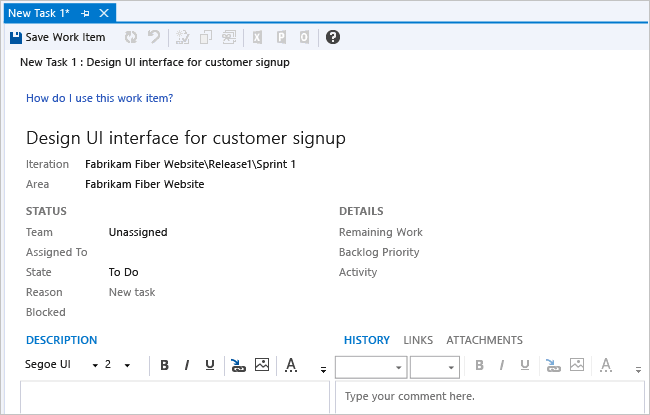
超連結文字標籤
以下範例展示了如何在工作項目表單中新增超連結到顯示文字。
<Group>
      <Column PercentWidth="100">
      <!-- Standalone label control 2 -->
      <Control Type="LabelControl" Label="How do I use this work item?">
         <Link UrlRoot="http://www.live.com"></Link>
      </Control>
      </Column>
</Group>
範例:將文字和超連結合併到單一標籤中
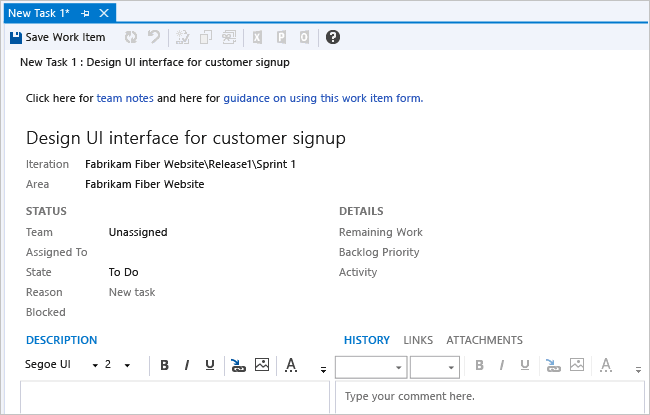
將文字和超連結合併到單一標籤中
以下範例說明如何在工作項目表單中新增兩個超連結到標籤的部分。
<Group>
      <Column PercentWidth="100">
      <!-- Standalone label control 3 -->
      <Control Type="LabelControl" Name="Microsoft.VSTS.Common.GuidanceLabel3">
         <LabelText>
               <Text>Select here for </Text>
               <Text>
               <Link UrlRoot="http://www.msn.com"></Link>
               work item guidance</Text>
               <Text> or here for </Text>
               <Text>
               <Link UrlRoot="http://www.msdn.com"></Link>
               process guidance
               </Text>
         </LabelText>
      </Control>
      </Column>
</Group>
範例:參數產生的超連結欄位標籤
以下範例說明如何為由已開啟工作項目評估的參數值產生的欄位標籤新增超連結。
<Control Type="FieldControl" FieldName="System.State" Label="&State:" LabelPosition="Left">
      <Link OpenInNewWindow="true" UrlRoot="http://" UrlPath="myserver.com:8080/tfs/myproject/{0}/_workItems#_a=edit&id=">      <Param Index="0" Value="System.State" Type ="Original"/>
      </Link>
</Control>
顯示網頁內容
使用 Type 屬性 WebpageControl 選項在工作項目表單中以控制項形式顯示網頁內容,而非連結到獨立網頁。 此顯示可用於提供度量,以支援小組成員檢視報表、儀表板或其他 HTML 型內容的內容。 您可以提供內容的連結,或將原始HTML內容內嵌在CDATA標籤中。
範例:顯示 URI 所提供的內容
以下範例說明如何使用 WebpageControlOptions 和 Link 元素來提供網頁的網址,從而嵌入該網頁的內容。
      <Group>
      <Column PercentWidth="100">
         <Control Type="WebpageControl" Name="WssPortalPage" Label="WssPortalPage" LabelPosition="Top" >
               <WebpageControlOptions AllowScript="true">
               <Link UrlRoot="http://www.msdn.com" />
               </WebpageControlOptions>
         </Control>
      </Column>
      </Group>
範例:顯示CDATA標籤中提供的內容
下列範例示範如何將 HTML 內容新增至標籤中包含的 CDATA 工作專案表單。
<Control Type="WebpageControl">
      <WebpageControlOptions>
      <Content>
        <![CDATA[Place HTML Formatted Content Here ]]>
          </Content>
      </WebpageControlOptions>
</Control>