當您在 Power BI 中編輯報表時,可以使用 [ 視覺效果] 窗格中的 [格式] 選項,自定義報表中的每個視覺效果。 您可以自定義每個視覺效果的許多元素,例如標題、圖例、背景和工具提示。 使用 Power BI 報表撰寫 API,您可以透過程式設計方式擷取、設定或重設視覺效果屬性,而不需要 Power BI 編輯 模式。
若要使用視覺效果屬性 API 格式化視覺效果,您需要取得您想要格式化的視覺效果。 若要取得報表中所有視覺效果的清單,請使用 類別的 Page 方法。
選取格式物件和屬性
若要選取您想要擷取、設定或重設的屬性,您必須定義包含 objectName 和 propertyName的 IVisualPropertySelector 實例。
export interface IVisualPropertySelector {
  objectName: string;
  propertyName: string;
}
- objectName:對象的名稱(例如:“title”)。
- propertyName:對象內屬性的名稱(例如:“titleText”)。
現用視覺效果的可用屬性
現用視覺效果是預設出現在 [視覺效果] 窗格中的Power BI視覺效果。
| 物件名稱 | 屬性名稱 | 類型 |
|---|---|---|
| tooltip | ||
| 可見 | 布爾 | |
| valueColor | 十六進位色彩、IThemeColorProperty | |
| labelColor | 十六進位色彩、IThemeColorProperty | |
| textSize | 數 | |
| fontFamily | 字串 | |
| backgroundColor | 十六進位色彩、IThemeColorProperty | |
| 透明度 | 數 | |
| 背景 | ||
| 可見 | 布爾 | |
| 顏色 | 十六進位色彩、IThemeColorProperty | |
| 透明度 | 數 | |
| visualHeader | ||
| 可見 | 布爾 | |
| backgroundColor | 十六進位色彩、IThemeColorProperty | |
| 邊境 | 十六進位色彩、IThemeColorProperty | |
| 透明度 | 數 | |
| iconColor | 十六進位色彩、IThemeColorProperty | |
| 邊境 | ||
| 可見 | 布爾 | |
| 顏色 | 十六進位色彩、IThemeColorProperty | |
| 半徑 | 數 | |
| lockAspect | ||
| 啟用 | 布爾 | |
| 標題 | ||
| 可見 | 布爾 | |
| 對準 | 字串 (TextAlignment) | |
| fontColor | 十六進位色彩、IThemeColorProperty | |
| textSize | 數 | |
| fontFamily | 字串 | |
| backgroundColor | 十六進位色彩、IThemeColorProperty | |
| titleText | 字串 | |
| 傳說 | ||
| 可見 | 布爾 | |
| 位置 | 字串 (LegendPosition) | |
| dataLabels | ||
| 可見 | 布爾 | |
| categoryAxis | ||
| 可見 | 布爾 | |
| valueAxis | ||
| 可見 | 布爾 |
自定義視覺效果的可用屬性
因此,自定義視覺效果建立者會定義其屬性,以尋找 objectName 和 propertyName,您應該檢查自定義視覺效果原始碼。
自定義視覺效果程式代碼是開放原始碼,而且可以在 GitHub 上找到其存放庫。
例如:查看自定義視覺效果 src/visual.ts 檔案中,您可以看到已定義的 Properties。
下列列出 Mekko Chart 自定義視覺效果的已定義屬性。
注意
這份清單是從 2021 年 1 月自定義視覺效果的原始碼 Mekko Chart 複製。
public static Properties: MekkoChartProperties = <MekkoChartProperties>{
    dataPoint: {
        defaultColor: { objectName: "dataPoint", propertyName: "defaultColor" },
        fill: { objectName: "dataPoint", propertyName: "fill" },
        showAllDataPoints: { objectName: "dataPoint", propertyName: "showAllDataPoints" },
        categoryGradient: { objectName: "dataPoint", propertyName: "categoryGradient" },
        colorGradientEndColor: { objectName: "dataPoint", propertyName: "colorGradientEndColor" },
        colorDistribution: { objectName: "dataPoint", propertyName: "colorDistribution" }
    },
    columnBorder: {
        show: { objectName: "columnBorder", propertyName: "show", },
        color: { objectName: "columnBorder", propertyName: "color" },
        width: { objectName: "columnBorder", propertyName: "width" }
    },
    sortSeries: {
        enabled: { objectName: "sortSeries", propertyName: "enabled", },
        direction: { objectName: "sortSeries", propertyName: "direction" },
        displayPercents: { objectName: "sortSeries", propertyName: "displayPercents" }
    },
    sortLegend: {
        enabled: { objectName: "sortLegend", propertyName: "enabled", },
        direction: { objectName: "sortLegend", propertyName: "direction" },
        groupByCategory: { objectName: "sortLegend", propertyName: "groupByCategory" },
        groupByCategoryDirection: { objectName: "sortLegend", propertyName: "groupByCategoryDirection" }
    },
    xAxisLabels: {
        enableRotataion: { objectName: "xAxisLabels", propertyName: "enableRotataion", },
    },
    categoryColors: {
        color: { objectName: "categoryColors", propertyName: "color" },
    }
};
注意
不支援 dataPoint 物件。
定義屬性值
屬性值是由 IVisualPropertyValue 物件表示。
export interface IVisualPropertyValue {
  schema?: string;
  value: any;
}
架構 - 定義值的型別。 有兩個可用的架構:
屬性架構:
"http://powerbi.com/product/schema#property"用來定義屬性。默認架構:
"http://powerbi.com/product/schema#default"用來定義預設值。
值 - 您要指派給 屬性的值。
屬性值類型
本節列出您可以設定的屬性值類型。
色彩屬性值
色彩屬性值可以是十六進位色彩(字串),例如,#0000FF 色彩為藍色,或 IThemeColorProperty 來設定 報表主題 色彩。
interface IThemeColorProperty {
  id: number;
  shade: number;
}
- 識別碼 - 主題色彩的識別碼
- 陰影 - 定義色彩陰影的百分比,值可以從 -1 到 1。
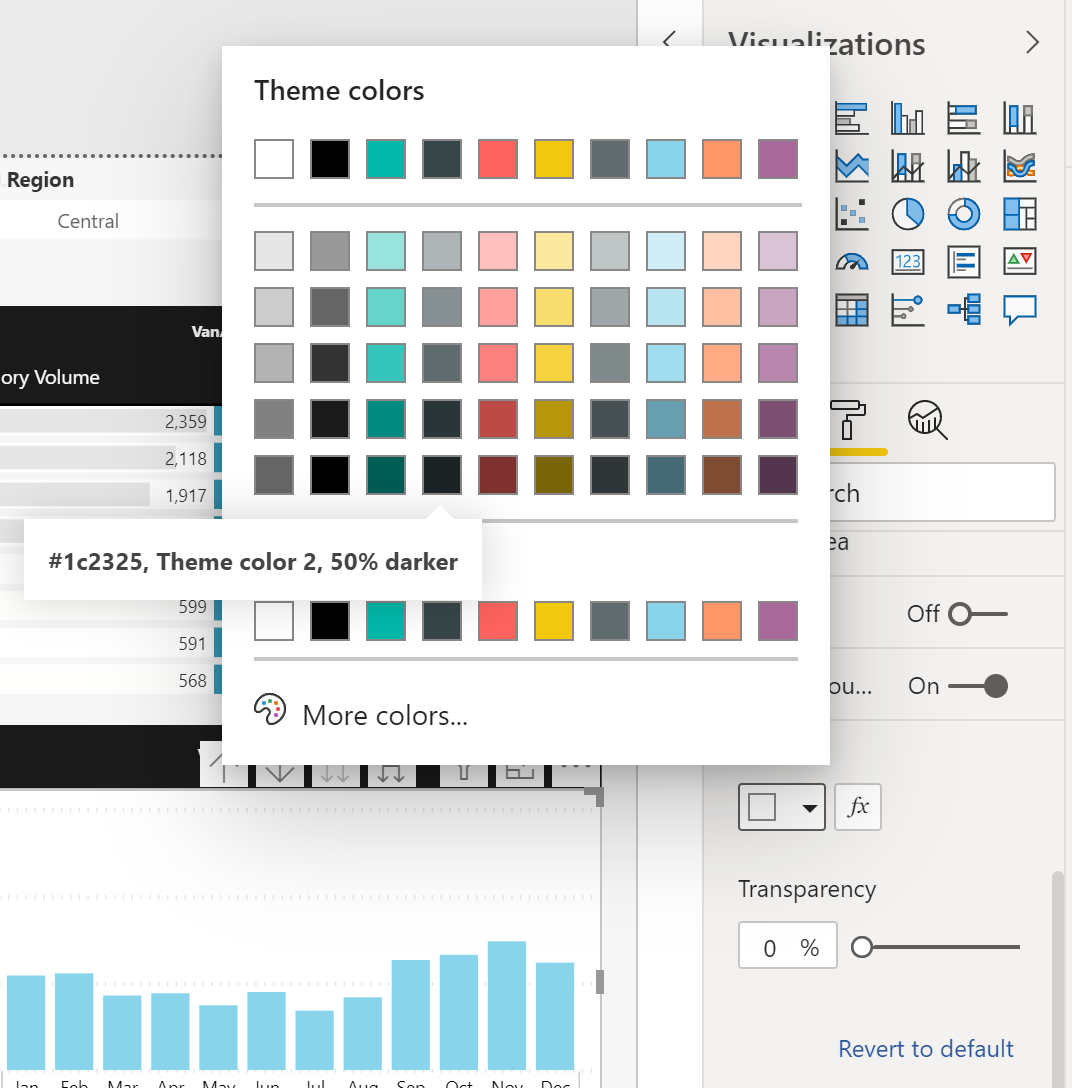
例如,若要定義 主題色彩 2、50% 較深,如下所示,IThemeColorProperty 物件應定義為:
let themeColorProperty = {
    id: 2,
  shade: -0.5
};
文字對齊屬性值
定義文字對齊方式
const TextAlignment = {
    Left: 'left',
    Center: 'center',
    Right: 'right',
};
圖例位置屬性值
定義視覺效果上的圖例位置
const LegendPosition = {
    Top: 'Top',
    Bottom: 'Bottom',
    Right: 'Right',
    Left: 'Left',
    TopCenter: 'TopCenter',
    BottomCenter: 'BottomCenter',
    RightCenter: 'RightCenter',
    LeftCenter: 'LeftCenter',
};
默認屬性值
值,用來定義屬性預設值。 例如,您可以將標題設定為視覺效果的自動產生標題。
interface IDefaultProperty {
}
如果屬性未變更(使用UI或 API),則其值會定義為 IDefaultProperty,同時定義在 getProperty 和 setProperty 方法上。
預設屬性值應定義如下:
const defaultValue = {
    schema: "http://powerbi.com/product/schema#default",
    value: {}
};
屬性 API
本節列出用來格式化視覺屬性的 API。
擷取屬性
根據屬性選取器擷取視覺效果的屬性值。
getProperty(selector: IVisualPropertySelector): Promise<IVisualPropertyValue>
例如:
const selector = { ... };

let propertyValue = await visual.getProperty(selector);
設定屬性
根據屬性選取器,將屬性值設定為視覺效果。
setProperty(selector: IVisualPropertySelector, value: IVisualPropertyValue): Promise<void>
例如:
const selector = { ... };
const propertyValue = { ... };

await visual.setProperty(selector, propertyValue);
重設屬性
根據屬性選取器重設視覺效果的屬性值,這會將屬性傳回其預設值,例如,您可以將標題設定為視覺效果的自動產生標題。
resetProperty(selector: IVisualPropertySelector): Promise<void>
例如:
const selector = { ... };

await visual.resetProperty(selector);
完整範例
您可以在下方看到對齊視覺效果標題的範例,其名稱為 VisualContainer1 (唯一標識符)。
let pages = await report.getPages()

// Retrieve the active page.
let activePage = pages.find(function (page) {
    return page.isActive
});

let visuals = await activePage.getVisuals();

// Retrieve the wanted visual. (replace "VisualContainer1" with the requested visual name)
let visual = visuals.find(function (visual) {
    return visual.name === "VisualContainer1";
});

// Build a selector for title alignment
const selector = {
    objectName: "title",
    propertyName: "alignment"
};

// Build the property value
const propertyValue = {
    schema: "http://powerbi.com/product/schema#property",
    value: models.TextAlignment.Center
};

await visual.setProperty(selector, propertyValue);