語言
備註
類別 DataSet 和相關類別是 2000 年代初的舊版 .NET Framework 技術,可讓應用程式在應用程式與資料庫中斷連線時使用記憶體中的數據。 這些技術特別適用於可讓使用者修改數據並將變更保存回資料庫的應用程式。 雖然數據集是經過證實的成功技術,但新 .NET 應用程式的建議方法是使用 Entity Framework Core。 Entity Framework 提供更自然的方式,以表格式數據作為物件模型使用,而且具有更簡單的程序設計介面。
當兩位用戶同時嘗試變更資料庫中相同的數據時,就會引發並行例外狀況 (System.Data.DBConcurrencyException)。 在本逐步解說中,您會建立 Windows 應用程式,說明如何攔截 DBConcurrencyException、找出造成錯誤的數據列,並瞭解如何處理它的策略。
本操作指南將引導您完成下列過程:
建立新的 Windows Forms 應用程式 (.NET Framework) 專案。
根據 Northwind Customers 數據表建立新的數據集。
建立具有DataGridView的表單來顯示數據。
使用 Northwind 資料庫中 Customers 數據表的數據填入數據集。
使用 [伺服器總管] 中的 [顯示數據表數據] 功能來存取 Customers-table 的數據並變更記錄。
將相同的記錄變更為不同的值、更新數據集,並嘗試將變更寫入資料庫,這會導致引發並行錯誤。
攔截錯誤,然後顯示不同版本的記錄,讓用戶判斷是否繼續和更新資料庫,或取消更新。
先決條件
本逐步解說使用 SQL Server Express LocalDB 和 Northwind 範例資料庫。
如果您沒有 SQL Server Express LocalDB,請從 SQL Server Express 下載頁面或透過 Visual Studio 安裝程式進行安裝。 在 Visual Studio Installer中,您可以將 SQL Server Express LocalDB 安裝為 資料儲存和處理 工作負載的一部分,或安裝為個別元件。
依照下列步驟安裝 Northwind 範例資料庫:
在 Visual Studio 中,開啟 [SQL Server 物件總管] 視窗。 (SQL Server 物件總管會安裝為 Visual Studio 安裝程式中的 資料儲存和處理 工作負載的一部分。)展開 SQL Server 節點。 以滑鼠右鍵點擊您的 LocalDB 實例,然後選取 新增查詢。
查詢編輯器視窗隨即開啟。
將 Northwind Transact-SQL 腳本 複製到剪貼簿。 此 T-SQL 腳本會從頭開始建立 Northwind 資料庫,並填入數據。
將 T-SQL 文稿貼到查詢編輯器中,然後選擇 [執行] 按鈕。
在短時間內,查詢會完成執行,並建立 Northwind 資料庫。
建立新專案
從建立新的 Windows Forms 應用程式開始:
在 Visual Studio 的 [ 檔案 ] 功能表上,選取 [ 新增>專案]。
展開左側窗格中的 Visual C# 或 Visual Basic ,然後選取 [Windows 桌面]。
在中間窗格中,選取 [Windows Forms 應用程式 ] 項目類型。
將專案命名為 ConcurrencyWalkthrough,然後選擇 [ 確定]。
ConcurrencyWalkthrough 專案會被建立並加入至方案總管,並在設計工具中開啟一個新的表單。
建立 Northwind 數據集
接下來,建立名為 NorthwindDataSet 的數據集:
在 [ 數據] 功能表上,選擇 [新增數據源]。
[數據源設定精靈] 隨即開啟。
在 [ 選擇數據源類型] 畫面上,選取 [ 資料庫]。
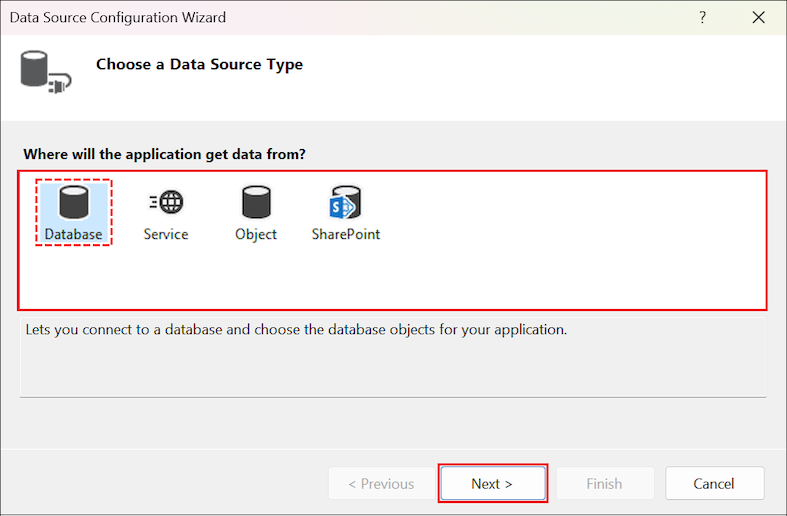
從可用的連線清單中選取 Northwind 範例資料庫的連線。 如果連線清單中沒有出現連線,請選取 新增連線。
備註
如果您要連線到本機資料庫檔案,當系統詢問您是否要將檔案新增至專案時,請選取 [ 否 ]。
在 [ 將連接字串儲存至應用程式組態檔 ] 畫面上,選取 [ 下一步]。
展開 [ 數據表] 節點,然後選取 [ 客戶 ] 數據表。 數據集的預設名稱應該是 NorthwindDataSet。
選取 [完成 ] 將數據集新增至專案。
建立數據系結的 DataGridView 控件
在本節中,您會透過將 Customers 專案從 Data Sources 視窗拖曳到您的 Windows Form 上來建立一個 System.Windows.Forms.DataGridView 。
若要開啟 [數據源] 視窗,請在 [ 數據 ] 功能表上,選擇 [ 顯示數據源]。
在 [ 數據源] 視窗中,展開 NorthwindDataSet 節點,然後選取 [客戶 ] 資料表。
選取數據表節點上的向下箭號,然後在下拉式清單中選取 [DataGridView ]。
將數據表拖曳到表單的空白區域。
DataGridView名為 CustomersDataGridView 的控件和BindingNavigator名為 CustomersBindingNavigator 的控件會新增至系結至 的BindingSource表單。 接著,這會系結至 NorthwindDataSet 中的 Customers 數據表。
測試表單
您現在可以測試表單,以確保其行為如預期般運作至此階段。
選取 F5 以執行應用程式。
表單上會出現一個 DataGridView 控件,其中包含來自 Customers 數據表的數據。
在 [ 偵錯] 功能表上,選取 [ 停止偵錯]。
處理並行錯誤
處理錯誤的方式取決於控管應用程式的特定商務規則。 在本逐步解說中,我們會使用下列策略作為如何處理並行錯誤的範例。
應用程式向使用者呈現記錄的三個版本:
資料庫中目前的記錄
載入數據集的原始記錄
資料集中建議的變更
然後,使用者可以使用建議的版本覆寫資料庫,或取消更新,並使用資料庫的新值重新整理數據集。
允許處理並發錯誤
建立自定義錯誤處理程式。
向用戶顯示選擇。
處理用戶的回應。
重新傳送更新,或重設數據集中的數據。
新增程式代碼以處理並行例外狀況
當您嘗試執行更新並引發例外狀況時,通常想要使用引發的例外狀況所提供的資訊來執行某些動作。 在本節中,您會新增嘗試更新資料庫的程序代碼。 您也會處理任何可能引發的DBConcurrencyException,以及任何其他例外狀況。
備註
CreateMessage 和 ProcessDialogResults 方法會在稍後的操作指南中新增。
在方法內的
Form1_Load下新增下列程式代碼:private void UpdateDatabase() { try { this.customersTableAdapter.Update(this.northwindDataSet.Customers); MessageBox.Show("Update successful"); } catch (DBConcurrencyException dbcx) { DialogResult response = MessageBox.Show(CreateMessage((NorthwindDataSet.CustomersRow) (dbcx.Row)), "Concurrency Exception", MessageBoxButtons.YesNo); ProcessDialogResult(response); } catch (Exception ex) { MessageBox.Show("An error was thrown while attempting to update the database."); } }
將
CustomersBindingNavigatorSaveItem_Click方法替換為呼叫UpdateDatabase方法,使其看起來如下:
向用戶顯示選擇
您剛才撰寫的程式代碼會呼叫 CreateMessage 程式,向使用者顯示錯誤資訊。 在本逐步解說中,您會使用消息框向用戶顯示不同版本的記錄。 這可讓用戶選擇要使用變更覆寫記錄,還是取消編輯。 一旦用戶選取消息框中的選項(按兩下按鈕),回應就會傳遞至 ProcessDialogResult 方法。
將下列程式代碼新增至程式代碼 編輯器,以建立訊息。 在 UpdateDatabase 方法的下方輸入下列程式代碼:
private string CreateMessage(NorthwindDataSet.CustomersRow cr)
{
    return
        "Database: " + GetRowData(GetCurrentRowInDB(cr), DataRowVersion.Default) + "\n" +
        "Original: " + GetRowData(cr, DataRowVersion.Original) + "\n" +
        "Proposed: " + GetRowData(cr, DataRowVersion.Current) + "\n" +
        "Do you still want to update the database with the proposed value?";
}


//--------------------------------------------------------------------------
// This method loads a temporary table with current records from the database
// and returns the current values from the row that caused the exception.
//--------------------------------------------------------------------------
private NorthwindDataSet.CustomersDataTable tempCustomersDataTable =
    new NorthwindDataSet.CustomersDataTable();

private NorthwindDataSet.CustomersRow GetCurrentRowInDB(NorthwindDataSet.CustomersRow RowWithError)
{
    this.customersTableAdapter.Fill(tempCustomersDataTable);

    NorthwindDataSet.CustomersRow currentRowInDb =
        tempCustomersDataTable.FindByCustomerID(RowWithError.CustomerID);

    return currentRowInDb;
}


//--------------------------------------------------------------------------
// This method takes a CustomersRow and RowVersion
// and returns a string of column values to display to the user.
//--------------------------------------------------------------------------
private string GetRowData(NorthwindDataSet.CustomersRow custRow, DataRowVersion RowVersion)
{
    string rowData = "";

    for (int i = 0; i < custRow.ItemArray.Length ; i++ )
    {
        rowData = rowData + custRow[i, RowVersion].ToString() + " ";
    }
    return rowData;
}
處理用戶的回應
您也需要程式代碼來處理使用者對消息框的回應。 選項是使用建議的變更覆寫資料庫中目前的記錄,或放棄本機變更,並使用目前在資料庫中的記錄重新整理數據表。 如果用戶選擇 是,則會呼叫 Merge 方法,並將 preserveChanges 參數設為 true。 這會導致更新嘗試成功,因為記錄的原始版本現在符合資料庫中的記錄。
在上一節中新增的程式代碼下方新增下列程序代碼:
// This method takes the DialogResult selected by the user and updates the database
// with the new values or cancels the update and resets the Customers table
// (in the dataset) with the values currently in the database.

private void ProcessDialogResult(DialogResult response)
{
    switch (response)
    {
        case DialogResult.Yes:
            northwindDataSet.Merge(tempCustomersDataTable, true, MissingSchemaAction.Ignore);
            UpdateDatabase();
            break;

        case DialogResult.No:
            northwindDataSet.Merge(tempCustomersDataTable);
            MessageBox.Show("Update cancelled");
            break;
    }
}
測試表單行為
您現在可以測試表單,以確保其如預期般運作。 若要模擬並行違規,請在填入 NorthwindDataSet 之後變更資料庫中的數據。
選取 F5 以執行應用程式。
表單出現之後,請讓窗體保持執行狀態,並切換至 Visual Studio IDE。
在 [ 檢視] 功能表上,選擇 [伺服器總管]。
在 [伺服器總管]中,展開應用程式所使用的連線,然後展開[數據表]節點。
以滑鼠右鍵按兩下 [客戶 ] 資料表,然後選取 [ 顯示資料表數據]。
在第一筆記錄中,將 ContactName 變更為 Maria Anders2。
備註
移動至不同的列以提交變更。
切換至 ConcurrencyWalkthrough 的執行中表單。
在表單中的第一筆記錄,將 ContactName 變更為 Maria Anders1。
選取儲存按鈕。
引發並行錯誤,並出現消息框。
選取 [否 ] 會取消更新,並使用資料庫中目前的值來更新數據集。 選取 [是 ] 會將建議的值寫入資料庫。