Bemærk
Adgang til denne side kræver godkendelse. Du kan prøve at logge på eller ændre mapper.
Adgang til denne side kræver godkendelse. Du kan prøve at ændre mapper.
The SharePoint Framework (SPFx) toolchain is the set of build tools, framework packages, and other items that manage building and deploying your client-side projects.
Important
The SharePoint Framework (SPFx) used a gulp-based toolchain from SPFx v1.0 - v1.21.1. SPFx v1.22 transitioned to a new Heft-based toolchain, replacing the previous dependency on gulp. As part of this change, build toolchain configurations and customizations were also changed.
Use the guidance for your project's SPFx version and toolchain. SPFx 1.24 uses Heft; the gulp-based toolchain is not supported for SPFx 1.24. Legacy documentation remains available for projects targeting earlier SPFx versions, including SharePoint Server. Learn more about the different toolchains:
The toolchain:
- Helps you build client-side components such as web parts.
- Serves local development assets for testing components in their supported hosts. For SharePoint Online web parts, use actual pages and the Debug Toolbar.
- Enables you to package and deploy to SharePoint.
- Provides you with a set of build commands that help you complete key build tasks such as code compilation, packaging the client-side project into a SharePoint app package, and more.
Important
The SharePoint Framework Online workbench is deprecated starting on May 13, 2026 and will be retired on December 1, 2026.
For web parts, debug on actual SharePoint pages using the SharePoint Framework Debug Toolbar (developer toolbar). See Debug SharePoint Framework solutions on modern SharePoint pages.
This deprecation does not apply to the Copilot Workbench, which is fully supported for developing and testing Copilot UX components.
Use npm packages
Before diving into the various toolchain components, it’s important to understand how the SharePoint Framework uses npm to manage different modules in the project. npm is one of the preferred open-source package managers for JavaScript client-side development.
A typical npm package consists of one or more reusable JavaScript code files, called modules, along with a list of dependency packages. When you install the package, npm also installs those dependencies.
The official npm registry consists of hundreds of packages that you can download to build your application. You can also publish your own packages to npm and share them with other developers. The SharePoint Framework uses some of the npm packages in the toolchain and also publishes its own packages to the npm registry.
SharePoint Framework packages
The SharePoint Framework consists of several npm packages that work together to help you build client-side experiences in SharePoint.
The following npm packages are in the SharePoint Framework:
- @microsoft/generator-sharepoint. A Yeoman plug-in for use with the SharePoint Framework. Using this generator, developers can quickly set up a new client-side web part project with sensible defaults and best practices.
- @microsoft/sp-client-base. Defines the core libraries for client-side applications built using the SharePoint Framework.
- @microsoft/sp-webpart-workbench. Historical local-workbench package; the local workbench was removed in SPFx 1.13. Don't add it to current projects.
- @microsoft/sp-module-loader. A module loader that manages versioning and loading of client-side components, web parts, and other assets. It also provides basic diagnostic services. It is built on familiar standards such as SystemJS and webpack, and is the first part of the SharePoint Framework to load on a page.
- @microsoft/sp-module-interfaces. Defines several module interfaces that are shared by the SharePoint Framework module loader and also the build system.
- @microsoft/sp-lodash-subset. Provides a custom bundle of lodash for use with the SharePoint Framework's module loader. To improve runtime performance, it only includes a subset of the most essential lodash functions.
- @microsoft/sp-tslint-rules. Defines custom tslint rules for usage with SharePoint client-side projects.
- @microsoft/office-ui-fabric-react-bundle. Provides a custom bundle of office-ui-fabric-react that is optimized for use with the SharePoint Framework's module loader.
Common build tool packages
Along with the SharePoint Framework packages, a common set of build tools is also used to perform build tasks such as compiling TypeScript code to JavaScript and converting SCSS to CSS.
The following common npm build tools packages are in the SharePoint Framework:
- @microsoft/sp-build-core-tasks. A collection of tasks for the SharePoint Framework build system, which is based on gulp. The sp-build-core-tasks package implements operations specific to SharePoint, such as packaging solutions and writing manifests.
- @microsoft/sp-build-web. Imports and configures a set of build tasks that are appropriate for a build target that runs in a web browser (as opposed to a Node.js environment). This package is intended to be imported directly by a gulp file that uses the SharePoint Framework build system.
- @microsoft/gulp-core-build. The core gulp build tasks for building TypeScript, HTML, less, and other build formats. This package depends on several other npm packages that contain the following tasks:
- @microsoft/gulp-core-build-typescript
- @microsoft/gulp-core-build-sass
- @microsoft/gulp-core-build-webpack
- @microsoft/gulp-core-build-serve
- @microsoft/gulp-core-build-karma
- @microsoft/gulp-core-build-mocha @microsoft/loader-cased-file. A wrapper for webpack's file-loader that can be used to modify the casing of the resulting file name. This is useful in some scenarios, such as when using a content delivery network (CDN) that only allows lowercase file names.
- @microsoft/loader-load-themed-styles. A loader that wraps the loading of CSS in script equivalent to
require('load-themed-styles').loadStyles( /* css text */ ). It is designed to be a replacement for style-loader. - @microsoft/loader-raw-script. A loader that loads a script file's contents directly in a webpack bundle by using an
eval(…). - @microsoft/loader-set-webpack-public-path. A loader that sets the webpack_public_path variable to a value specified in the arguments, optionally appended to the SystemJS baseURL property.
Scaffold a new client-side project
The SharePoint generator scaffolds a client-side project with a web part. The generator also downloads and configures the required toolchain components for the specified client-side project.
Install npm packages
The generator installs required npm packages locally in the project folder. npm allows you to install a package either locally to your project or globally. There are benefits to both, but the general guidance is to install the npm packages locally if your code depends on those package modules. In the case of a web part project, your web part code depends on the various SharePoint and common build packages, and thus requires those packages to be installed locally.
As the packages are installed locally, npm also installs the dependencies associated with each package. You can find the packages installed under the node_modules folder in your project folder. This folder contains the packages along with all their dependencies. It is ideal that this folder contains dozens to hundreds of folders, because npm packages are always broken down to smaller modules, which result in dozens to hundreds of packages being installed. The key SharePoint Framework packages are located under the node_modules@microsoft folder. The @microsoft is an npm scope that collectively represents packages published by Microsoft.
Every time you create a new project using the generator, the generator installs the SharePoint Framework packages along with its dependencies for that specific project locally. In this way, npm makes it easier to manage your web part projects without affecting other projects in the local dev environment.
Specify dependencies with package.json
The package.json file lists the project's dependencies, which can themselves depend on other packages. npm uses dependencies for runtime dependencies and devDependencies for development tools such as compilers and linters. Whether code is included in a deployed bundle depends on the imports and bundling configuration, not solely on which section lists the package.
The following is a historical SPFx 1.0-era package.json example. It is not the configuration generated by the current Hello World tutorial, and its old runtime range and local-workbench dependency aren't recommendations for current projects. For a new project, use the current environment setup; for a legacy project, use its release-specific compatibility requirements.
{
  "name": "helloword-webpart",
  "version": "0.0.1",
  "private": true,
  "engines": {
    "node": ">=0.10.0"
  },
  "dependencies": {
    "@microsoft/sp-client-base": "~1.0.0",
    "@microsoft/sp-core-library": "~1.0.0",
    "@microsoft/sp-webpart-base": "~1.0.0",
    "@types/webpack-env": ">=1.12.1 <1.14.0"
  },
  "devDependencies": {
    "@microsoft/sp-build-web": "~1.0.0",
    "@microsoft/sp-module-interfaces": "~1.0.0",
    "@microsoft/sp-webpart-workbench": "~1.0.0",
    "gulp": "~3.9.1",
    "@types/chai": ">=3.4.34 <3.6.0",
    "@types/mocha": ">=2.2.33 <2.6.0"
  },
  "scripts": {
    "build": "gulp bundle",
    "clean": "gulp clean",
    "test": "gulp test"
  }
}
Build tools run in the development environment, but imported runtime dependency code can be included in the JavaScript deployed to SharePoint or a CDN. Not deploying the node_modules directory doesn't mean that none of its code ships. See Understanding npm audit vulnerabilities and Add an external library to a web part.
Work with source control systems
Don't check the node_modules directory into source control. Add it to the ignore list, and commit package.json and the project's lockfile so that others can reproduce the dependency tree.
If you are using git as your source control system, the Yeoman scaffolded web part project includes a .gitignore file that excludes the node_modules folder, among other things.
When you check out, or clone, the web part project from your source control system the first time, run the command to initialize and install all the project dependencies locally:
npm install
After you run the command, npm scans the package.json file and installs the required dependencies.
Update developer information
Starting from version 1.11, the solution manifest defined in the package-solution.json file has been extended with the developer section that allows you to store additional information about your organization. Information from this section is validated when you publish your solution to the marketplace. Even if you're building a solution for internal use, it's recommended that you fill in the different properties in your solution manifest. If you specify this information, in the future you might get access to additional insights into the usage of your application.
Important
If you choose to expose your web parts in Microsoft Teams, users will see the information from the developer section when installing your app in Teams.
Important
Developer section is required to contain valid information for any SharePoint Framework solution which will be available from the Office store or from AppSource.
Following properties are available as a part of the developer section:
| Attribute | Description | Mandatory |
|---|---|---|
name |
Name of the organization that built the application | Yes |
websiteUrl |
URL of a website with additional information about the application | Yes |
mpnId |
Microsoft Partner Network ID (more details on MS Partner Network) | No (but highly recommended) |
privacyUrl |
Privacy statement URL | Yes |
termsOfUseUrl |
Terms of use URL | Yes |
Build tasks
The SharePoint Framework uses gulp as its task runner to handle processes like the following:
- Bundle and minify JavaScript and CSS files.
- Run tools to call the bundling and minification tasks before each build.
- Compile LESS or Sass files to CSS.
- Compile TypeScript files to JavaScript.
The toolchain consists of the following gulp tasks defined in the @microsoft/sp-build-core-tasks package:
- build - Builds the client-side solution project.
- bundle - Bundles the client-side solution project entry point and all its dependencies into a single JavaScript file.
- serve - Serves the client-side solution project and assets from the local machine.
- clean - Cleans the client-side solution project's build artifacts from the previous build and from the build target directories (lib and dist).
- test - Runs unit tests, if available, for the client-side solution project.
- package-solution - Packages the client-side solution into a SharePoint package.
- deploy-azure-storage - Deploys client-side solution project assets to Azure Storage.
To initiate a task in a legacy gulp-based project, append its name to the gulp command. For example, start the local development server with:
gulp serve
Note
You cannot execute multiple tasks at the same time.
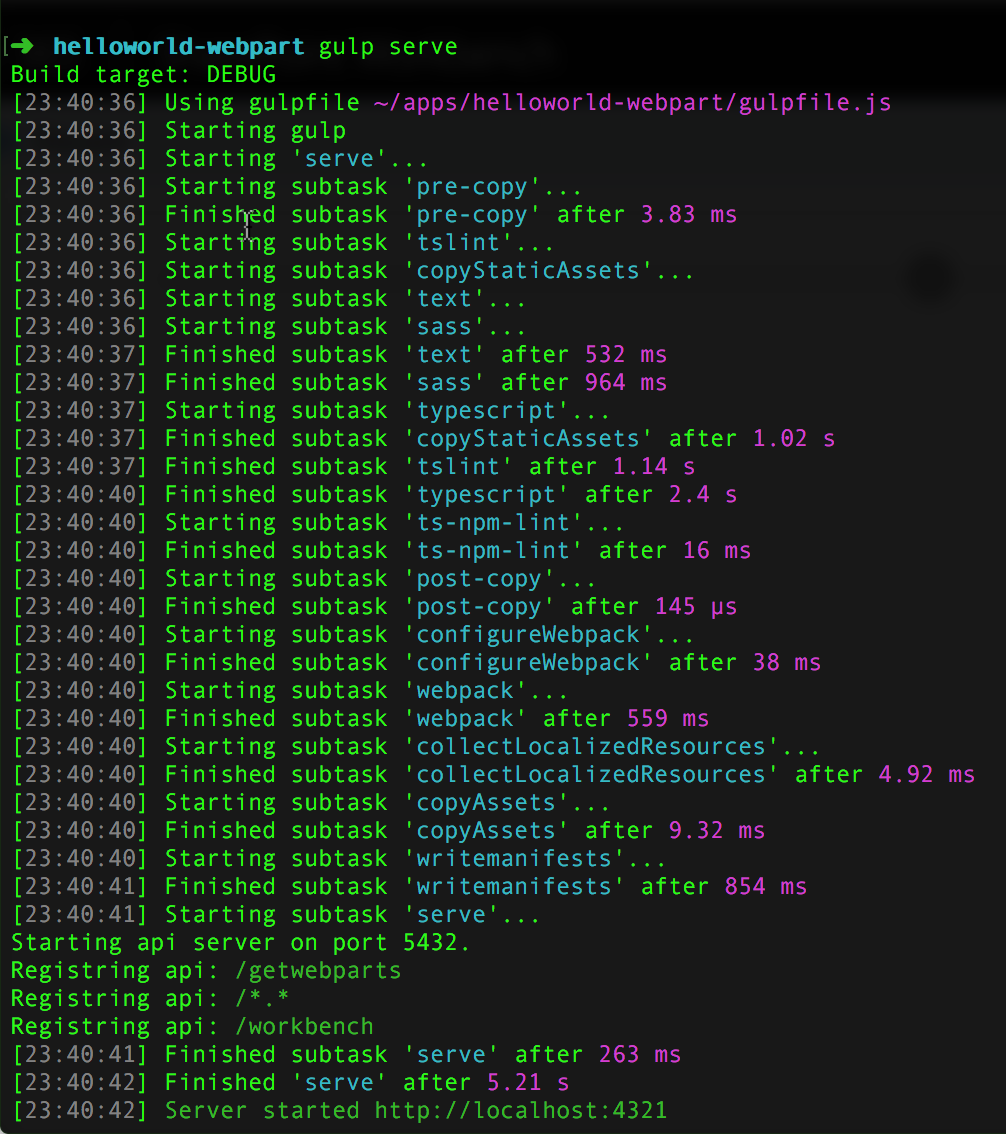
The serve task builds the project, serves local assets, and opens its configured start page. Older configurations can point to a retired local workbench or the deprecated Online workbench. For SharePoint Online web parts, configure an actual SharePoint page and use the Debug Toolbar as described in Debug on modern SharePoint pages.
Build targets
In the previous screenshot, you can see that the task indicates your build target as follows:
Build target: DEBUG
If no parameter is specified, the commands target the BUILD mode. If the ship parameter is specified, the commands target the SHIP mode.
Usually, when your web part project is ready to ship or deploy in a production server, you target SHIP. For other scenarios, such as testing and debugging, you would target BUILD. The SHIP target also ensures that the minified version of the web part bundle is built.
To target SHIP mode, append the task with --ship:
gulp --ship
In DEBUG mode, the build tasks copy all of the web part assets, including the web part bundle, into the dist folder.
In SHIP mode, the build tasks copy all of the web part assets, including the web part bundle, into the temp\deploy folder.