Note
Access to this page requires authorization. You can try signing in or changing directories.
Access to this page requires authorization. You can try changing directories.
Applies to: ✔️ Linux VMs ✔️ Windows VMs ✔️ Flexible scale sets ✔️ Uniform scale sets
Azure managed disks are block-level storage volumes managed by Azure and used with Azure Virtual Machines. Managed disks are like physical disks in an on-premises server, but they're virtualized. With managed disks, you only have to specify the disk type and the disk size, then provision the disk. After you provision the disk, Azure handles the rest.
There are five types of managed disks: Ultra Disks, Premium solid-state drives (SSD) v2, Premium SSD, Standard SSD, and Standard hard disk drives (HDD). To learn about each disk type and decide which fits your needs, see Azure managed disk types.
An alternative is to use Azure Elastic SAN as the storage for your virtual machine (VM). With Elastic SAN, you can consolidate the storage for all your workloads into a single storage back end. Elastic SAN can be more cost effective if you have many large-scale, I/O-intensive workloads and top-tier databases. To learn more, see What is Azure Elastic SAN?.
Azure managed disk durability and availability
Managed disks are designed for 99.999% availability. To achieve this availability, managed disks provide three replicas of your data. If one or two replicas experience problems, the remaining replicas help ensure persistence of your data and high tolerance against failures.
This architecture helps Azure consistently deliver high durability for infrastructure as a service (IaaS) disks, with a 0% annualized failure rate. Locally redundant storage (LRS) disks provide at least 99.999999999% (11 9's) of durability over a year. Zone-redundant storage (ZRS) disks provide at least 99.9999999999% (12 9's) of durability over a year.
Scale Azure VM deployments with managed disks
With managed disks, you can create up to 50,000 disks of each disk type in a subscription per region. You can then create thousands of VMs in a single subscription.
Managed disks increase the scalability of virtual machine scale sets. You can create up to 1,000 VMs in a virtual machine scale set by using an Azure Marketplace image or an Azure Compute Gallery image with managed disks.
Azure managed disk failure isolation
Isolate managed disks with availability sets
Managed disks are integrated with availability sets to help ensure that the disks of VMs in an availability set are sufficiently isolated from each other to avoid a single point of failure.
Disks are automatically placed in different storage scale units (stamps). If a stamp fails due to hardware or software failure, only the VM instances with disks on those stamps fail.
For example, say you have an application running on five VMs that are in an availability set. The disks for those VMs aren't all stored in the same stamp. So if one stamp goes down, the other instances of the application continue to run.
Protect managed disks with availability zones
Managed disks support availability zones, which help protect your applications from datacenter failures. Availability zones are unique physical locations within an Azure region. Each zone consists of one or more datacenters equipped with independent power, cooling, and networking. To ensure resiliency, there's a minimum of three separate zones in all enabled regions.
For information about the service-level agreement (SLA) for VM uptime with availability zones, see the page for Azure SLAs.
Azure managed disk performance options
The demands and needs of your workload can shift over time, either due to high demand during a holiday, sudden bursts of traffic, or scaling up to meet client needs. Azure managed disks have several capabilities you can take advantage of to improve their performance and match the shifting needs of your workloads. Different disk types offer different capabilities, some disk types have capabilities you can use to ensure their performance automatically shifts to meet the changing demands of your workload, others require manual adjustment, and other disk types can't do either.
To learn about the options each disk type has, see Overview of options to improve Azure managed disk performance
Azure managed disk backup and disaster recovery options
Managed disks support several backup and disaster recovery options. These options include built-in redundancy options (locally redundant storage, and zone-redundant storage), Azure Backup, managed disk snapshots, restore points, and Azure Site Recovery. The ideal configuration of backup and disaster recovery options for your needs can vary. To decide which works best for your needs, see Backup and disaster recovery for Azure managed disks.
Managed disk snapshots
A managed disk snapshot is a read-only, crash-consistent full copy of a managed disk that's stored as a standard managed disk by default. With snapshots, you can back up your managed disks at any point in time. These snapshots exist independently of the source disk, and you can use them to create new managed disks.
To learn how to create managed disk snapshots, see Create a snapshot of a virtual hard disk.
Managed images for Azure VMs
Managed disks support creating managed custom images. You can create an image from your custom VHD in a storage account or directly from a generalized (via Sysprep) VM. The image contains all managed disks associated with a VM, including both the OS and data disks. A managed custom image lets you create hundreds of VMs without the need to copy or manage any storage accounts.
For information on creating images, see Create a legacy managed image of a generalized VM in Azure.
Compare managed images and managed disk snapshots
Managed images and managed disk snapshots differ in their source, scope, and intended use:
| Characteristic | Managed image | Managed disk snapshot |
|---|---|---|
| Source | A generalized VM that you deallocated | Point-in-time copy of a managed disk |
| Scope | Includes all managed disks attached to the VM, including the OS and data disks | Contains a copy of one managed disk |
| Intended use | Create VMs from a reusable image | Back up a disk or create a new managed disk |
| Multi-disk behavior | Captures the disks attached to the generalized VM in one image | Doesn't coordinate snapshots across multiple disks, so it isn't suitable for scenarios that require coordinated copies, such as disk striping |
If a VM only has an OS disk and no data disks, you can create a VM from either an image of that VM or a snapshot of the OS disk.
Upload VHDs and VHDXs to Azure managed disks
You can reduce costs by uploading data to managed disks directly, without attaching them to VMs. With direct upload, you can upload VHDs up to 32 TiB in size. To learn how to upload your VHD to Azure, see the Azure CLI or Azure PowerShell articles.
Azure managed disk security
Control access to managed disk imports and exports
You have several options for protecting your managed disks from being imported or exported. You can create a custom Azure role-based access control (RBAC) role with a limited permission set, you can use Microsoft Entra ID, Private Links, Azure Policy, or configure the NetworkAccessPolicy parameter on your disk resources. To learn more, see Restrict managed disks from being imported or exported.
Azure managed disk encryption options
Several kinds of encryption are available for your managed disks, including Server-Side Encryption (SSE), Azure Disk Encryption (ADE), encryption at host, and confidential disk encryption. You can use either platform-managed keys or customer-managed keys with these encryption options. To learn more about your encryption options, see Overview of managed disk encryption options
Share managed disks across Azure VMs
For use with cluster applications, you can attach an individual managed disk to multiple VMs simultaneously, allowing you to either deploy new or migrate existing clustered applications to Azure. This configuration requires a cluster manager, like Windows Server Failover Cluster (WSFC), or Pacemaker, that handles cluster node communication and write locking. To learn more about this configuration, see Share an Azure managed disk.
Azure VM disk roles
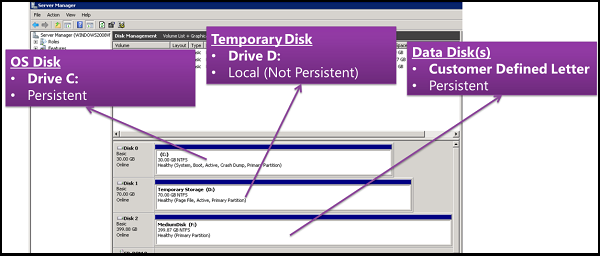
There are three main disk roles in Azure: the OS disk, the data disk, and the temporary disk. These roles map to disks that are attached to your virtual machine.
Performance for each disk role works differently. To learn more about how performance works for each role, see Disk allocation and performance.
OS disk
Every virtual machine has one attached OS disk. This disk has a preinstalled operating system, which you selected when creating the VM. This disk contains the boot volume.
Note
On September 8, 2028, the ability to use Standard HDDs as OS disks will be retired. To learn more, see Migrate your Standard HDD OS disks by September 08, 2028.
Generally, you should store only your OS information on the OS disk. The data disk is where you should store all applications and data. If cost is a concern, you can use the OS disk instead of creating a data disk.
The OS disk has a maximum capacity of 4,095 gibibytes (GiB). However, many operating systems are partitioned with master boot records (MBRs) by default. An MBR limits the usable size to 2 TiB. If you need more than 2 TiB, create and attach data disks and use them for data storage. If you need to store data on the OS disk and require extra space, convert it to a GUID partition table (GPT). To learn about the differences between an MBR and a GPT on Windows deployments, see Windows and GPT FAQ.
On Azure Windows VMs, drive C is your OS disk and is persistent storage, unless you're using ephemeral OS disks.
Data disk
A data disk is a managed disk attached to a virtual machine to store application data or other data. Data disks are registered as SCSI drives and are labeled with a letter that you choose. The size and type of the virtual machine determines how many data disks you can attach to the VM and the disk types you can use with the VM.
Generally, you should use data disks to store your applications and data, instead of storing them on an OS disk. Using data disks to store applications and data offers the following benefits over using OS disks:
- Improved backup and disaster recovery
- More flexibility and scalability
- Performance isolation
- Easier maintenance
- Improved security and access control
For more information about these benefits, see Why should I use the data disk to store applications and data instead of the OS disk?.
Temporary disk
Most VMs contain a temporary disk, which isn't a managed disk. The temporary disk provides short-term storage for applications and processes. It's intended for storing only data such as page files, swap files, or SQL Server tempdb files.
Data on the temporary disk might be lost during a maintenance event, when you redeploy a VM, or when you stop the VM. During a successful standard restart of the VM, data on the temporary disk persists. For more information about VMs without temporary disks, see Azure VM sizes with no local temporary disk.
On Azure Linux VMs, the temporary disk is typically /dev/disk/azure/resource. On Windows VMs, the temporary disk is drive D by default. The temporary disk isn't encrypted unless:
- You're using an Azure VM that is version 5 and above (such as Dsv5 or Dsv6). Azure VMs version 5 and above automatically encrypt their temporary disks and (if in use) their ephemeral OS disks with encryption-at-rest.
- For server-side encryption, you enable encryption at host.
- For Azure Disk Encryption, you set the
VolumeTypeparameter to All on Windows or EncryptFormatAll on Linux.
Related Azure managed disk content
- Learn more about the individual disk types that Azure offers, which type is fits your needs, and their performance targets, see Select a disk type for IaaS VMs
- Learn about how Virtual machine and disk performance works
- Learn the Best practices for achieving high availability with Azure virtual machines and managed disks
- Learn more about how managed disks are billed, see Understand Azure Disk Storage billing