Note
Access to this page requires authorization. You can try signing in or changing directories.
Access to this page requires authorization. You can try changing directories.
Important
- This is a preview feature provided under Microsoft Product Terms.
- Preview features may have restricted functionality and may not be released for general availability. These features are available before an official release so that customers can get early access and provide feedback.
- You need to be part of the Frontier preview program to get early access. Frontier connects you directly with Microsoft's latest AI innovations. Frontier previews are subject to the existing preview terms of your customer agreements. As these features are still in development, their availability and capabilities may change over time.
The Code tab in Microsoft Copilot turns what you describe into working software. You explain the outcome you want—a dashboard, an internal tool, a static website, a data transform, or a script—and Copilot Code builds it, shows you a live preview, and iterates with you until it works. You don't need to know how to code.
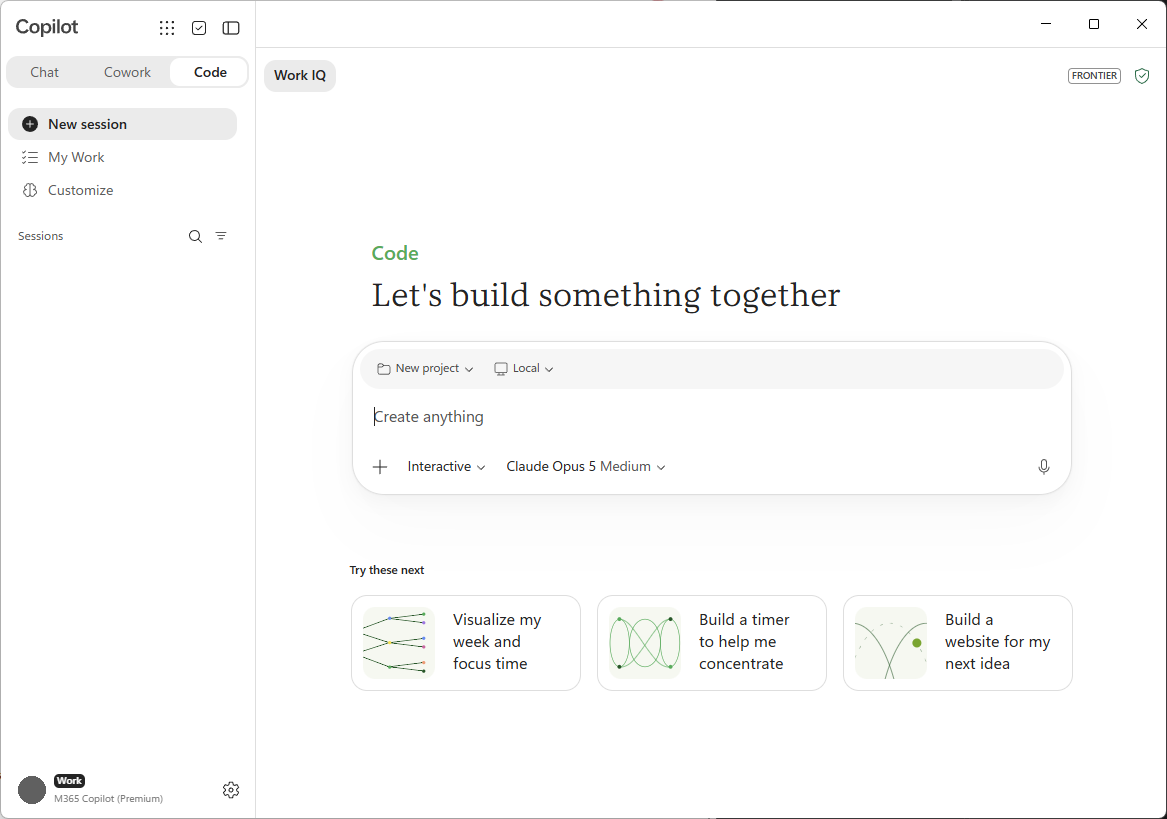
What is Copilot Code?
Copilot Code is a separate tab in the Microsoft Copilot app, alongside Chat and Cowork. It's built for people who think in outcomes ("I need a dashboard that shows weekly signups by channel") rather than implementation details. You describe what you want in plain language, and Copilot Code writes and runs the software for you.
- Builds real software: Creates apps, dashboards, internal tools, static websites, data transforms, automations, and scripts.
- Shows a live preview: Displays the working artifact on a canvas next to the conversation, so you see it take shape as it's built.
- Iterates with you: You give feedback in plain language, and Copilot Code refines the result. You can revert to an earlier version at any time.
- Uses your work context: With your permission, Copilot Code can use your Microsoft 365 data—documents, emails, meetings, and calendar—as context for what it builds.
- Connects to GitHub: Link your GitHub account to work with existing repositories and keep projects in sync.
- Work in projects: Come back to your projects and have multiple sessions within them.
Copilot Code shows each step as it works, so you can follow what it's doing.
Note
Copilot Code conversations stay in the Code tab. They don't appear in the Chat or Cowork tabs.
Build locally or in the cloud
Copilot Code can run in two places. You choose which one fits your project.
| Option | Where it runs | Best for |
|---|---|---|
| Local | On your own device, in a project folder you choose. | Working with local files, fast iteration, and projects that stay on your machine. |
| Cloud | In a secure, isolated environment in the cloud. | Use the cloud when you want to share projects with your coworkers. |
When you build locally, Copilot Code works inside a project folder on your computer. It can read the files there, install what the project needs, and run the app so the preview stays up to date. Copilot Code asks for your approval before it reaches outside that folder, makes a network connection, or runs a terminal command.
The canvas
The canvas is the visual workspace next to your conversation. It's the main place you see and interact with what Copilot Code builds.
- Preview: See the rendered artifact, such as a static website or a web app, as it's built and updated.
- Code view: Switch to the raw code to see and edit the files Copilot Code generated.
- Direct interaction: Select an element on the canvas to point Copilot Code at it, then describe the change you want.
Note
Preview support depends on the type of artifact and your device. For example, some artifacts can't be previewed on every platform.
What can Copilot Code do for you?
The following sections describe what you can ask Copilot Code to do.
Create
- Describe a software outcome in plain language and have Copilot Code build it.
- Start from a suggested prompt, such as Build a dashboard or Automate a workflow.
- Open an existing local folder to work with (local projects).
- Upload or drag and drop files—CSV, spreadsheets, images, documents, PDFs, and presentations—for Copilot Code to work with.
- Paste text data directly into the conversation.
Preview and iterate
- Preview a static website or a web app on the canvas.
- View and edit the raw code that Copilot Code writes.
- Give plain-language feedback and have Copilot Code refine the result.
- Select elements directly on the canvas to focus your next request.
- Revert to an earlier version of your project.
Connect your data and tools
- Use your Microsoft 365 work context—documents, emails, meetings, and calendar—as context for what Copilot Code builds.
- Use the same plugins available in Cowork to connect external data sources and services.
- Use tools such as web search and image generation.
Work with GitHub
- Connect your GitHub account.
- Warm-start from an existing repository by cloning it.
- Ask questions about a connected repository.
- Ask for changes—Copilot Code can create branches, commits, and draft pull requests, and shows their status.
- Create a new GitHub repository for a project you started in Copilot Code.
- See your issues, active pull requests, and review requests in My Work.
Share
- Build interactive apps and publish them to Copilot Managed Runtime that people in your organization can open and use. See Build and publish apps to Copilot Managed Runtime.
- Share a static app as a link that's scoped to your organization (cloud only).
- Ask Copilot Code to delete an artifact it created.
Models
You choose the model Copilot Code uses for your project, or let Copilot Code pick one for you. For the list of available models and how to choose one, see Get started with Code.
Stay in control
Copilot Code asks for your permission before it takes actions that reach beyond the projects already in Copilot Code.
- Folder access: When you pick a folder to work in, Copilot Code can read and write within that folder. Any other location needs your explicit consent.
- Network connections and terminal commands: Outbound network connections and terminal commands that Copilot Code runs on your behalf require your approval.
By default, Copilot Code asks for permission to:
- Make network calls, including accessing the internet.
- Use extensions and MCP.
- Run shell or terminal commands.
- Read or write files outside the projects and folders already in use in Copilot Code.
Copilot Code allows reading and writing files in projects and folders that are already in use without asking for permission. For example, if you start a new project in an existing folder, all Copilot Code projects can read from and write to that folder without additional permission.
Important
When you enable Always allow, it remains enabled until you disable it. Always allow applies to existing sessions and workspaces as well as any new sessions started after you enable it. Use caution when enabling Always allow.
Your organization's admin can also set controls for how Copilot Code is used. For details, see Manage Copilot Code for your organization.
Data protection and privacy
Copilot Code works within your Microsoft 365 environment and follows your organization's existing governance, security, and compliance controls. Administrators can audit the actions Copilot Code takes, including code generated, commands run, and files read or written. For details, see Manage Copilot Code for your organization.
Get started
Copilot Code is available in the Microsoft Copilot desktop app for Windows, and for cloud development on the web. For licensing, prerequisites, and supported platforms, see Copilot Code requirements.
Learn more in Get started with Copilot Code.