Note
Access to this page requires authorization. You can try signing in or changing directories.
Access to this page requires authorization. You can try changing directories.
[This article is prerelease documentation and is subject to change.]
The Monitor tab in the new agent experience provides a view of your agent's recent activity and overall effectiveness across sessions. Key metrics include Conversation sessions (how your agent handled conversations), User engagement (message counts and session duration), cost and savings estimates, Total reactions, and Response quality.
You can filter the Monitor tab to show events that occurred in the last 360 days.
Note
Features in this article are powered by the GitHub Copilot harness, which uses Copilot Credits for usage-based billing. Learn more about Copilot Credits in Overview of billing for agents powered by the GitHub Copilot harness.
Usage-based billing applies to using, building, testing, and evaluating agents. These actions might consume Copilot Credits.
Note
The Monitor tab is unavailable until you publish your agent. To make it available, select Publish on the Build tab.
Overview
The Overview panel provides high-level key performance indicator (KPI) metrics for your agent and gives you an aggregate view of its overall effectiveness. The key metrics on the Overview panel are:
- Conversation sessions: The total includes engaged and unengaged sessions.
- Total reactions: The total number of reactions users gave to agent messages.
- Average daily active users: Average daily active users during the selected period.
- Average run durations: The average time it takes for the agent to complete a run from start to finish.
- Total runs: The total number of times the agent was triggered and ran during the selected period.
- Success rate: The percentage of runs that completed successfully without errors during the selected period.
Active users
Active user metrics provide insight into the degree to which a conversational agent is being adopted and how that trends over time. An active user is a unique user who interacted with the conversational agent at least once during the report's period. Copilot Studio Monitor tab displays active user counts for two predefined time periods: daily active users (DAU) and monthly active users (MAU). The daily count starts and ends according to a full 24-hour day in the UTC time zone. The monthly count follows the calendar month, also starting and ending on the first and last days according to the UTC time zone.
Important
The Active user metrics feature is only supported if you set your agent to require authentication under Settings > Safety & access > Authentication.
The average DAU for the selected period, plus its percent change from the previous period, appears as a key performance indicator (KPI) in the Overview section.
Note
The formula for the average DAU calculated metric is: (sum of all full-day active user counts in the period) / (count of full days in the period).
To see more details about daily and monthly active user counts as they trend over time, select the See active users button in the top right corner of the overview panel.
Billings
On the Monitor page for your agent, the Overview panel shows your agent's total billed Copilot Credits for the selected time period. To view more details about the billing information, select See billing. This selection opens a side panel of the Billing trend chart that shows the changes in your agent's billed Copilot Credits over the selected time period. Hover over points in the chart to see the number of Copilot Credits.
The analytics data takes a few hours to update with new billed Copilot Credits, so you might not see data about recent activity.
Savings
Use the Savings panel to estimate how much time and money your agent saves. Use the Savings calculator to estimate your savings per run or to calculate the savings of one or more of the tools your agent uses. If there's an empty Savings panel with no calculated metrics displayed, select Calculate savings.

Select either Per run or Per tool.
To estimate savings per run, see Estimate savings per run for an agent.
To calculate time or cost saved for each of your agent's tools, see Calculate savings per tool for your agent.
Reactions
The Reactions section shows user feedback gathered from reactions to agent responses. The chart counts the number of times users selected either the thumbs up (positive) or thumbs down (negative) buttons available on each response they received from your agent.

Note
- Agents published to the Microsoft 365 Copilot channel don't support reactions.
- To view comments, you must have the Bot Transcript Viewer security role.
The Reactions feature is On by default. You can turn it off if needed. You can also add or edit a disclaimer for users about how their feedback is used:
Open your agent, select Settings, and then select the Safety and access tab.
Turn the User feedback either On or Off.
Users with the Bot Transcript Viewer privilege can drill down to agent responses for individual reactions and filter by user comments.
To see reaction trends over time, select See details on the Reactions tile to open the Reactions side panel. The panel shows how positive and negative reactions (from Thumbs up and Thumbs down) trend over time.
Tool use
The Tool use section shows a chart and metrics that track how often your tools are started over time, and how often your agent used those tools successfully. It also shows trend indicators for how often your agent uses each tool and the percentage of called tools used successfully.
The chart displays the top five tools used over the date period defined at the top of the Analytics page.
In the legend below the chart, hover over any of the tools to highlight that tool in the chart.
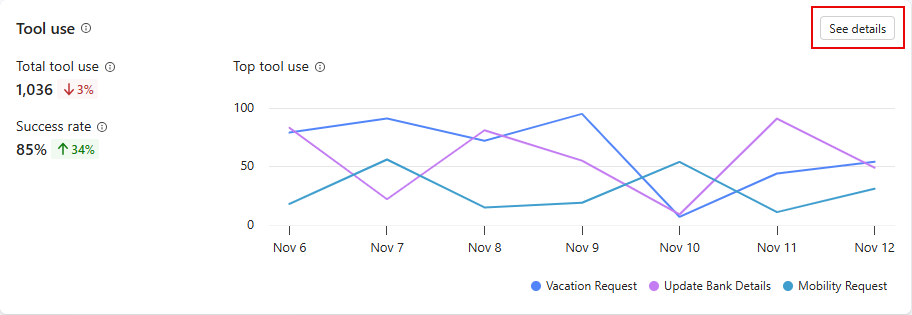
To open a side panel with a list of all tools used in the specified time period, along with trend indicators, select See details on the chart. On the Tool use panel, you can display calculations of the percentage of questions used for each tool. If your agent has child agents, you can choose to display calculations for both the main agent and child agents (All), the Main agent only, or the Child agent only.