Note
Access to this page requires authorization. You can try signing in or changing directories.
Access to this page requires authorization. You can try changing directories.
This article explains how to create a Dragon Copilot offer for Microsoft Marketplace using Partner Center.
Prerequisites
To publish a Dragon Copilot offer, you must:
- Have a Microsoft Marketplace account in Partner Center and ensure your account is enrolled in the Microsoft Marketplace program. See Create a Microsoft Marketplace account in Partner Center and Verify your account information when you enroll in a new Partner Center program.
- Meet the eligibility requirements documented in Microsoft Marketplace general listing and offer policies.
If you didn't already do so, read plan a Dragon Copilot offer. It describes the prerequisites and assets you need to create a Dragon Copilot offer in Partner Center.
Create a Dragon Copilot offer
Sign in to Partner Center.
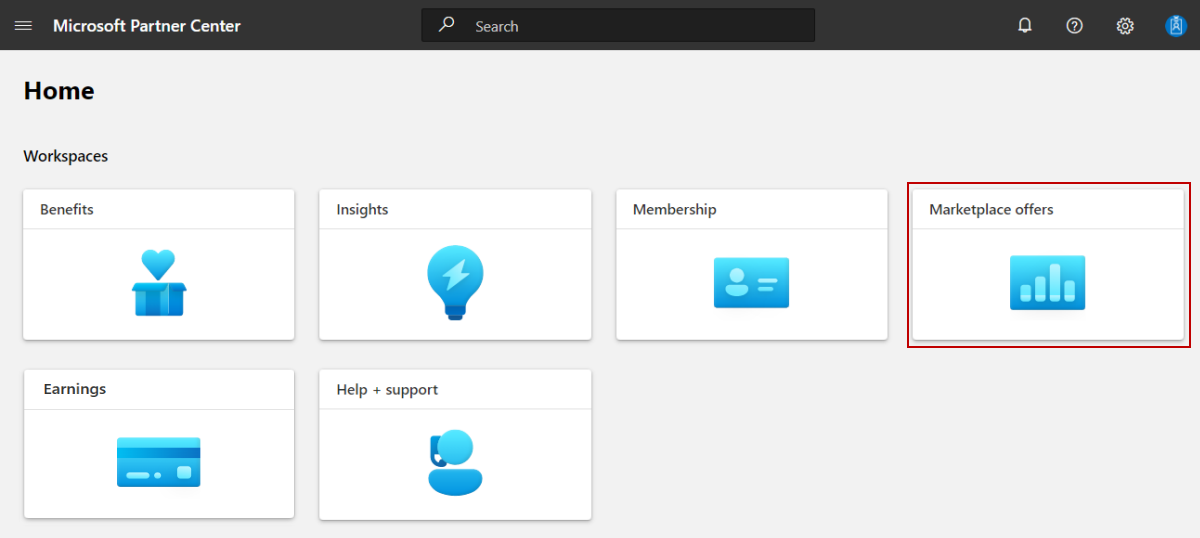
On the Home page, select the Marketplace offers tile.
On the Marketplace offers page, go to the Public offers tab, select Create a new offer, and select the Copilot tab.

Enter an Offer ID. This ID is visible in the URL of the Microsoft Marketplace listing. For example, if you enter
test-offer-1in this box, the offer web address will behttps://Marketplace.Microsoft.com/marketplace/../test-offer-1.- Each offer in your account must have a unique offer ID.
- Use only lowercase letters and numbers. The offer ID can include hyphens and underscores, but no spaces, and is limited to 50 characters.
- You can't change the offer ID after you select Create.
Enter an Offer alias. Partner Center uses this name for the offer. It isn't visible in Microsoft Marketplace and is different from the offer name shown to customers.
Select Create.

Configure your offer listing details
The information you provide here appears publicly in your offer listing or in search results on Microsoft Marketplace. It helps customers discover and purchase your offer.
Enter the Name customers see on your listing and in search results. This name appears as the title of your offer listing in Microsoft Marketplace. The name can be trademarked. It can't contain emojis (unless they're the trademark and copyright symbols) and must be limited to 200 characters. Don't include your company name unless it's also the product name.
Write a Search results summary. Describe the purpose or goal of your offer in 200 characters or less. This summary is used in Microsoft Marketplace listing search results. It shouldn't be identical to the title. Consider including your top search engine optimization (SEO) keywords.
Provide a clear Description for your offer’s value proposition to your customers. This description is displayed in Microsoft Marketplace listing. Consider including a value proposition, key benefits, intended user base, and any category or industry associations. You can use HTML tags to format your description and enter up to 5,000 characters of text in this box, including HTML tags and spaces. For information about HTML formatting, see HTML tags supported in Microsoft Marketplace offer descriptions. Here are tips for writing your description:
- Clearly describe the value of your offer in the first few sentences, including:
- The type of user who benefits from the offer.
- Customer needs or issues that the offer addresses.
- Remember that the first few sentences might be displayed in search results.
- If the price of your offer is estimated, explain what variables determine the final price.
- Use industry-specific vocabulary.
- Clearly describe the value of your offer in the first few sentences, including:
Add up to three Search keywords (optional) to help customers find your offer. You don't need to include the offer Name and Description.
Upload your Logo. Provide a PNG file logo (from 216 x 216 to 350 x 350 pixels, under 50 MB). This logo appears on your offer listing page in Microsoft Marketplace. Follow these guidelines for your logo:
- Make sure the image isn't blurry or stretched.
- Limit the number of primary and secondary colors on your logo. The Azure design has a simple color palette.
- If you use a transparent background, make sure that the logo and text aren't white, black, or blue.
- Avoid gradients in the logo or background. Don't place text on the logo (not even your company or brand name).
Add screenshots and videos. Add at least one screenshot and up to five screenshots of your offer that highlight your service's value proposition, differentiation, and customer success. All images must be 1280 x 720 pixels in size and in PNG format. You can also optionally add up to five videos that demonstrate your offer. The videos must be hosted on YouTube or Vimeo and have a thumbnail (1280 x 720-pixel PNG file).
Note
This is the correct URL format for videos on YouTube and Vimeo:
- YouTube URL format:
https://www.youtube.com/watch?v=[VIDEO_ID] - Vimeo URL format:
https://vimeo.com/[VIDEO_ID]
- YouTube URL format:
Include Supplemental product information (optional). Upload additional product information for your offer including white papers, brochures, checklists, presentations, FAQs, or release notes. After you’ve uploaded each file, provide a name for the document. These names are displayed in the Links section of your listing to help customers make buying decisions.
Alias
This alias is the name you entered when creating the offer. It's an internal alias and isn't visible to customers. You can edit it here.
Categories and industries
Select at least one category that best matches your offer. You can add up to two categories and two subcategories per category. Optionally, select up to two industries and up to two sub-industries (also called verticals) for each industry.
Categories and industries are used to display your offer when customers filter their search on categories, subcategories, industries, and sub-industries.
Legal
Provide terms and conditions for your offer. You have two options.
To learn about the standard contract and optional amendments, see Standard Contract for Microsoft Marketplace. You can download the Standard Contract PDF (ensure your pop-up blocker is off).