Merk
Tilgang til denne siden krever autorisasjon. Du kan prøve å logge på eller endre kataloger.
Tilgang til denne siden krever autorisasjon. Du kan prøve å endre kataloger.
Summary
This article shows you how to confirm that an Open Database Connectivity (ODBC) driver is installed, registered, and configured correctly on a Windows computer. Use it when an application can't connect to a database, when an ODBC driver doesn't appear in the ODBC Data Source Administrator, or when you receive the error Data source name not found and no default driver specified (SQLSTATE IM002). The verification steps cover the 32-bit and 64-bit copies of the ODBC Data Source Administrator, the Data Source Name (DSN) and driver entries in the Windows registry, and the connection string that the application passes to the ODBC Driver Manager.
Which copy of the ODBC Data Source Administrator should you open?
On 64-bit versions of Windows, there are two copies of the ODBC Data Source Administrator, and each copy manages the drivers and System DSNs that match its bitness:
For 64-bit applications, select Windows+R and type ODBCAD32.EXE or C:\WINDOWS\SYSTEM32\ODBCAD32.EXE.
For 32-bit applications, select Windows+R and type C:\WINDOWS\SYSWOW64\ODBCAD32.EXE.
Both executables are named odbcad32.exe, so the folder path determines which one you open. Always match the tool to the bitness of the application that makes the connection. A 32-bit application can't load a 64-bit ODBC driver, and a 64-bit application can't load a 32-bit ODBC driver.
ODBC connection string examples
Applications that call an ODBC driver can use Data Source Names (DSNs) or DSN-less connection strings. Here are examples:
driver={ODBC Driver 18 for SQL Server};server=sqlprod01;database=AdventureWorks;trusted_connection=yesdsn=userdsn1dsn=test;uid=<user name>;pwd=<password>
The first connection string explicitly specifies the driver name, server name, database name, and whether to use integrated security (trusted_connection). It's a DSN-less connection.
The second and third connection strings use a DSN, which is an encapsulation of these items that are stored in the registry. The user name and password can't be stored in the DSN and must be specified explicitly. For more information about DSN attributes, see DSN connection string attribute.
A DSN is a shortcut for applications to load the driver, providing a level of indirection. By using a DSN, you can change the server, database, and even the database type the application connects to without changing the application.
The driver name in the connection string must match the name of a driver that's registered on the computer. Driver and DSN names aren't case-sensitive, but spelling and punctuation must match exactly. If no registered driver matches, the ODBC Driver Manager can't load the driver.
Note
The SQL Server driver (sqlsrv32.dll) that ships with Windows and the SQL Server Native Client driver (SQL Server Native Client 11.0) aren't recommended for new development. SQL Server Native Client isn't shipped with SQL Server 2022 (16.x) and later versions or SQL Server Management Studio 19 and later versions. For new connections, use the Microsoft ODBC Driver for SQL Server, which you can download for Windows, Linux, and macOS.
Verify that the driver and DSN appear in the ODBC Data Source Administrator
Use the ODBC Data Source Administrator to verify the presence of ODBC drivers and DSNs. Open the copy that matches your application's bitness, and then check the Drivers tab to see whether the driver is listed. The following screenshots show 64-bit and 32-bit drivers:

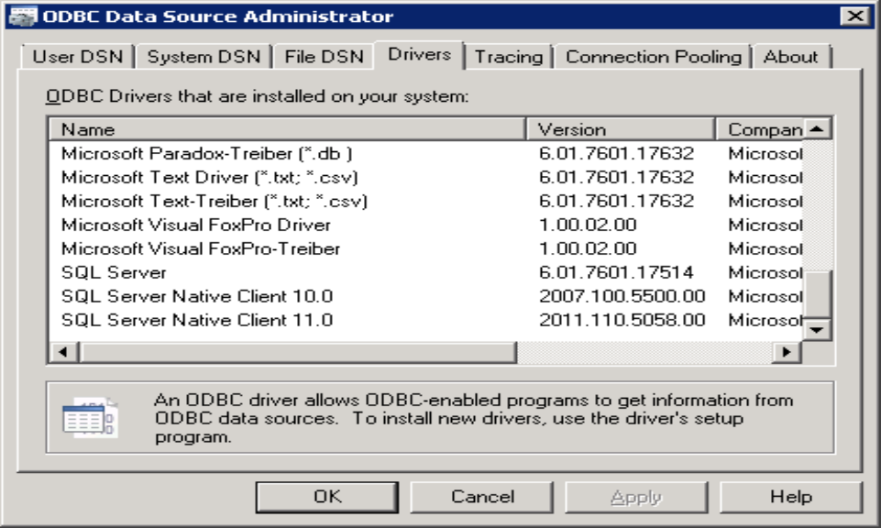
If the driver is listed, create a test DSN on the System DSN or User DSN tab and run a connection test. A successful test confirms that the driver loads and that the server is reachable. If the driver isn't listed, reinstall the driver, and then check the registry keys as described in the next section.
ODBC driver and DSN information in the registry
Driver and DSN information is stored in the registry:

On 64-bit computers, registry redirection separates 32-bit and 64-bit information for drivers and System DSNs. The Wow6432Node registry entry stores the 32-bit driver and System DSN information. User DSNs aren't redirected, so both the 32-bit and 64-bit tools display all User DSNs. The relevant keys are:
HKEY_LOCAL_MACHINE\SOFTWARE\ODBC(64-bit drivers and System DSNs)HKEY_LOCAL_MACHINE\SOFTWARE\Wow6432Node\ODBC(32-bit drivers and System DSNs)HKEY_CURRENT_USER\Software\ODBC(User DSNs for the current user)
The ODBC.INI subkey contains a list of all the DSNs and the subkeys for each DSN. The ODBCINST.INI subkey lists all the drivers.

If there's a problem loading a driver through the DSN, check the ODBC.INI subkey to find out which driver the DSN is using.

Also confirm that the driver path listed under ODBCINST.INI points to a DLL file that exists on disk. A registry entry that references a missing or moved DLL is a common cause of load failures after an uninstall, an upgrade, or a manual file cleanup. For the file names and locations that the Microsoft ODBC Driver for SQL Server installs, see System requirements, installation, and driver files.
Note
The LastUser entry doesn't affect the connection string. It's only used when testing the DSN in the ODBC Data Source Administrator.
Troubleshoot error IM002: Data source name not found and no default driver specified
Validate the server name, database name, and whether the driver is installed. If the driver can't be loaded, you receive the following error message:
ERROR [IM002] [Microsoft][ODBC Driver Manager] Data source name not found and no default driver specified.
This error means that the ODBC Driver Manager couldn't resolve the DSN or driver name in the connection string. Check the following items in order:
- The DSN name in the connection string matches a DSN that's listed in the ODBC Data Source Administrator.
- A driver of the matching bitness is installed. A User DSN appears in both the 32-bit and 64-bit tools, but the connection fails if the driver it points to isn't installed for the bitness of the application. For more information, see ODBC Administrator tool displays both the 32-bit and the 64-bit user DSNs.
- The System DSN was created in the tool that matches the application bitness. System DSNs are registry-redirected, so a System DSN created in the 64-bit tool isn't available to a 32-bit application.
- The DSN scope matches the account that runs the application. A User DSN under
HKEY_CURRENT_USERisn't visible to a service that runs under a different account. Use a System DSN for services and web applications. - The driver name in a DSN-less connection string matches a driver that's listed under the
ODBCINST.INIsubkey.
Even if the driver path in the DSN is incorrect, the driver manager can still locate it in the ODBCINST.INI subkey from the driver name listed in the ODBC Data Sources registry key.
If the driver loads but the connection still fails, the problem is usually network, authentication, or encryption related rather than an installation problem. For those symptoms, see Troubleshoot connectivity issues in SQL Server.
Support for non-Microsoft ODBC drivers
For non-Microsoft ODBC drivers, Microsoft support is limited to the following actions:
- Check whether the driver registry keys are present. If they aren't, reinstall the driver or consult the vendor.
- Check whether the paths point to a DLL file that exists. If they don't, reinstall the driver or consult the vendor.
- Create a test DSN and perform a connection test.
- Help capture a Process Monitor (Procmon) trace that the vendor can analyze.
Driver behavior, driver defects, and driver installation logic remain the responsibility of the vendor that produced the driver.
Third-party information disclaimer
The third-party products that this article discusses are manufactured by companies that are independent of Microsoft. Microsoft makes no warranty, implied or otherwise, about the performance or reliability of these products.