Merk
Tilgang til denne siden krever autorisasjon. Du kan prøve å logge på eller endre kataloger.
Tilgang til denne siden krever autorisasjon. Du kan prøve å endre kataloger.
Summary
This article shows you how to check which Object Linking and Embedding Database (OLE DB) driver or provider for SQL Server is installed on a Windows computer, how to validate that it works, and how to trace its registration in the Windows registry. Use these checks when an application can't connect to SQL Server and you suspect that the OLE DB driver is missing or unregistered.
Validate OLE DB driver or provider via PowerShell
To find which versions of the OLE DB driver for SQL Server are installed on the operating system, run the following PowerShell cmdlet as an administrator.
Get-ChildItem -Path "HKLM:\SOFTWARE\Microsoft", "HKLM:\SOFTWARE\Wow6432Node\Microsoft" |
    Where-Object { $_.Name -like "*MSOLEDBSQL*" } |
    ForEach-Object { Get-ItemProperty $_.PSPath }
If you have version 18 and 19 installed on the operating system, the output might look something like this.
InstalledVersion : 18.7.4.0
PSPath           : Microsoft.PowerShell.Core\Registry::HKEY_LOCAL_MACHINE\SOFTWARE\Microsoft\MSOLEDBSQL
PSParentPath     : Microsoft.PowerShell.Core\Registry::HKEY_LOCAL_MACHINE\SOFTWARE\Microsoft
PSChildName      : MSOLEDBSQL
PSProvider       : Microsoft.PowerShell.Core\Registry

InstalledVersion : 19.4.1.0
PSPath           : Microsoft.PowerShell.Core\Registry::HKEY_LOCAL_MACHINE\SOFTWARE\Microsoft\MSOLEDBSQL19
PSParentPath     : Microsoft.PowerShell.Core\Registry::HKEY_LOCAL_MACHINE\SOFTWARE\Microsoft
PSChildName      : MSOLEDBSQL19
PSProvider       : Microsoft.PowerShell.Core\Registry

InstalledVersion : 18.7.4.0
PSPath           : Microsoft.PowerShell.Core\Registry::HKEY_LOCAL_MACHINE\SOFTWARE\Wow6432Node\Microsoft\MSOLEDBSQL
PSParentPath     : Microsoft.PowerShell.Core\Registry::HKEY_LOCAL_MACHINE\SOFTWARE\Wow6432Node\Microsoft
PSChildName      : MSOLEDBSQL
PSProvider       : Microsoft.PowerShell.Core\Registry

InstalledVersion : 19.4.1.0
PSPath           : Microsoft.PowerShell.Core\Registry::HKEY_LOCAL_MACHINE\SOFTWARE\Wow6432Node\Microsoft\MSOLEDBSQL19
PSParentPath     : Microsoft.PowerShell.Core\Registry::HKEY_LOCAL_MACHINE\SOFTWARE\Wow6432Node\Microsoft
PSChildName      : MSOLEDBSQL19
PSProvider       : Microsoft.PowerShell.Core\Registry
The InstalledVersion value shows the exact build of each installed driver. Microsoft OLE DB Driver 19 for SQL Server (MSOLEDBSQL19) installs side by side with Microsoft OLE DB Driver 18 for SQL Server (MSOLEDBSQL), so seeing both keys is expected. To confirm whether you're running the latest release, compare the value against the current general availability (GA) build listed on Download Microsoft OLE DB Driver for SQL Server.
Check for a SQL Server Native Client (SQLNCLI) installation
To check for an OLE DB provider interface (SQLNCLI) installation, run the following PowerShell cmdlet as an administrator.
Get-ChildItem -Path "HKLM:\SOFTWARE\Microsoft", "HKLM:\SOFTWARE\Wow6432Node\Microsoft" |
   Where-Object { $_.Name -like "*SQLNCLi*" } |
   ForEach-Object {   Get-ItemProperty $_.PSPath}
Note
SQL Server Native Client (SNAC, SQLNCLI or SQLNCLI11) and the legacy Microsoft OLE DB Provider for SQL Server (SQLOLEDB) aren't shipped with SQL Server 2022 (16.x) and later versions, or with SQL Server Management Studio 19 and later versions. They aren't recommended for new application development. Use the Microsoft OLE DB Driver for SQL Server instead. This article still uses SQLNCLI in examples because it remains common on existing systems that you troubleshoot.
Validate OLE DB driver via a UDL file
One of the easiest ways to test an OLE DB driver is to use a Universal Data Link (UDL) file. A UDL file opens the Data Link Properties dialog, which lists the OLE DB providers that are registered on the computer and lets you test a connection without a full application.
To create and open a UDL file, follow these steps:
- Ensure you have file extensions turned on in File Explorer so that you can change the extension.
- Create any text file in File Explorer, and then rename it to have the .udl file extension. Select Yes when Windows warns you about changing the file name extension.
- Double-click the file to open the Data Link Properties dialog, where you can see the installed providers and test their connections.

- Select OK in the dialog to confirm the configuration.
Tip
If double-clicking the file doesn't open the Data Link Properties dialog (for example, the file opens in a text editor or returns an error), try either of the following alternatives:
Right-click the .udl file, and then select Properties. On most systems, this action also opens the Data Link Properties dialog.
Open the dialog directly by running the following command, where C:\temp\test.udl is the path to your file:
Rundll32.exe "C:\Program Files\Common Files\System\OLE DB\oledb32.dll",OpenDSLFile C:\temp\test.udl
To open the 32-bit dialog on a 64-bit operating system, see Launch a UDL file.
For step-by-step guidance about testing a connection through each provider, see Test OLE DB connectivity to SQL Server by using a UDL file.
Examine the UDL file content to get a connection string
If you open the UDL file in a text editor, you can copy the connection string to use in your application. Here are two examples:
Provider=MSOLEDBSQL.1;Integrated Security=SSPI;Persist Security Info=False;User ID="";Initial Catalog=master;Data Source=localhost;Initial File Name="";Server SPN="";Authentication="";Access Token=""
Provider=SQLNCLI11.1;Integrated Security="";Persist Security Info=False;User ID=sa;Initial Catalog=AdventureWorks;Data Source=tcp:SQLProd01.contoso.com,1433;Initial File Name="";Server SPN=""
Trace an OLE DB provider in the Windows registry
To validate a driver, first check if the name appears in the list of installed providers in a 64-bit or 32-bit UDL dialog, as shown in the previous section. If it doesn't, reinstall the provider or contact the vendor.
If the provider is listed but connections still fail, trace the driver location in the registry. The driver name is a COM ProgID. You can find it in HKEY_CLASSES_ROOT.
Map a ProgID to a provider name
Using the SQL Server Native Client driver as an example, the following image shows the mapping between the ProgID SQLNCLI11.1 and the provider name SQL Server Native Client 11.0.

The ProgID of both 32-bit and 64-bit providers appears under the same key.
In addition to SQLNCLI11.1, there's also a ProgID called SQLNCLI11. The reason for this is that a provider developer might allow multiple versions of the same provider to be installed side by side, each with a different numeric suffix. The unnumbered name is the version-independent ProgID. Applications can point to this and be redirected to the latest version of the provider.
For all intents and purposes, these two different ProgID names should be equivalent. However, there might be cases where they aren't. In those cases, applications using the version-independent name can't connect, but they can connect if using the versioned ProgID. The reason is that the two entries point to different CLSID values, which is how to find the provider DLL.

Locate the provider DLL from the CLSID
The CLSID is the COM GUID. The COM infrastructure locates the GUID from the ProgID. It then looks under the HKEY_CLASSES_ROOT\CLSID key for a key whose GUID matches the key name:

The InProcServer32 value points to the provider DLL.
For 32-bit providers, COM uses the same GUID but looks for it under HKEY_CLASSES_ROOT\Wow6432Node\CLSID.

In this case, the provider is located in the SysWow64 folder.
Note
These examples are from 64-bit machines. On 32-bit machines, there's no Wow6432Node in the registry.
Registry paths to check for SQL Server Native Client 11.0
These registry keys are the paths to SQL Server Native Client 11.0 in Registry Editor for 64-bit machines:
HKEY_CLASSES_ROOT\SQLNCLI11.1\CLSIDHKEY_CLASSES_ROOT\CLSID\<guid>\InProcServer32HKEY_CLASSES_ROOT\Wow6432Node\CLSID\<guid>\InProcServer32
These are the paths in Registry Editor for 32-bit machines:
HKEY_CLASSES_ROOT\SQLNCLI11.1\CLSIDHKEY_CLASSES_ROOT\CLSID\{guid}\InProcServer32
Support for non-Microsoft OLE DB providers
Technical support for non-Microsoft OLE DB providers is limited to validating that the ProgID points to a valid CLSID and that the InProcServer32 subkey points to the correct DLL. If the path is incorrect or the registry entry doesn't exist, reinstall the provider or contact the vendor.
Register a provider DLL manually by using regsvr32
If the files exist but the registry entries don't, you can manually register the provider by using REGSVR32. To register a COM DLL, run the following command at an elevated command prompt:
Regsvr32 sqlncli11
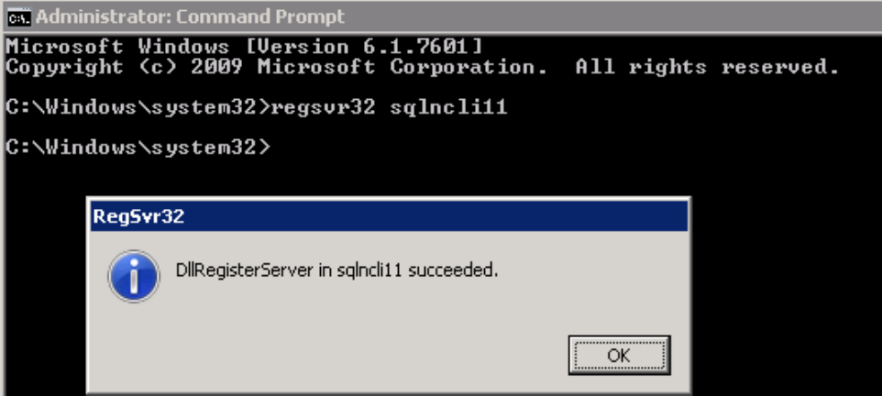
If there are both 32-bit and 64-bit versions of the provider, run the command against both DLLs. Use a 32-bit command prompt to register the 32-bit DLL.