Notitie
Voor toegang tot deze pagina is autorisatie vereist. U kunt proberen u aan te melden of de directory te wijzigen.
Voor toegang tot deze pagina is autorisatie vereist. U kunt proberen de mappen te wijzigen.
In this article, you'll learn about the debug toolbar available to SharePoint Framework (SPFx) developers when debugging SPFx solutions.
Use the SharePoint Framework Debug Toolbar, also called the developer toolbar, to test web parts and extensions on actual SharePoint pages. The local workbench was removed in SPFx 1.13.
Important
The SharePoint Framework Online workbench is deprecated starting on May 13, 2026 and will be retired on December 1, 2026.
For web parts, debug on actual SharePoint pages using the SharePoint Framework Debug Toolbar (developer toolbar). See Debug SharePoint Framework solutions on modern SharePoint pages.
This deprecation does not apply to the Copilot Workbench, which is fully supported for developing and testing Copilot UX components.
For Adaptive Card Extensions, follow the Viva Connections development guidance for the appropriate host. An ordinary web-part page doesn't replace every host-specific test surface.
To test SPFx solutions on a SharePoint site page, developers can add parameters to the URL (aka: querystring) to instruct SharePoint Online and the SharePoint Framework to load a manifest and component from the user's local machine. This uses the same process that the workbench uses. To learn more about debugging SPFx solutions in site pages, see Debug SharePoint Framework solutions on modern SharePoint pages.
SharePoint Framework Debug Toolbar
To aid developers in the development and debugging of their SPFx solutions, SharePoint adds the Debug Toolbar to the page when these debugging parameters are added to the URL.
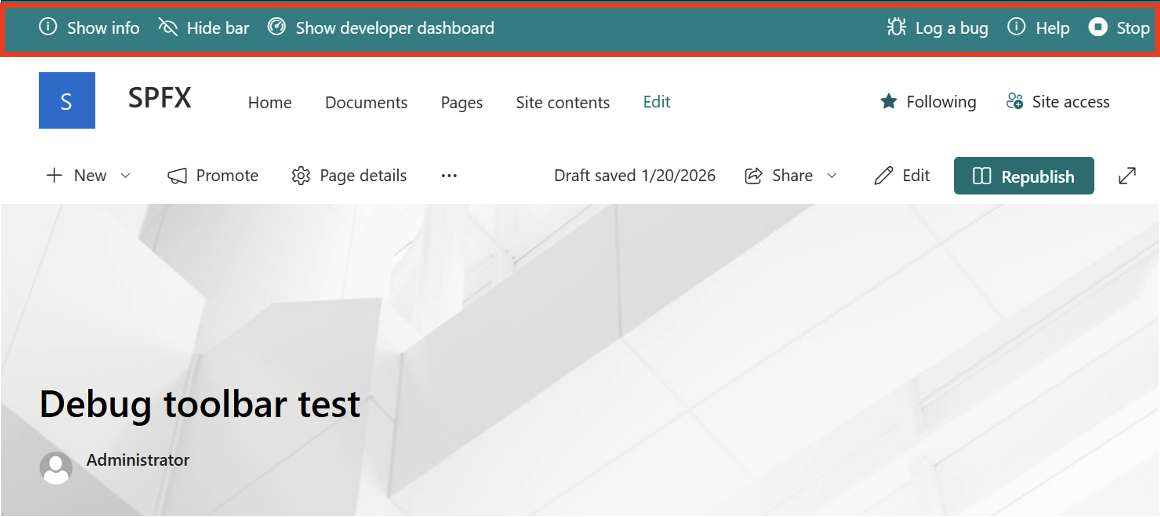
The Debug Toolbar has the following features:
- Show info: Use this feature to see information about the loaded manifest.
- Hide bar: You might want to see your SPFx solution without the Debug Toolbar visible. After clicking on "Hide bar" the Debug Toolbar will be hidden but you stay in debugging mode. To show the Debug Toolbar again simply reload the page.
- Show developer dashboard: Use this to toggle the developer dashboard on or off. To learn more about the developer dashboard, see Use the developer dashboard.
- Log a bug: This open a new tab loading the sp-dev-docs GitHub issue list which can you use to log SPFx issues.
- Help: Opens a new tab loading the SPFx documentation.
- Stop: When debug scripts are enabled and allowed once on a page, they are allowed throughout the browser session. Use this to disable the debug scripts from loading without ending your browser session or manually deleting the session data. You'll need to reload the page again with the debug URL parameters to start a new debug session.
When the site page is in edit mode, the Debug Toolbar will add another menu item for working with web parts:
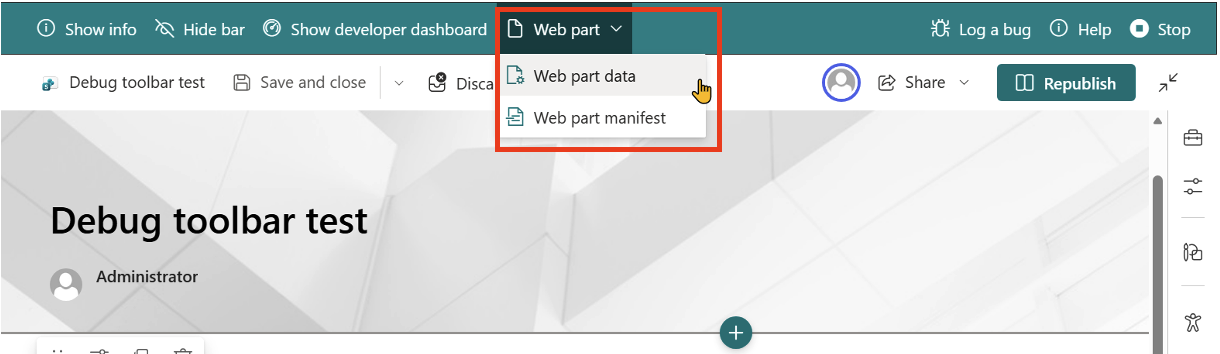
The Web Part menu enables developers to view the data for the currently selected web part, shown as JSON and HTML, and can be used as a reference to programmatically create pages with configured web parts.
It also shows the details in the manifest for the selected web part.
SPFx Developer Feedback
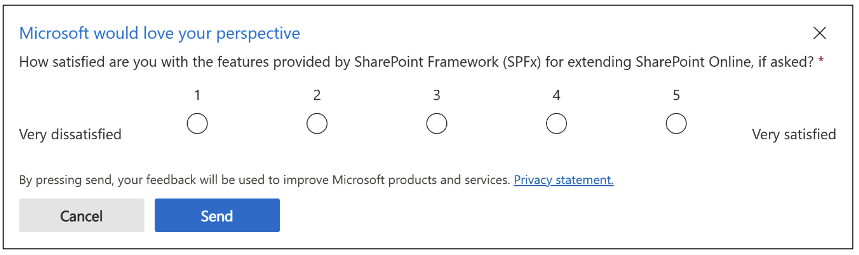
When the debug toolbar is activated on the site page, you may be prompted for your feedback for extending and customizing SharePoint with the SPFx. This official survey, displayed as a popup, is entirely optional and can be used as a way for developers to provide Microsoft in-product feedback.