秘訣
推薦項目: 從 Work IQ 開發工具 開始,支援專業程式碼宣告式代理程式和外掛程式案例。 請參閱 WIQD 快速入門。 工具組式指示仍然適用於需要工具組的指示的現有專案和工作流程。 在選擇工具之前,請先檢查 功能和目標體驗支援 : WIQD 不會以自訂引擎代理程式為目標。
MCP 應用程式是在 Microsoft 365 Copilot 內執行的互動式 UI 小工具,由模型內容通訊協定 (MCP) 伺服器提供。 它們可讓宣告式代理程式超越文字回應,直接在 Copilot 聊天中提供豐富且可採取動作的體驗。 您可以新增 MCP 伺服器型外掛程式,將 MCP 應用程式新增至宣告式代理程式,其工具會傳回互動式 UI。 Microsoft 365 Copilot 支援使用下列方法建立的 UI 小工具。
- MCP 應用程式 - MCP 的延伸功能,可讓 MCP 伺服器向主機提供互動式使用者介面。
- OpenAI Apps SDK - 基於 MCP Apps 標準構建 ChatGPT 應用程序的工具,具有額外的 ChatGPT 功能。
例如 MCP 伺服器外掛程式,請參閱 GitHub 上 Microsoft 365 Copilot 的 MCP 型互動式 UI 範例。
如需支援哪些 MCP 應用程式或 OpenAI Apps SDK 功能的詳細資料,請參閱 Copilot 中支援的 MCP 應用程式功能。
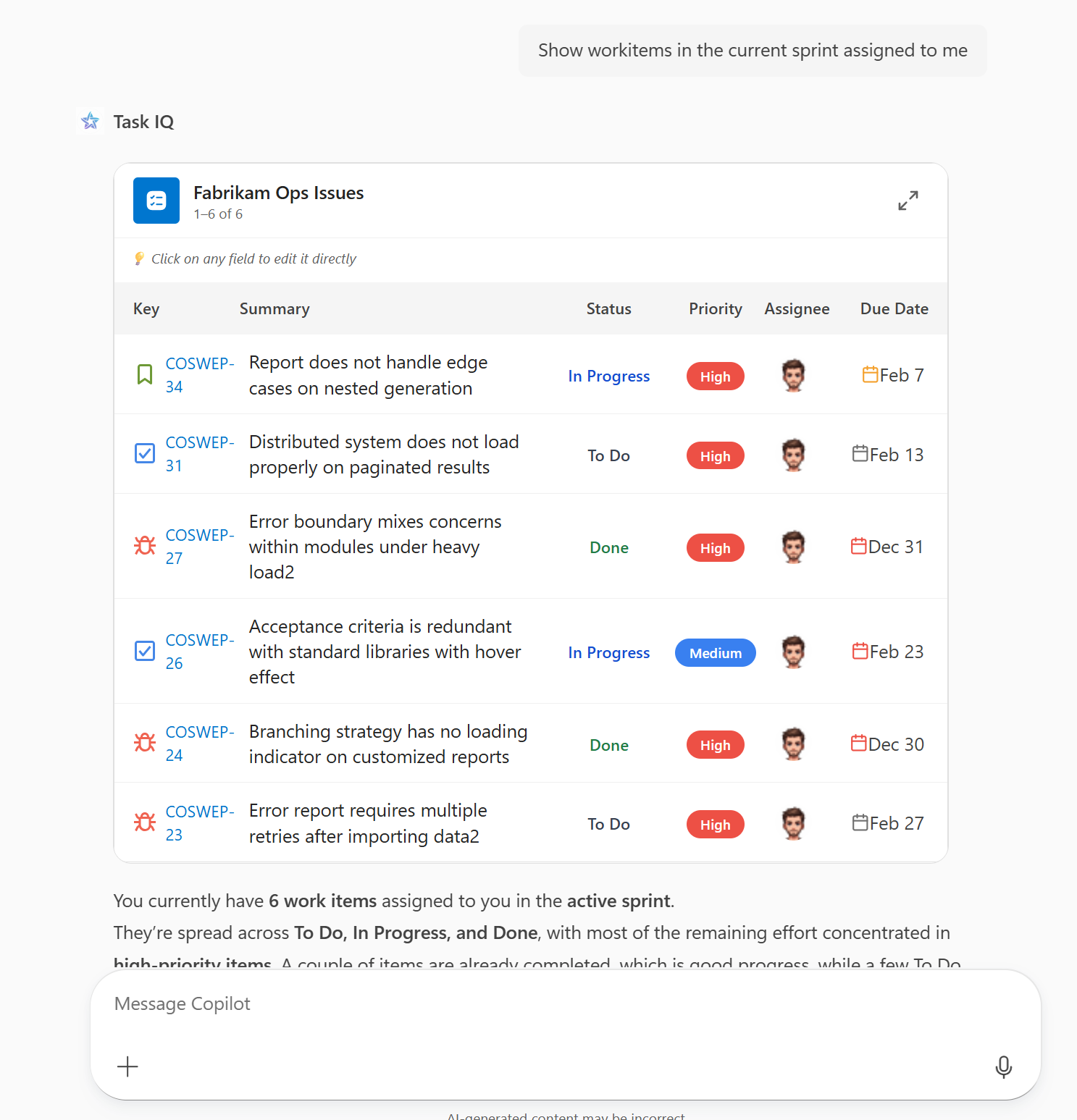
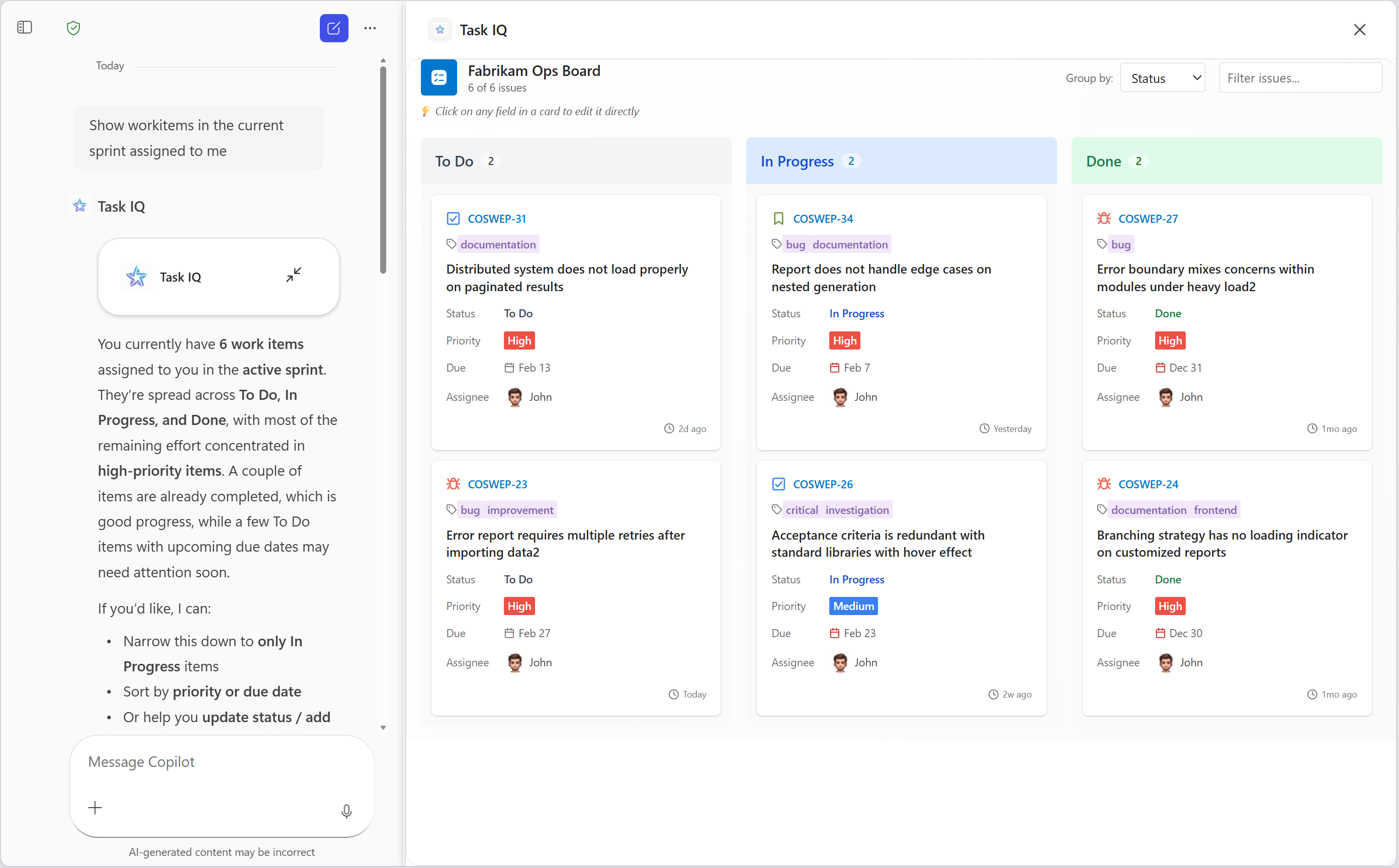
MCP 應用程式的先決條件
- 在 Copilot 擴充性選項的需求中指定的需求
- 提供 UI 小工具或您可以修改以實作 UI 小工具的遠端 MCP 伺服器
- 檢視 MCP 伺服器回應的工具,例如 MCP 檢查器
- Visual Studio Code
- Microsoft 365 Agents Toolkit (6.12.0 版或更新版本)
MCP 應用程式的 MCP 伺服器需求
- 驗證 - Copilot 支援 OAuth 2.1 和Microsoft Entra單一登入 (SSO) 。 基於開發目的,Copilot 使用 Agents Toolkit 中的 [無 ] 選項來支援匿名驗證。 如需驗證的詳細資訊,請參閱 在代理程式中設定 API 外掛程式的驗證。
-
允許的 URL - 您的 MCP 伺服器和身分識別提供者都必須允許下列 URL。
- CORS 的小工具主機 URL - Copilot 會在 MCP 伺服器特定主機下轉譯小工具 UI,其中包含下列 URL:
{hashed-mcp-domain}.widget-renderer.usercontent.microsoft.com,其中{hashed-mcp-domain}是 MCP 伺服器網域的 SHA-256 雜湊。 您可以使用 小工具主機 URL 產生器 ,根據您的 MCP 伺服器 URL 產生主機 URL。 - OAuth 2.1 重新導向 URI:
-
https://teams.microsoft.com/api/platform/v1.0/oAuthRedirect針對 Copilot -
https://vscode.dev/redirect讓 Visual Studio Code 使用代理工具組擷取工具
-
- Microsoft Entra SSO 重新導向 URI:
-
https://teams.microsoft.com/api/platform/v1.0/oAuthConsentRedirect針對 Copilot - Visual Studio Code 目前不支援用於擷取工具的 SSO
-
- CORS 的小工具主機 URL - Copilot 會在 MCP 伺服器特定主機下轉譯小工具 UI,其中包含下列 URL:
- UI 小工具 - 根據 MCP 應用程式或 OpenAI Apps SDK 需求實作 UI 小工具。
Copilot 中 MCP 應用程式的最佳做法
使用者體驗設計
如需 UX 設計最佳做法的詳細資訊,請參閱 Microsoft 365 Copilot 的宣告式代理程式中 MCP 應用程式的使用者體驗指導方針。
驗證 API 可用性
並非所有 window.openai.* API 都可在每個平台或主機上使用。 不支援的 API 是 undefined。 隨時檢查 API 可用性,並在 API 無法使用時提供後援。
範例
這個簡單的模式會在呼叫 API 之前進行檢查,以避免執行階段錯誤。
if (window.openai.callTool) {
  const result = await window.openai.callTool({ name: 'myTool', params: {} });
} else {
  // Handle unsupported case — show fallback UI, skip the feature, etc.
}
在此範例中,只有在主機支援 requestDisplayMode API 時,才會轉譯進入全螢幕模式的按鈕。
function FullScreenButton() {
  // Don't render the button if the host doesn't support it
  if (!window.openai.requestDisplayMode) {
    return null;
  }

  return (
    <button onClick={() => window.openai.requestDisplayMode({ mode: 'fullscreen' })}>
      Enter Fullscreen
    </button>
  );
}
或者,您的小工具可以檢查啟動時使用的所有 API 的可用性,並相應地啟用或停用功能。
interface PlatformCapabilities {
  canCallTools: boolean;
  canChangeDisplayMode: boolean;
  canSendMessages: boolean;
}

function detectCapabilities(): PlatformCapabilities {
  return {
    canCallTools: !!window.openai.callTool,
    canChangeDisplayMode: !!window.openai.requestDisplayMode,
    canSendMessages: !!window.openai.sendMessage,
  };
}

// Use at widget startup
const capabilities = detectCapabilities();

if (!capabilities.canCallTools) {
  // Show a reduced-functionality experience
}
建立和側載代理程式
從 MCP 伺服器建立宣告式代理程式、設定驗證和側載它,無論伺服器是否傳回 UI 小工具,都是相同的。 如需完整的逐步解說,請參閱 從 MCP 伺服器建置宣告式代理程式的外掛程式。
執行該逐步解說時,請記住下列 MCP 應用程式考量:
- 您的 MCP 伺服器必須根據 MCP 應用程式或 OpenAI Apps SDK 需求傳回 UI 小工具。 請參閱 MCP 應用程式的 MCP 伺服器需求。
- 根據預設,代理程式會使用 動態工具探索 ,並在執行階段解析伺服器的工具,包括傳回 UI 小工具的工具,因此您不需要手動新增工具。 如果您改為釘選一組固定的工具,請務必包含至少一個會傳回 UI 小工具的工具。
- 如果您的 MCP 伺服器仍在開發中且未實作驗證,請選取 [ 無 ] 做為驗證類型。 部署至生產環境之前,請先新增驗證。
測試代理程式
- 開啟瀏覽器並前往 https://m365.cloud.microsoft/chat。
- 在左側提要欄位中選取您的代理程式。 如果您沒有看到您的代理程式,請選取 [所有代理程式]。
- 要求代理執行叫用 MCP 伺服器的作業。
- 允許代理程式在出現提示時連線至 MCP 伺服器。
- 確認代理程式會轉譯 UI 小工具。
如果小工具未如預期般顯示或運作,請參閱疑難排解 Microsoft 365 Copilot 中的 MCP 應用程式。
Copilot 中支援的 MCP 應用程式功能
Microsoft 365 Copilot 支援下列功能。
元件橋接器
| OpenAI Apps SDK | MCP 應用程式等效項 | 支援 |
|---|---|---|
window.openai.toolInput |
app.ontoolinput |
✅ |
window.openai.toolOutput |
app.ontoolresult |
✅ |
window.openai.toolResponseMetadata |
app.ontoolresult → params._meta |
✅ |
window.openai.widgetState |
— | ✅ |
window.openai.setWidgetState(state) |
無法直接使用。 使用替代機制,包括 app.updateModelContext() |
✅ |
window.openai.callTool(name, args) |
app.callServerTool({ name, arguments }) |
✅ |
window.openai.sendFollowUpMessage({ prompt }) |
app.sendMessage({ ... }) |
✅ |
window.openai.uploadFile(file) |
— | ❌ |
window.openai.getFileDownloadUrl({ fileId }) |
— | ❌ |
window.openai.requestDisplayMode(...) |
app.requestDisplayMode({ mode }) |
✅ 僅 (全螢幕) |
window.openai.requestModal(...) |
— | ❌ |
window.openai.notifyIntrinsicHeight(...) |
app.sendSizeChanged({ width, height }) |
✅ |
window.openai.openExternal({ href }) |
app.openLink({ url }) |
✅ |
window.openai.setOpenInAppUrl({ href }) |
— | ✅ |
window.openai.theme |
app.getHostContext()?.theme |
✅ |
window.openai.displayMode |
app.getHostContext()?.displayMode |
✅ |
window.openai.maxHeight |
app.getHostContext()?.viewport?.maxHeight |
✅ |
window.openai.safeArea |
app.getHostContext()?.safeAreaInsets |
✅ |
window.openai.view |
— | ✅ |
window.openai.userAgent |
app.getHostContext()?.userAgent |
✅ |
window.openai.locale |
app.getHostContext()?.locale |
✅ |
| — | app.ontoolinputpartial |
❌ |
| — | app.ontoolcancelled |
❌ |
| — | app.getHostContext()?.availableDisplayModes |
❌ |
| — | app.getHostContext()?.toolInfo |
❌ |
| — | app.onhostcontextchanged |
❌ |
| — | app.onteardown |
❌ |
| — | app.sendLog({ level, data }) |
❌ |
| — | app.getHostVersion() |
❌ |
| — | app.getHostCapabilities() |
✅ |
工具描述元_meta欄位
| OpenAI Apps SDK | MCP 應用程式等效項 | 支援 |
|---|---|---|
_meta["openai/outputTemplate"] |
_meta.ui.resourceUri |
✅ |
_meta["openai/widgetAccessible"] |
_meta.ui.visibility (字串[]) |
❌ |
_meta["openai/visibility"] |
_meta.ui.visibility (字串[]) |
✅ |
_meta["openai/toolInvocation/invoking"] |
— | ❌ |
_meta["openai/toolInvocation/invoked"] |
— | ❌ |
_meta["openai/fileParams"] |
— | ❌ |
_meta["securitySchemes"] |
— | ❌ |
工具描述元註釋
| OpenAI Apps SDK | MCP 應用程式等效項 | 支援 |
|---|---|---|
readOnlyHint |
readOnlyHint |
✅ |
destructiveHint |
destructiveHint |
❌ |
openWorldHint |
openWorldHint |
❌ |
idempotentHint |
idempotentHint |
❌ |
元件資源_meta欄位
| OpenAI Apps SDK | MCP 應用程式等效項 | 支援 |
|---|---|---|
_meta["openai/widgetDescription"] |
— | ❌ |
_meta["openai/widgetPrefersBorder"] |
_meta.ui.prefersBorder |
❌ |
_meta["openai/widgetCSP"] |
_meta.ui.csp |
✅ |
_meta["openai/widgetDomain"] |
_meta.ui.domain |
❌ |
| — | _meta.ui.permissions |
❌ |
CSP 物件中的屬性
| OpenAI Apps SDK | MCP 應用程式等效項 | 支援 |
|---|---|---|
connect_domains |
connectDomains |
✅ |
resource_domains |
resourceDomains |
✅ |
frame_domains |
frameDomains |
❌ |
redirect_domains |
— | ❌ |
| — | baseUriDomains |
❌ |
主機提供的工具結果_meta欄位
| OpenAI Apps SDK | MCP 應用程式等效項 | 支援 |
|---|---|---|
_meta["openai/widgetSessionId"] |
— | ❌ |
用戶端提供的_meta欄位
| OpenAI Apps SDK | MCP 應用程式等效項 | 支援 |
|---|---|---|
_meta["openai/locale"] |
_meta["openai/locale"] |
✅ |
_meta["openai/userAgent"] |
_meta["openai/userAgent"] |
✅ |
_meta["openai/userLocation"] |
_meta["openai/userLocation"] |
✅ |
_meta["openai/subject"] |
— | ❌ |
關於 Copilot 中 MCP 應用程式的常見問題
什麼是 MCP 應用程式?
MCP 應用程式是由直接在 Microsoft 365 Copilot 內轉譯的 MCP 伺服器所提供的互動式 UI 小工具。 它們將聲明式代理擴展到純文字回應之外,實現資料視覺化、表單和任務管理介面等豐富體驗。
MCP Apps 和 OpenAI Apps SDK 有什麼不同?
MCP 應用程式 是 MCP 標準的開放延伸,可讓 MCP 伺服器向任何相容主機提供互動式 UI。 OpenAI Apps SDK 以 MCP Apps 標準為基礎,並新增 ChatGPT 特有的額外功能。 Microsoft 365 Copilot 同時支援這兩種功能,但並非所有功能都可供使用。 如需詳細資訊,請參閱 Copilot 中支援的 MCP 應用程式功能 。
我可以在開發期間使用不含驗證就能使用 MCP 應用程式嗎?
是。 基於開發目的支援匿名驗證。 不過,您必須先新增驗證,才能部署至生產環境。 OAuth 2.1 和 Microsoft Entra 單一登入 (SSO) 是支援的驗證方法。 如需詳細資料,請參閱 在代理程式中設定 API 外掛程式的驗證。